
Join us at FabCon Atlanta from March 16 - 20, 2026, for the ultimate Fabric, Power BI, AI and SQL community-led event. Save $200 with code FABCOMM.
Register now!The Power BI Data Visualization World Championships is back! It's time to submit your entry. Live now!
Hi,
I have to compare two different tables and create a column. Following is the sample input and output.
Input
Table 1
| Product |
| A |
| B |
| A |
| E |
| S |
| A |
Table 2
| List |
| A |
| B |
| C |
| D |
Output
| Product | Status |
| A | Available |
| B | Available |
| A | Available |
| E | NA |
| S | NA |
| A | Available |
Could anyone please guide me how to achieve this.
Any help is greatly appreciated!
Thanks,
Stanley
Solved! Go to Solution.
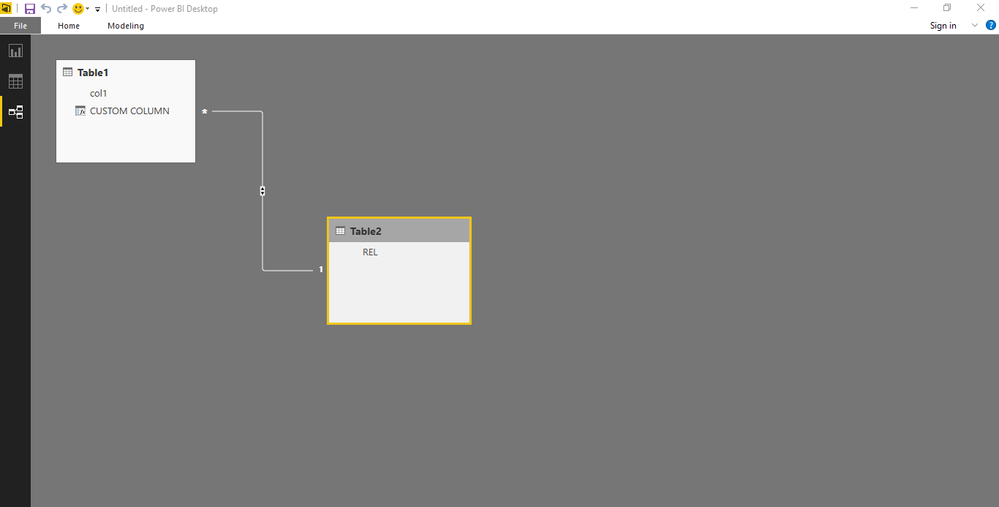
STEP 1 CREATE A RELATIONSHIP BETWEEN TWO TABLES
STEP 2 CREATE A CALCULATED COLUMN WITH IF AND RELATED AS SHOWN ABOVE.
Perhaps a measure in Table 1 like:
Status = IF(COUNTROWS(RELATEDTABLE(List))>0,"Available","NA")
Perhaps a measure in Table 1 like:
Status = IF(COUNTROWS(RELATEDTABLE(List))>0,"Available","NA")
STEP 1 CREATE A RELATIONSHIP BETWEEN TWO TABLES
STEP 2 CREATE A CALCULATED COLUMN WITH IF AND RELATED AS SHOWN ABOVE.
Thank you very much for the inputs. It worked.
The Power BI Data Visualization World Championships is back! It's time to submit your entry.
Check out the January 2026 Power BI update to learn about new features.
| User | Count |
|---|---|
| 56 | |
| 41 | |
| 39 | |
| 20 | |
| 20 |
| User | Count |
|---|---|
| 148 | |
| 110 | |
| 63 | |
| 37 | |
| 35 |