This time we’re going bigger than ever. Fabric, Power BI, SQL, AI and more. We're covering it all. You won't want to miss it.
Learn moreDid you hear? There's a new SQL AI Developer certification (DP-800). Start preparing now and be one of the first to get certified. Register now
I have a table which consists of a DateTime range. I want to graphically count the # of records that fall into that time range by the hour.
Table:
trx_no, trx_begin_dt, trx_en_dt, Start Date, Start Time
Start Date & Start Time are just separated from trx_begin_dt
The target should look something like this: https://imgur.com/G6NNI5M
But what I get by graphic the trx_begin_dt is this: https://imgur.com/a/H54eh6n
My idea was to create a calculated table which would consist of a single record for each hour used to acheive the desired graph, but I don't know how to go about doing it. I was hoping someone could might be able to help me go about acheiving this kind of table, or if there was another way of doing it.
Like this: https://imgur.com/a/LEVYH9j
Solved! Go to Solution.
Hi @v-yuta-msft ,
I was able to achieve the desired affect with a sub table in power query.
The table in question looks like this:
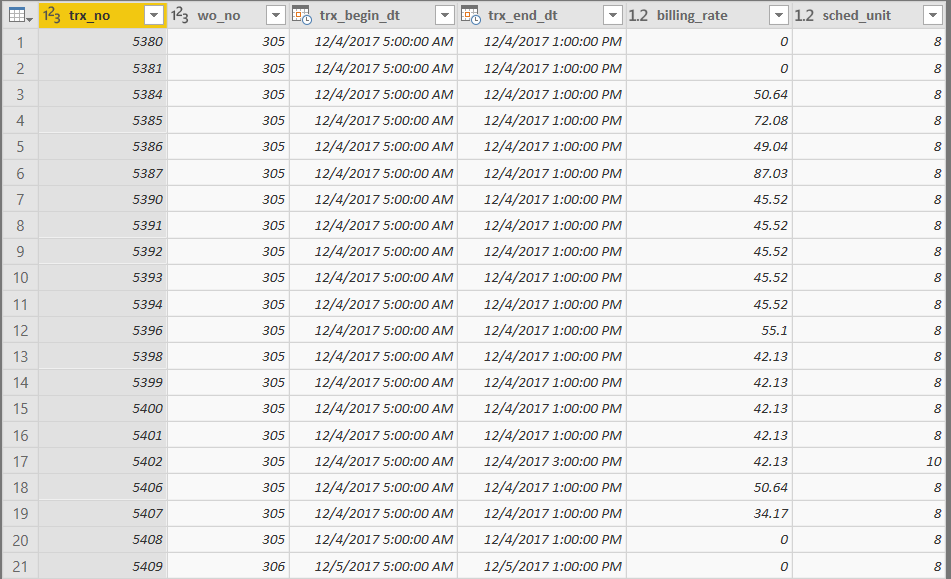
trx_no: transaction ID
trx_begin_dt: Start DateTime
trx_end_dt: End DateTime
sched_unit: # of hours in the booking (i.e End - Start)
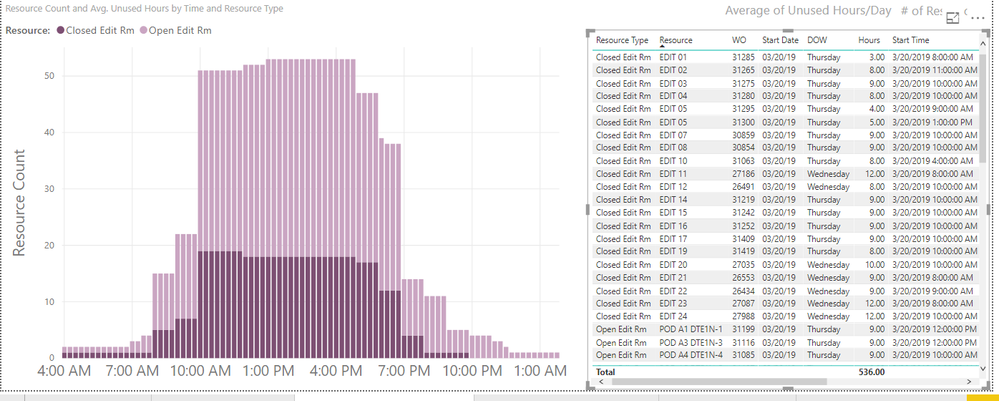
Each record represents a scheduled booking of a resource. I want to graph the utilization of resources hourly. I was able to achieve this effect by creating a sub table from the original table. Using List.Numbers basically make a list of numbers from 0 to # hours in 15 minute increments. i.e 2 Hr booking = {0, 1, 2, 3, 4, 5, 6, 7}. Then Table.ExpandListColumn to repeat the record for each number in the list. Then calculate dt_point which will be the Start Time + (15 minutes * sched_unit_index) used as a data point in the graph. The final graph will be a count of dt_point.
#"Added sched_unit_index" = Table.AddColumn(#"Filtered Rows", "sched_unit_index", each List.Numbers(0, 4*[sched_unit])),
#"Expanded" = Table.ExpandListColumn(#"Added sched_unit_index", "sched_unit_index"),
#"Added dt_point" = Table.AddColumn(Expanded, "dt_point", each [trx_begin_dt]+#duration(0,Number.RoundDown([sched_unit_index]*0.25),60*([sched_unit_index]*0.25-Number.RoundDown([sched_unit_index]*0.25)),0))
This query results in:
The graph (x: dt_point, y: resource count):
@Anonymous ,
Could you share more details about what which columns/measures/calculate columns are used in the stacked bar chart and what does the table structure look like?
Community Support Team _ Jimmy Tao
If this post helps, then please consider Accept it as the solution to help the other members find it more quickly.
Hi @v-yuta-msft ,
I was able to achieve the desired affect with a sub table in power query.
The table in question looks like this:
trx_no: transaction ID
trx_begin_dt: Start DateTime
trx_end_dt: End DateTime
sched_unit: # of hours in the booking (i.e End - Start)
Each record represents a scheduled booking of a resource. I want to graph the utilization of resources hourly. I was able to achieve this effect by creating a sub table from the original table. Using List.Numbers basically make a list of numbers from 0 to # hours in 15 minute increments. i.e 2 Hr booking = {0, 1, 2, 3, 4, 5, 6, 7}. Then Table.ExpandListColumn to repeat the record for each number in the list. Then calculate dt_point which will be the Start Time + (15 minutes * sched_unit_index) used as a data point in the graph. The final graph will be a count of dt_point.
#"Added sched_unit_index" = Table.AddColumn(#"Filtered Rows", "sched_unit_index", each List.Numbers(0, 4*[sched_unit])),
#"Expanded" = Table.ExpandListColumn(#"Added sched_unit_index", "sched_unit_index"),
#"Added dt_point" = Table.AddColumn(Expanded, "dt_point", each [trx_begin_dt]+#duration(0,Number.RoundDown([sched_unit_index]*0.25),60*([sched_unit_index]*0.25-Number.RoundDown([sched_unit_index]*0.25)),0))
This query results in:
The graph (x: dt_point, y: resource count):
Check out the April 2026 Power BI update to learn about new features.
If you have recently started exploring Fabric, we'd love to hear how it's going. Your feedback can help with product improvements.
| User | Count |
|---|---|
| 36 | |
| 32 | |
| 31 | |
| 21 | |
| 15 |
| User | Count |
|---|---|
| 66 | |
| 56 | |
| 31 | |
| 27 | |
| 22 |