Forum Discussion
Conditional background color based on the other column
- 7 years ago
So, the easiest way to do this would be to create a measure like:
Indicator = VAR __target = MAX('Table'[Target]) VAR __performance = MAX('Table'[Performance]) RETURN IF(__performance < __target,"Red","Green")Then you can base your conditional formatting off of that measure.
Hi harib
Yes, you can do the following.
Create a measure like below, you can replace my sum aggregation with Measures.
Conditional Formatting = INT( SUM( YourTable[Performance] ) > SUM( YourTable[Target] )
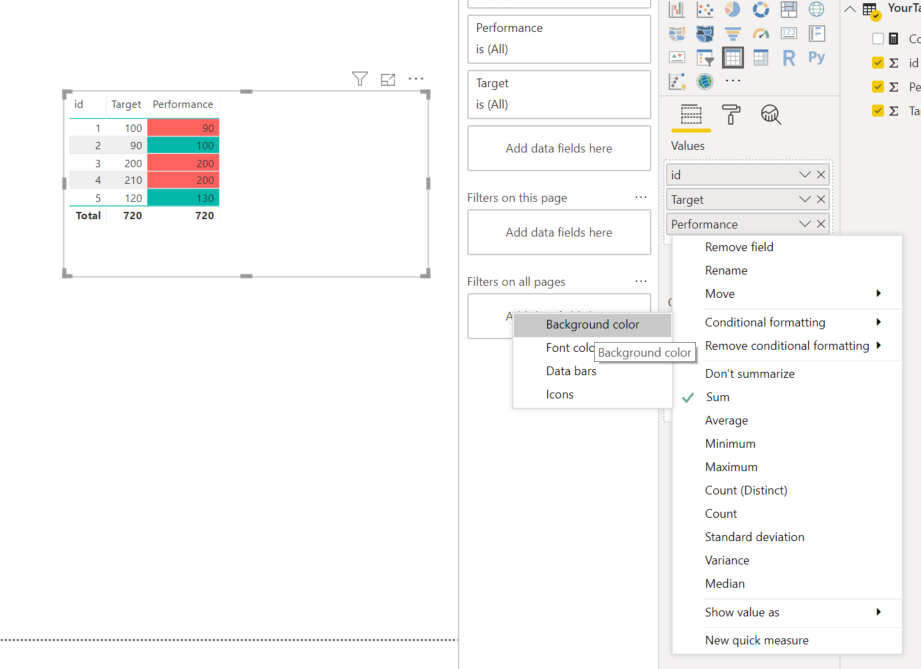
In table visual, under Filters > Values, right click on the field you want to apply the formatting on and go to Conditional formatting > Background color.
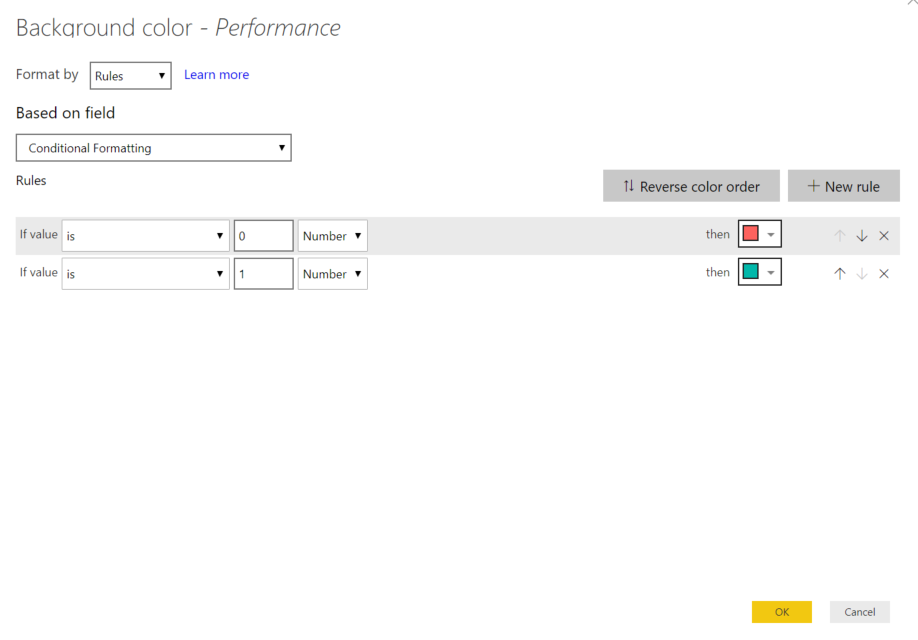
Nesxt, make sure you set everything as on the screenshot below.
Let me know if you ned any extra help
Mariusz
If this post helps, then please consider Accepting it as the solution.
Please feel free to connect with me.
- harib7 years ago
Post Patron
Hi Mariusz,
Forgot to inform you . Performance is a measure. It's not a column. Output is not coming
If both are columns then it's working superb.
Can u please look into that .Thanks in advance
Thanks
- Mariusz7 years ago
Community Champion
Hi harib
Please see the below Measure adjusted for use with Measure, the rest is the same as previous post.Conditional Formatting = INT( [Performance] > [Target] )
Best Regards,
Mariusz
If this post helps, then please consider Accepting it as the solution.
Please feel free to connect with me.