Join us at FabCon Atlanta from March 16 - 20, 2026, for the ultimate Fabric, Power BI, AI and SQL community-led event. Save $200 with code FABCOMM.
Register now!The Power BI Data Visualization World Championships is back! Get ahead of the game and start preparing now! Learn more
I have two tables as shown below:
Partner
| Code | Partner | Backlog |
| 1111 | One | 500 |
| 2222 | Two | 100 |
| 3333 | Three | 300 |
Project History
| Partner Code | Amount | Project |
| 1111 | 300 | Proj1 |
| 1111 | 100 | Proj2 |
| 2222 | 400 | Proj3 |
When I combine the tables I get the below result:
| Partner | Code | Amount |
| One | 1111 | 400 |
| Two | 2222 | 400 |
However, what I'd like to see is the below:
| Partner | Code | Amount |
| One | 1111 | 400 |
| Two | 2222 | 400 |
| Three | 3333 | 0 |
Is there anyway to accomplish the above without actually merging the queries? The two tables are already large and would like to avoid that if possible.
Solved! Go to Solution.
Hi @Anonymous,
I try to reproduce your scenario, and get expected result. Please follow the steps below.
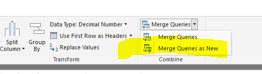
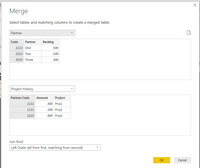
1. In query Editor, please click "Merge query as new" (highlighted in yellow). Merge the two tables by Code shown in picture2.picture1
picture2
2. You will get the table below(Picture3), then remove the Backlog, Parter Code and Project fields.Picture3
3. Then click "Group by" as the picture4 shown.Picture4
4. Click "Apply" on Home page. You will get expected result shown in Picture5, and review my query statement.Picture5
let
Source = Table.NestedJoin(Partner,{"Code"},#"Project History",{"Partner Code"},"Project History",JoinKind.LeftOuter),
#"Expanded Project History" = Table.ExpandTableColumn(Source, "Project History", {"Partner Code", "Amount", "Project"}, {"Project History.Partner Code", "Project History.Amount", "Project History.Project"}),
#"Removed Columns" = Table.RemoveColumns(#"Expanded Project History",{"Backlog", "Project History.Partner Code", "Project History.Project"}),
#"Grouped Rows" = Table.Group(#"Removed Columns", {"Code", "Partner"}, {{"Amount", each List.Sum([Project History.Amount]), type number}})
in
#"Grouped Rows"
Best Regards,
Angelia
Hi @Anonymous,
I try to reproduce your scenario, and get expected result. Please follow the steps below.
1. In query Editor, please click "Merge query as new" (highlighted in yellow). Merge the two tables by Code shown in picture2.picture1
picture2
2. You will get the table below(Picture3), then remove the Backlog, Parter Code and Project fields.Picture3
3. Then click "Group by" as the picture4 shown.Picture4
4. Click "Apply" on Home page. You will get expected result shown in Picture5, and review my query statement.Picture5
let
Source = Table.NestedJoin(Partner,{"Code"},#"Project History",{"Partner Code"},"Project History",JoinKind.LeftOuter),
#"Expanded Project History" = Table.ExpandTableColumn(Source, "Project History", {"Partner Code", "Amount", "Project"}, {"Project History.Partner Code", "Project History.Amount", "Project History.Project"}),
#"Removed Columns" = Table.RemoveColumns(#"Expanded Project History",{"Backlog", "Project History.Partner Code", "Project History.Project"}),
#"Grouped Rows" = Table.Group(#"Removed Columns", {"Code", "Partner"}, {{"Amount", each List.Sum([Project History.Amount]), type number}})
in
#"Grouped Rows"
Best Regards,
Angelia
If you are merging the two queries you should be able to control the behavior in question with the Join Kind option:
The Power BI Data Visualization World Championships is back! Get ahead of the game and start preparing now!
| User | Count |
|---|---|
| 38 | |
| 35 | |
| 33 | |
| 32 | |
| 29 |
| User | Count |
|---|---|
| 134 | |
| 96 | |
| 78 | |
| 67 | |
| 65 |