cancel
Showing results for 
Search instead for 
Did you mean: 

Learn from the best! Meet the four finalists headed to the FINALS of the Power BI Dataviz World Championships! Register now

Reply
Someguy154
Frequent Visitor

Column chart help

Hello everyone,


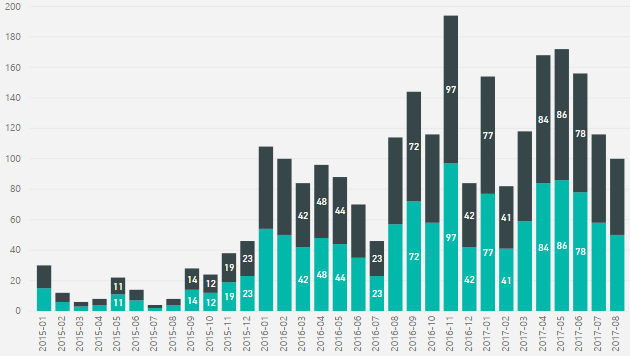
I'm making Power BI graphs with data from a Sharepoint list, in which I have customers who are subscribed to a service. The service has a contract start date, and I want to make a column chart that shows the number of clients created per month.


I have made calculated columns based on the date the contract is set to start, to show the month and year (since I added all the data from excel, the created date is obviously unusable), and the column chart works. With one set of dates. However, if the customer chooses to extend their contract, I would like to archive the old start date in a seperate Sharepoint column, with its own calculated column to show the year and month of the old start date.


Otherwise, it'll either look as if there were no customers 2 years ago, or very little activity right now, because all the customers who extend will show as new customers, or old customers from years ago. However, I can't make it show the data right. Without a Created date to use, my axis is based on the current calculated column (month+year), same as my value, and so it ends up showing the same number of clients for the archived calculated column (my archived clients) as for the current calculated column (my current clients). I want it to look more or less the way it does now, but with accurate numbers for my archived clients.


I'm sure there's an incredibly obvious solution I'm not seeing, but it seems quicker to ask for help.


EDIT: Oh, and ideally, I'd have a slicer that could turn on or off one of the values, letting me toggle between both and one of them.
 

powerbiexample.png


1 ACCEPTED SOLUTION
v-sihou-msft
Microsoft Employee
Microsoft Employee

@Someguy154


Based on your description, it sounds like a typical "slow changing dimension" scenario. 


It's better to keep all start date into one column, then add "End Date" column, and a "Status" column to tag which entry is Current. For more details, please refer to articles below:


PowerPivot and the Slowly Changing Dimensions


Regards,

View solution in original post

1 REPLY 1
v-sihou-msft
Microsoft Employee
Microsoft Employee

@Someguy154


Based on your description, it sounds like a typical "slow changing dimension" scenario. 


It's better to keep all start date into one column, then add "End Date" column, and a "Status" column to tag which entry is Current. For more details, please refer to articles below:


PowerPivot and the Slowly Changing Dimensions


Regards,

Helpful resources

Announcements
Join our Fabric User Panel

Join our Fabric User Panel

Share feedback directly with Fabric product managers, participate in targeted research studies and influence the Fabric roadmap.

February Power BI Update Carousel

Power BI Monthly Update - February 2026

Check out the February 2026 Power BI update to learn about new features.

FabCon Atlanta 2026 carousel

FabCon Atlanta 2026

Join us at FabCon Atlanta, March 16-20, for the ultimate Fabric, Power BI, AI and SQL community-led event. Save $200 with code FABCOMM.