FabCon is coming to Atlanta
Join us at FabCon Atlanta from March 16 - 20, 2026, for the ultimate Fabric, Power BI, AI and SQL community-led event. Save $200 with code FABCOMM.
Register now!- Power BI forums
- Get Help with Power BI
- Desktop
- Service
- Report Server
- Power Query
- Mobile Apps
- Developer
- DAX Commands and Tips
- Custom Visuals Development Discussion
- Health and Life Sciences
- Power BI Spanish forums
- Translated Spanish Desktop
- Training and Consulting
- Instructor Led Training
- Dashboard in a Day for Women, by Women
- Galleries
- Data Stories Gallery
- Themes Gallery
- Contests Gallery
- QuickViz Gallery
- Quick Measures Gallery
- Visual Calculations Gallery
- Notebook Gallery
- Translytical Task Flow Gallery
- TMDL Gallery
- R Script Showcase
- Webinars and Video Gallery
- Ideas
- Custom Visuals Ideas (read-only)
- Issues
- Issues
- Events
- Upcoming Events
The Power BI Data Visualization World Championships is back! Get ahead of the game and start preparing now! Learn more
- Power BI forums
- Forums
- Get Help with Power BI
- Desktop
- Column Hierarchy Transformation
- Subscribe to RSS Feed
- Mark Topic as New
- Mark Topic as Read
- Float this Topic for Current User
- Bookmark
- Subscribe
- Printer Friendly Page

- Mark as New
- Bookmark
- Subscribe
- Mute
- Subscribe to RSS Feed
- Permalink
- Report Inappropriate Content
Column Hierarchy Transformation
Hi all!
I hope you can guide me in the right direction.
I have a dataset that looks like this:

I want to use this dataset in multiple graphs, and for that I want the source data to look as follows. I have played around with PowerQuery and can't seem to get the right format. As long as I can replicate the steps in PowerBI to transform the data, anything goes. Hopefully some of you have encountered a similar problem already.
I copy two tables that are both acceptable and desired outcomes.
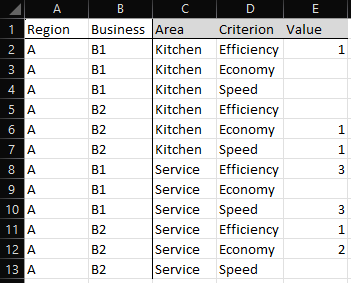
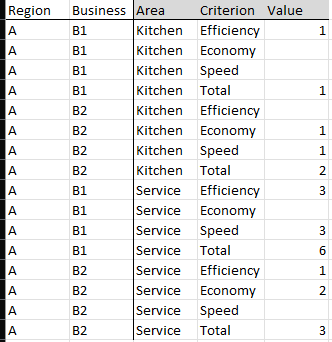
I attach a link to the sample and results file here:
Solved! Go to Solution.


- Mark as New
- Bookmark
- Subscribe
- Mute
- Subscribe to RSS Feed
- Permalink
- Report Inappropriate Content
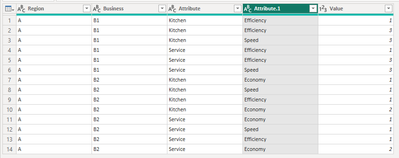
Hello! I loaded your data into Power BI, then went to Power Query to transform:

The first step I did was to select the Kitchen and Service columns and unpivoted the columns which added Kitchen and Service to the rows and added a value column.
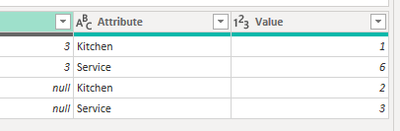
Next, I removed the value column (you are better off creating a total measure in Power BI) and moved the Attribute column to after business

Next, I selected all of the columns after Attribute and unpivoted columns
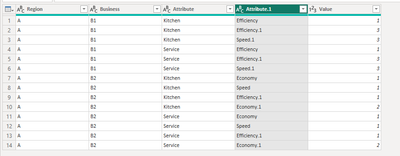
And, finally, I removed the .1 in Attribute.1 column.
let
Source = Table.FromRows(Json.Document(Binary.Decompress(Binary.FromText("i45WclTSUXIyBBIgDEEgljGECaLMlGJ1oOqMEApA2AiJBiuOjQUA", BinaryEncoding.Base64), Compression.Deflate)), let _t = ((type nullable text) meta [Serialized.Text = true]) in type table [Region = _t, Business = _t, Efficiency = _t, Economy = _t, Speed = _t, Kitchen = _t, Efficiency.1 = _t, Economy.1 = _t, Speed.1 = _t, Service = _t]),
#"Changed Type" = Table.TransformColumnTypes(Source,{{"Region", type text}, {"Business", type text}, {"Efficiency", Int64.Type}, {"Economy", Int64.Type}, {"Speed", Int64.Type}, {"Kitchen", Int64.Type}, {"Efficiency.1", Int64.Type}, {"Economy.1", Int64.Type}, {"Speed.1", Int64.Type}, {"Service", Int64.Type}}),
#"Unpivoted Columns" = Table.UnpivotOtherColumns(#"Changed Type", {"Region", "Business", "Efficiency", "Economy", "Speed", "Efficiency.1", "Economy.1", "Speed.1"}, "Attribute", "Value"),
#"Removed Columns" = Table.RemoveColumns(#"Unpivoted Columns",{"Value"}),
#"Reordered Columns" = Table.ReorderColumns(#"Removed Columns",{"Region", "Business", "Attribute", "Efficiency", "Economy", "Speed", "Efficiency.1", "Economy.1", "Speed.1"}),
#"Unpivoted Columns1" = Table.UnpivotOtherColumns(#"Reordered Columns", {"Region", "Business", "Attribute"}, "Attribute.1", "Value"),
#"Replaced Value" = Table.ReplaceValue(#"Unpivoted Columns1",".1","",Replacer.ReplaceText,{"Attribute.1"})
in
#"Replaced Value"
Proud to be a Super User! |  |
- Mark as New
- Bookmark
- Subscribe
- Mute
- Subscribe to RSS Feed
- Permalink
- Report Inappropriate Content
Thank you for providing the pbix!
- Mark as New
- Bookmark
- Subscribe
- Mute
- Subscribe to RSS Feed
- Permalink
- Report Inappropriate Content
Hello! I loaded your data into Power BI, then went to Power Query to transform:
The first step I did was to select the Kitchen and Service columns and unpivoted the columns which added Kitchen and Service to the rows and added a value column.
Next, I removed the value column (you are better off creating a total measure in Power BI) and moved the Attribute column to after business
Next, I selected all of the columns after Attribute and unpivoted columns
And, finally, I removed the .1 in Attribute.1 column.
let
Source = Table.FromRows(Json.Document(Binary.Decompress(Binary.FromText("i45WclTSUXIyBBIgDEEgljGECaLMlGJ1oOqMEApA2AiJBiuOjQUA", BinaryEncoding.Base64), Compression.Deflate)), let _t = ((type nullable text) meta [Serialized.Text = true]) in type table [Region = _t, Business = _t, Efficiency = _t, Economy = _t, Speed = _t, Kitchen = _t, Efficiency.1 = _t, Economy.1 = _t, Speed.1 = _t, Service = _t]),
#"Changed Type" = Table.TransformColumnTypes(Source,{{"Region", type text}, {"Business", type text}, {"Efficiency", Int64.Type}, {"Economy", Int64.Type}, {"Speed", Int64.Type}, {"Kitchen", Int64.Type}, {"Efficiency.1", Int64.Type}, {"Economy.1", Int64.Type}, {"Speed.1", Int64.Type}, {"Service", Int64.Type}}),
#"Unpivoted Columns" = Table.UnpivotOtherColumns(#"Changed Type", {"Region", "Business", "Efficiency", "Economy", "Speed", "Efficiency.1", "Economy.1", "Speed.1"}, "Attribute", "Value"),
#"Removed Columns" = Table.RemoveColumns(#"Unpivoted Columns",{"Value"}),
#"Reordered Columns" = Table.ReorderColumns(#"Removed Columns",{"Region", "Business", "Attribute", "Efficiency", "Economy", "Speed", "Efficiency.1", "Economy.1", "Speed.1"}),
#"Unpivoted Columns1" = Table.UnpivotOtherColumns(#"Reordered Columns", {"Region", "Business", "Attribute"}, "Attribute.1", "Value"),
#"Replaced Value" = Table.ReplaceValue(#"Unpivoted Columns1",".1","",Replacer.ReplaceText,{"Attribute.1"})
in
#"Replaced Value"
Proud to be a Super User! | |
- Mark as New
- Bookmark
- Subscribe
- Mute
- Subscribe to RSS Feed
- Permalink
- Report Inappropriate Content
Thank you for the visibility on the steps! This was great.
- Mark as New
- Bookmark
- Subscribe
- Mute
- Subscribe to RSS Feed
- Permalink
- Report Inappropriate Content
You're very welcome!
Proud to be a Super User! | |


- Mark as New
- Bookmark
- Subscribe
- Mute
- Subscribe to RSS Feed
- Permalink
- Report Inappropriate Content
Helpful resources

Power BI Dataviz World Championships
The Power BI Data Visualization World Championships is back! Get ahead of the game and start preparing now!

Power BI Monthly Update - December 2025
Check out the December 2025 Power BI Holiday Recap!

FabCon Atlanta 2026
Join us at FabCon Atlanta, March 16-20, for the ultimate Fabric, Power BI, AI and SQL community-led event. Save $200 with code FABCOMM.

| User | Count |
|---|---|
| 40 | |
| 35 | |
| 34 | |
| 31 | |
| 27 |


| User | Count |
|---|---|
| 136 | |
| 102 | |
| 68 | |
| 66 | |
| 58 |


