
Join us at FabCon Atlanta from March 16 - 20, 2026, for the ultimate Fabric, Power BI, AI and SQL community-led event. Save $200 with code FABCOMM.
Register now!The Power BI Data Visualization World Championships is back! Get ahead of the game and start preparing now! Learn more
Hi!
I'm new to PowerBI and trying to make my first report related to data coming from EV charges. I'm stuck on how to make a column chart of a count of requested energy. This energyRequested remains constant for each charge but the data is per minute and not per charge.
This is my (simplified) dataset:
| Time | chargeID | energyRequested | Current |
| 09:52 | 7 | 20 | 16 |
| 09:53 | 7 | 20 | 16 |
| 09:54 | 7 | 20 | 15 |
| 09:54 | 8 | 25 | 11 |
| 09:55 | 7 | 20 | 15 |
| 09:55 | 8 | 25 | 11 |
| 09:56 | 7 | 20 | 15 |
| 09:56 | 8 | 25 | 11 |
| 09:57 | 8 | 25 | 10 |
As you can see, there are two charges happening (with ID 7 and 😎 and these require 20 and 25 kWh respectively.
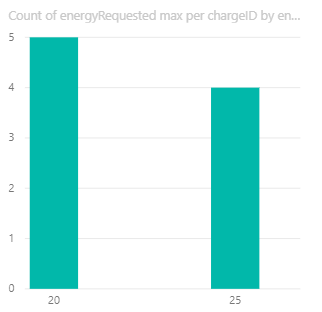
I have made this barchart, which is close to what I'm looking for:
To make this, I used a quick measure 'Max per category' with 'Count of energyRequested' as base value and 'chargeID' as category. However, in the desired chart, each bar should only be 1 high as both 20 and 25 only appeared for 1 charge each. How can I do this? Thanks!
Solved! Go to Solution.
@Anonymous
The quickest way (perhaps not the most efficient one depending on the size of your tables) would be to create another table in which you keep only the most recent rows per ID:
NewTable =
FILTER (
Table1,
Table1[Time] = CALCULATE ( MAX ( Table1[Time] ), ALLEXCEPT ( Table1, Table1[chargeID] ) )
)
and then do the same as we did previously, but with the new table instead:
1. Place NewTable[energyRequested] in the x-axis of your chart
2. Place this measure in the chart:
Measure = DISTINCTCOUNT( NewTable[chargeID] )
Please mark the question solved when done and consider giving kudos if posts are helpful.
Cheers ![]()
Hi @Anonymous
Try this:
1. Place Table1[energyRequested] in the x-axis of your chart
2. Place this measure in the chart:
Measure = DISTINCTCOUNT( Table1[chargeID] )
Please mark the question solved when done and consider giving kudos if posts are helpful.
Cheers ![]()
Works perfectly, thanks! A quick follow-up question;
Let's say a user changed their energyRequested during the charge, so the data might look like this (bold indicates changes😞
| Time | chargeID | energyRequested | Current |
| 09:52 | 7 | 20 | 16 |
| 09:53 | 7 | 20 | 16 |
| 09:54 | 7 | 20 | 15 |
| 09:54 | 8 | 25 | 11 |
| 09:55 | 7 | 30 | 15 |
| 09:55 | 8 | 25 | 11 |
| 09:56 | 7 | 30 | 15 |
| 09:56 | 8 | 25 | 11 |
| 09:57 | 8 | 25 | 10 |
How can I now make sure only the most recent (or highest) value is taken? i.e. how do I make sure the chart only has a column at 25 and 30, and not at 20?
@Anonymous
The quickest way (perhaps not the most efficient one depending on the size of your tables) would be to create another table in which you keep only the most recent rows per ID:
NewTable =
FILTER (
Table1,
Table1[Time] = CALCULATE ( MAX ( Table1[Time] ), ALLEXCEPT ( Table1, Table1[chargeID] ) )
)
and then do the same as we did previously, but with the new table instead:
1. Place NewTable[energyRequested] in the x-axis of your chart
2. Place this measure in the chart:
Measure = DISTINCTCOUNT( NewTable[chargeID] )
Please mark the question solved when done and consider giving kudos if posts are helpful.
Cheers ![]()
The Power BI Data Visualization World Championships is back! Get ahead of the game and start preparing now!
| User | Count |
|---|---|
| 41 | |
| 38 | |
| 36 | |
| 30 | |
| 28 |
| User | Count |
|---|---|
| 128 | |
| 88 | |
| 79 | |
| 67 | |
| 62 |