cancel
Showing results for 
Search instead for 
Did you mean: 

The Power BI Data Visualization World Championships is back! Get ahead of the game and start preparing now! Learn more

Reply
Anonymous
Not applicable

Choose which line (line = column on my table) appears on the chart

Hello there,


I have this line chart where the X axis is a date column and on the Y axis I have three different lines, each one representing one calculated column from my table. I want to be able to choose which ones appear on the chart, because they are very similar and the data labels don't help much being so close to each other.


Is there any way to dynamically select one, two, n lines to show in the line chart? 


Thank you for your time and patience.

1 ACCEPTED SOLUTION

Hi, @Anonymous 

This is my test data:
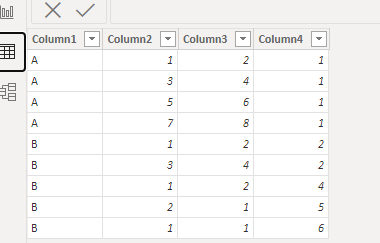
vyueyunzhmsft_0-1664789948653.png

We need create a table to put the field in slice:
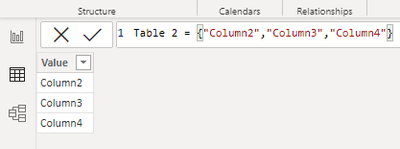
vyueyunzhmsft_1-1664790036562.png


Here are the steps you can follow:

(1)We can create three measures:

Measure = IF("Column2" in SELECTCOLUMNS('Table 2',"1",'Table 2'[Value]),SUM('Table'[Column2]),BLANK())
Measure 2 = IF("Column3" in SELECTCOLUMNS('Table 2',"1",'Table 2'[Value]),SUM('Table'[Column3]),BLANK())
Measure 3 = IF("Column4" in SELECTCOLUMNS('Table 2',"1",'Table 2'[Value]),SUM('Table'[Column4]),BLANK())


(2)Then we can put the measures in the line chart and we can meet your need:
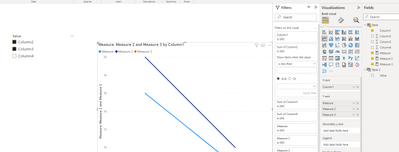
vyueyunzhmsft_2-1664790068005.png


If this method does not meet your needs, you can provide us with your special sample data and the desired output sample data in the form of tables, so that we can better help you solve the problem.


Best Regards,

Aniya Zhang

If this post helps, then please consider Accept it as the solution to help the other members find it more quickly


View solution in original post

5 REPLIES 5
v-yueyunzh-msft
Community Support
Community Support

Hi , @Anonymous 

According to your description , you want to show different Y-axis depending on the options. Right?
Here are the steps you can refer to :

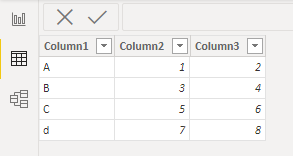
(1)This is  my test data:

vyueyunzhmsft_0-1664767214795.png

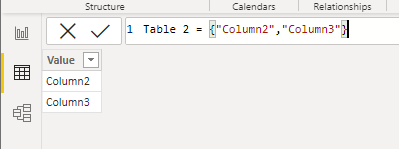
(2)We can create a Table which includes the Y-axis fields in the visual:

vyueyunzhmsft_1-1664767248876.png

(3)We can create a measure which will put in the Y-axis of the line chart:

Measure = IF( SELECTEDVALUE('Table 2'[Value]) ="Column2" , SUM('Table'[Column2]) , SUM('Table'[Column3]))

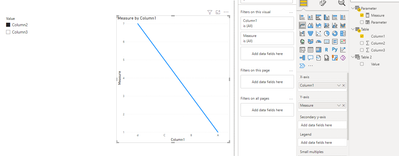
(4)Then we can put the field in the line chart and put the 'Table2'[value] in the slice and then we can meet your need:

vyueyunzhmsft_2-1664767337715.png


Best Regards,

Aniya Zhang

If this post helps, then please consider Accept it as the solution to help the other members find it more quickly


Anonymous
Not applicable

Thank you so much for your solution! I created a Switch clause because there were a lot of options. I can now see the chosen line in a chart.


Is there a way to re-formulate it in order to be able to select more than one value? 


Thank you,

Hi, @Anonymous 

This is my test data:

vyueyunzhmsft_0-1664789948653.png

We need create a table to put the field in slice:

vyueyunzhmsft_1-1664790036562.png


Here are the steps you can follow:

(1)We can create three measures:

Measure = IF("Column2" in SELECTCOLUMNS('Table 2',"1",'Table 2'[Value]),SUM('Table'[Column2]),BLANK())
Measure 2 = IF("Column3" in SELECTCOLUMNS('Table 2',"1",'Table 2'[Value]),SUM('Table'[Column3]),BLANK())
Measure 3 = IF("Column4" in SELECTCOLUMNS('Table 2',"1",'Table 2'[Value]),SUM('Table'[Column4]),BLANK())


(2)Then we can put the measures in the line chart and we can meet your need:

vyueyunzhmsft_2-1664790068005.png


If this method does not meet your needs, you can provide us with your special sample data and the desired output sample data in the form of tables, so that we can better help you solve the problem.


Best Regards,

Aniya Zhang

If this post helps, then please consider Accept it as the solution to help the other members find it more quickly


Anonymous
Not applicable

Thank you very much, this was definitely what I was looking for!


It's so useful that I will save this post for future reports where I need something like it.


Again, thank you!

lbendlin
Super User
Super User

Yes, read about Field Parameters.  They are ideal for such a scenario.  Or - enable Personalize visuals and teach your users how to use that awesome feature.

Helpful resources

Announcements
Power BI DataViz World Championships

Power BI Dataviz World Championships

The Power BI Data Visualization World Championships is back! Get ahead of the game and start preparing now!

December 2025 Power BI Update Carousel

Power BI Monthly Update - December 2025

Check out the December 2025 Power BI Holiday Recap!

FabCon Atlanta 2026 carousel

FabCon Atlanta 2026

Join us at FabCon Atlanta, March 16-20, for the ultimate Fabric, Power BI, AI and SQL community-led event. Save $200 with code FABCOMM.