


cancel
Showing results forย 
Search instead forย 
Did you mean:ย 

Try your skills in the Power BI Dataviz World Championship! Round one ends June 26. Join now

Reply
Anonymous
Not applicable

Can't see image in table from Sharepoint in Desktop but can see it if I use Image button.

I have this strange problem. When using desktop, I have images saved on sharepoint, I have access to it. I use a simple table that connects a companyID to URL of the image, so the Logo is diplayed properly.

I can see the logos in the table when I publish it online but I can't see them in the same table in Desktop. If I use the "Image" button and select an .jpg from Sharepoint it displays properly in Desktop. Please refer to images below, any suggestions on how to fix that would be more than helpful. I tried everything, even trying to store images localy and then convert them using Base64 code (some of the images didn't display properly).

Online.jpgDeskt.jpg


1 ACCEPTED SOLUTION
dax
Community Support
Community Support

Hi kohckamyxa,

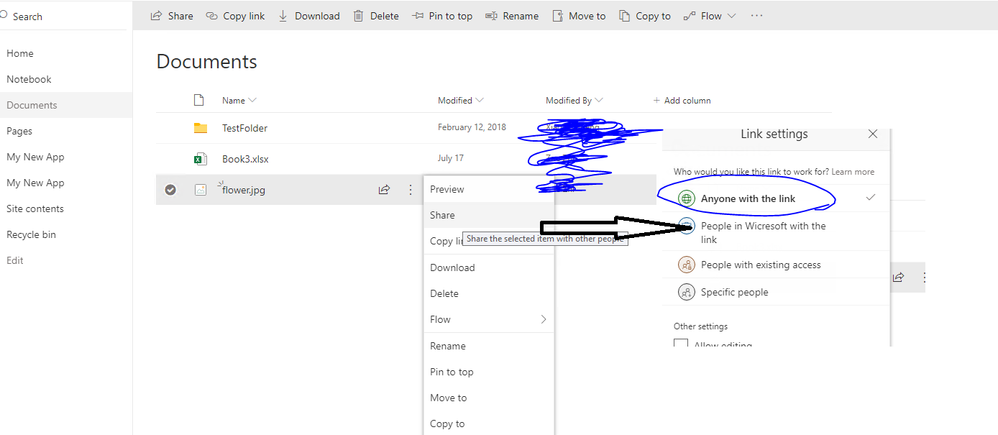
Based on my test, this might be related to permission. When I set image permission in sharepoint like below

129.png

Then use get data->sharepoint folder, add a custom column to display full path of image like below

l

et

    Source = SharePoint.Files("https://xxxxxxx.com", [ApiVersion = 15]),

    #"Added Custom" = Table.AddColumn(Source, "fp", each [Folder Path]&[Name])

in

#"Added Custom"

130.png

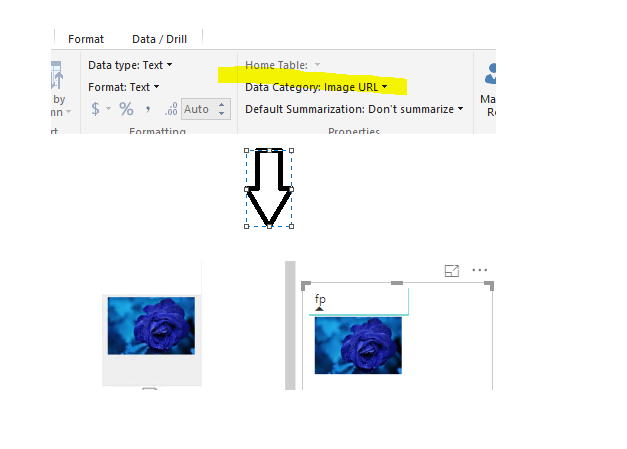
Then add it in table, and set data categories to image URL, then it will work

131.png

You could refer to Dashboard Image Tile: Image not loading from provided URL and Getting Image URLs to display Image for details.


Best Regards,

Zoe Zhi


If this post helps, then please consider Accept it as the solution to help the other members find it more quickly.

View solution in original post

3 REPLIES 3
SYM1986
Helper I
Helper I
dax
Community Support
Community Support

Hi kohckamyxa,

Based on my test, this might be related to permission. When I set image permission in sharepoint like below

129.png

Then use get data->sharepoint folder, add a custom column to display full path of image like below

l

et

    Source = SharePoint.Files("https://xxxxxxx.com", [ApiVersion = 15]),

    #"Added Custom" = Table.AddColumn(Source, "fp", each [Folder Path]&[Name])

in

#"Added Custom"

130.png

Then add it in table, and set data categories to image URL, then it will work

131.png

You could refer to Dashboard Image Tile: Image not loading from provided URL and Getting Image URLs to display Image for details.


Best Regards,

Zoe Zhi


If this post helps, then please consider Accept it as the solution to help the other members find it more quickly.

Anonymous
Not applicable

Unfortunetly, the organization doesn't allow setting the link to "Anyone with link". The only work around I found was to use the URL address of the tumbnail of the picture in Sharepoint to show properly. It contains token in the link and it's the same for all pictures.

Helpful resources

Announcements
Fabric Data Days is here Carousel

Fabric Data Days 2026

Don't miss out on Data Days, June 15 through August 7. Learn Fabric, Power BI, SQL, AI and more.

May Power BI Update Carousel

Power BI Monthly Update - May 2026

Check out the May 2026 Power BI update to learn about new features.

Power BI DataViz World Championships carousel

Power BI DataViz World Championships - June 2026

A new Power BI DataViz World Championship is coming this June! Don't miss out on submitting your entry.