cancel
Showing results for 
Search instead for 
Did you mean: 

The Power BI Data Visualization World Championships is back! Get ahead of the game and start preparing now! Learn more

Reply
Anonymous
Not applicable

ArcGIS help!

Hi all,


I'm trying to use the standard version of ArcGIS that's free within Power BI. This seems like it should be straightforward when I look at online videos and tutotorials, but for some reason the visualisation doesn't show in my version of Power BI as it does in all of the tutotorials and the 'edit' view doesn't show me any of the editing options shown in tutorials (like adding pins etc). Even my ArcGIS visualisation icon is different -- rather than see the globe that all of the tutorials show, I see this:

Harriet_0-1597313641961.png

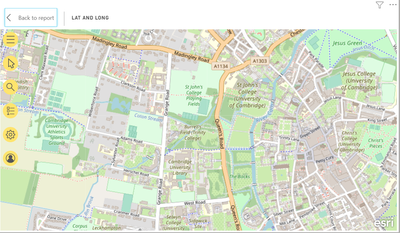
And if I'm in 'edit' mode, this is what I see (i.e., nothing in the top banner were the editing ribbon is typically shown in tutorials):
Harriet_1-1597313748362.png

None of the options in the yellow icons give me the functionality that should be available in edit mode.


Does anyone know why this is? Has it been updated and the functionality that comes with the free version reduced? I'm using the June 2020 version of Power BI Desktop if that helps.


I'd appreciate any help as I really need the functionality that comes with this visualisation, so I'm wondering if I have to buy the licensed version or if I'm doing something wrong.


Thanks in advance 🙂

1 ACCEPTED SOLUTION
Pragati11
Super User
Super User

Hi @Anonymous ,


Just try to hover over all the options shown on the left, you will see all the required options.

Current update has just chnaged the layout of the display of options on this map.

Follow this existing thread's solution, where I have answered how these options can be viewed:

https://community.powerbi.com/t5/Desktop/arcGIS-map-edit-unavailable-or-invisible/m-p/1275130#M558812


Thanks,

Pragati

Best Regards,

Pragati Jain


MVP logo


LinkedIn | Twitter | Blog YouTube 

Did I answer your question? Mark my post as a solution! This will help others on the forum!

Appreciate your Kudos!!

Proud to be a Super User!!

View solution in original post

3 REPLIES 3
Pragati11
Super User
Super User

Hi @Anonymous ,


Just try to hover over all the options shown on the left, you will see all the required options.

Current update has just chnaged the layout of the display of options on this map.

Follow this existing thread's solution, where I have answered how these options can be viewed:

https://community.powerbi.com/t5/Desktop/arcGIS-map-edit-unavailable-or-invisible/m-p/1275130#M558812


Thanks,

Pragati

Best Regards,

Pragati Jain


MVP logo


LinkedIn | Twitter | Blog YouTube 

Did I answer your question? Mark my post as a solution! This will help others on the forum!

Appreciate your Kudos!!

Proud to be a Super User!!

As @Pragati11 mentioned, they've changed the layout, I discovered this when trying to follow a module in a Power BI course, spent an hour trying to work out what I was doing wrong......then realised it wasn't me...they'd just updated it 😤


Did I answer your question? Mark my post as a solution!

Proud to be a Super User!


@Daviejoe , Yes, some updates in August 2020 release -https://powerbi.microsoft.com/en-us/blog/power-bi-desktop-august-2020-feature-summary/#_ArcGIS

Share with Power BI Enthusiasts: Full Power BI Video (20 Hours) YouTube
Microsoft Fabric Series 60+ Videos YouTube
Microsoft Fabric Hindi End to End YouTube

Helpful resources

Announcements
Power BI DataViz World Championships

Power BI Dataviz World Championships

The Power BI Data Visualization World Championships is back! Get ahead of the game and start preparing now!

December 2025 Power BI Update Carousel

Power BI Monthly Update - December 2025

Check out the December 2025 Power BI Holiday Recap!

FabCon Atlanta 2026 carousel

FabCon Atlanta 2026

Join us at FabCon Atlanta, March 16-20, for the ultimate Fabric, Power BI, AI and SQL community-led event. Save $200 with code FABCOMM.