Get Fabric or SQL Certified for Free.
Get certified for free when you join Fabric Data Days 2026 and dive into Fabric, Power BI, SQL, AI, and other essential data skills.
Join now- Power BI forums
- Get Help with Power BI
- Desktop
- Service
- Report Server
- Power Query
- Mobile Apps
- Developer
- DAX Commands and Tips
- Custom Visuals Development Discussion
- Health and Life Sciences
- Power BI Spanish forums
- Translated Spanish Desktop
- Training and Consulting
- Instructor Led Training
- Dashboard in a Day for Women, by Women
- Galleries
- Data Stories Gallery
- Themes Gallery
- Contests Gallery
- QuickViz Gallery
- Quick Measures Gallery
- Visual Calculations Gallery
- Notebook Gallery
- Translytical Task Flow Gallery
- TMDL Gallery
- R Script Showcase
- Webinars and Video Gallery
- Ideas
- Custom Visuals Ideas (read-only)
- Issues
- Issues
- Events
- Upcoming Events
July 7 - July 17 | Round 2 of the Power BI Dataviz World Championships. Don't miss your chance! Learn more
- Power BI forums
- Forums
- Get Help with Power BI
- Desktop
- Re: Append
- Subscribe to RSS Feed
- Mark Topic as New
- Mark Topic as Read
- Float this Topic for Current User
- Bookmark
- Subscribe
- Printer Friendly Page

- Mark as New
- Bookmark
- Subscribe
- Mute
- Subscribe to RSS Feed
- Permalink
- Report Inappropriate Content
Append
Hi All,
I have a table and I need to append an excel file to it.
I do not want to import the data and then append. Instead, I want the excel file to be appended directly to the table.
Is that possible?
I am new to powerBI, any help would be appreciated.
Thank you!
Solved! Go to Solution.


- Mark as New
- Bookmark
- Subscribe
- Mute
- Subscribe to RSS Feed
- Permalink
- Report Inappropriate Content
Hey @Anonymous ,
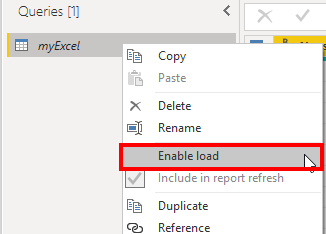
sure. In Power Query click on the Query of the Excel that you don't want to load to the data model and unselect "Enable load":
Afterwards the Excel will still be refreshed and used for the other table, but this specific table from the Excel file will not appear in the Data Model.
- Mark as New
- Bookmark
- Subscribe
- Mute
- Subscribe to RSS Feed
- Permalink
- Report Inappropriate Content
Hi @Anonymous
There are three commonly used import modes : Import , Direct Query , Live Connection . Different data sources support different loading modes . The default loading mode of some local files(Excel, Text…) is Import .
So if you don’t want load data to Desktop ,you need append your data in your data sources not in Desktop .In this case, you can choose some databases as your data sources , like :SQL ,MySQL , Oracle Database and so on .
I have an article that specifically introduces the import modes of different data sources and the differences between different modes. You can refer to the link below .
https://radacad.com/directquery-live-connection-or-import-data-tough-decision
Back to your problem , if you append an excel file to your table in Desktop ,you must import the data in Desktop and then append .
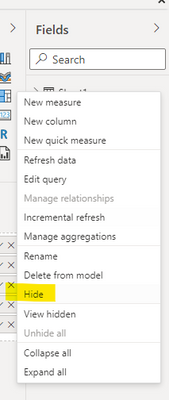
But there is a feature that can make you not see that table on the Report View .Click more options for the append table and select Hide in it .In your Report View ,you cannot see the table that from Excel file . The view effect is hidden, but the data is still loaded into the Desktop .

Best Regards
Community Support Team _ Ailsa Tao
If this post helps, then please consider Accept it as the solution to help the other members find it more quickly.


- Mark as New
- Bookmark
- Subscribe
- Mute
- Subscribe to RSS Feed
- Permalink
- Report Inappropriate Content
Hi @Anonymous
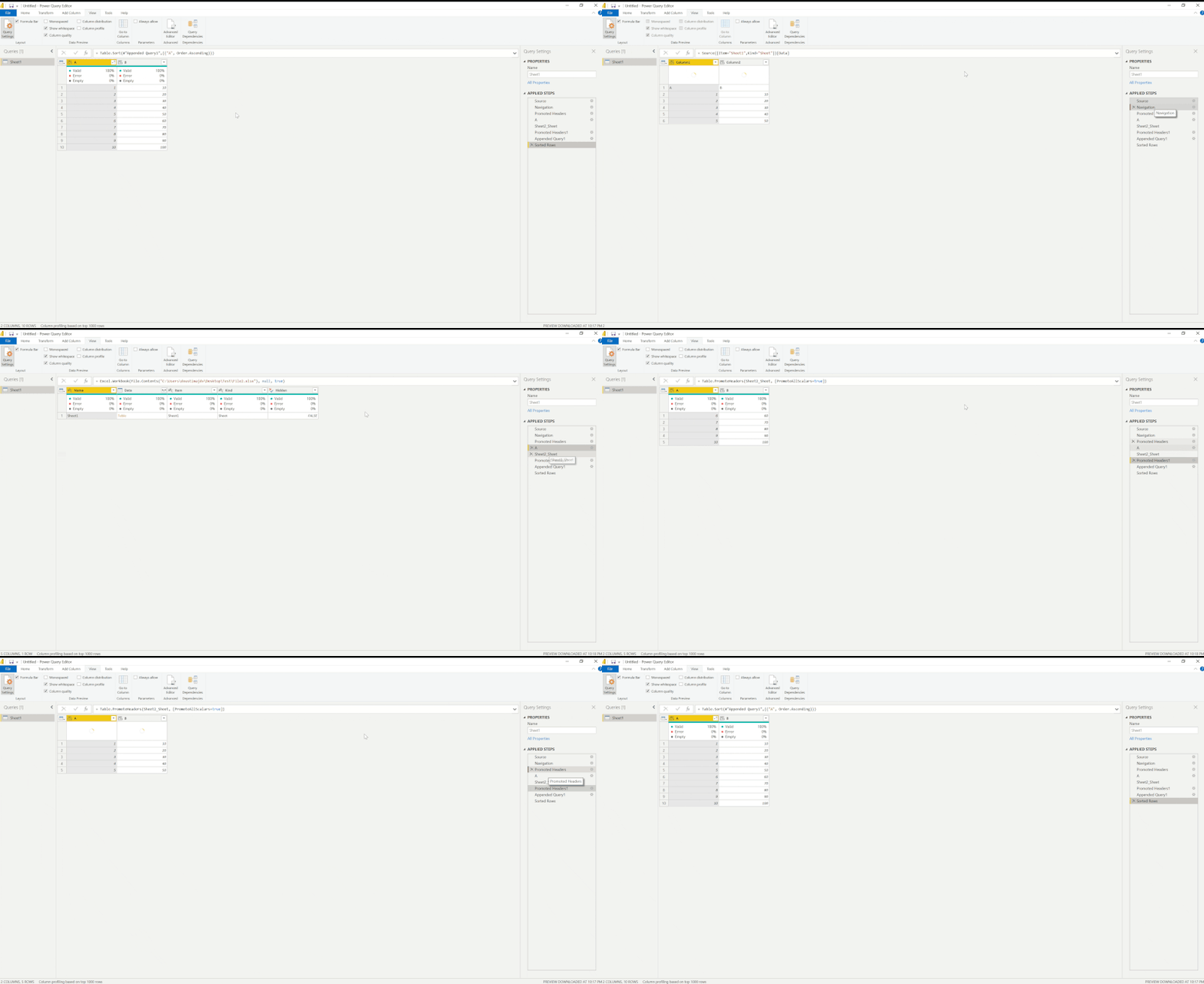
You need to write some code in Power Query, for instance I created two excel files [File1 and File2] as following images:
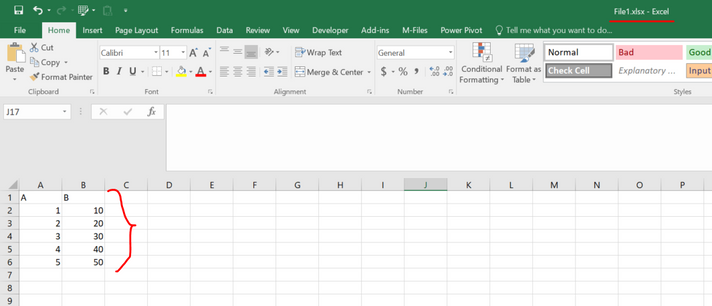
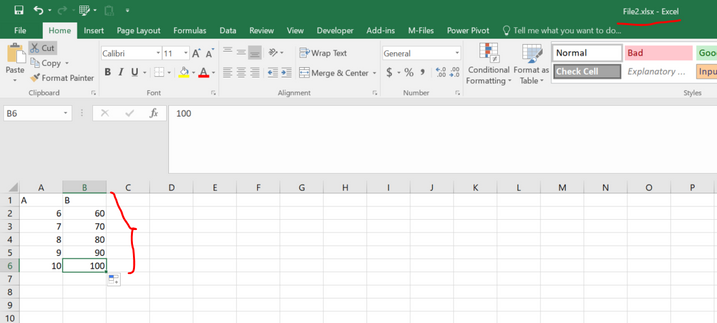
Then I imported the file1 to the Power BI and open the Power Query, and changed the codes in the advaced Editor:

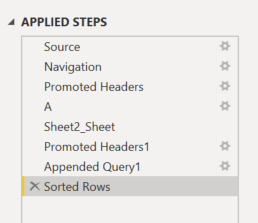
1- add the second file
2- align the columns names [in this exercise I just used Use First Rows as Headers [AKA "Promoted Headers"]
3- Append those 2 files
Codes are as below (Copy and pase this into the Advanced Editor on your computer and change file names and address)
let
    Source = Excel.Workbook(File.Contents("C:\Users\doustimajdv\Desktop\Test\File1.xlsx"), null, true),
    Sheet1_Sheet = Source{[Item="Sheet1",Kind="Sheet"]}[Data],
    #"Promoted Headers" = Table.PromoteHeaders(Sheet1_Sheet, [PromoteAllScalars=true]),
    A = Excel.Workbook(File.Contents("C:\Users\doustimajdv\Desktop\Test\File2.xlsx"), null, true),
    Sheet2_Sheet = A{[Item="Sheet1",Kind="Sheet"]}[Data],
    #"Promoted Headers1" = Table.PromoteHeaders(Sheet2_Sheet, [PromoteAllScalars=true]),
    #"Appended Query1" = Table.Combine({#"Promoted Headers1", #"Promoted Headers"}),
    #"Sorted Rows" = Table.Sort(#"Appended Query1",{{"A", Order.Ascending}})
in
    #"Sorted Rows"
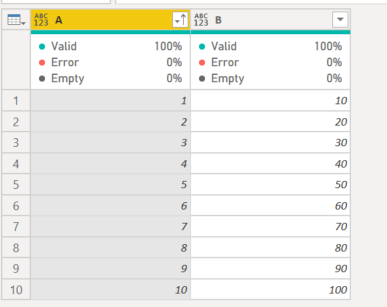
the output will be as below:
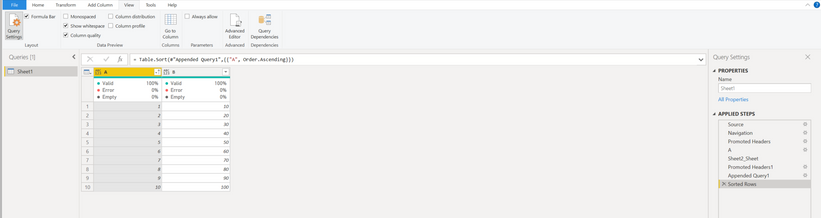
Applied Steps:
Output Table:
Did I answer your question? Mark my post as a solution!
Appreciate your Kudos 
- Mark as New
- Bookmark
- Subscribe
- Mute
- Subscribe to RSS Feed
- Permalink
- Report Inappropriate Content
Hey @Anonymous ,
if you want to append it in Power Query you have to import it first. After appending it, you can disable the load of the original Excel table. Like this the original Excel table will not be loaded to the data model.
If you don't want to do that in Power Query you have to do it in the data source where your table is. Like in SQL Server, mySQL, Sharepoint and so on.
- Mark as New
- Bookmark
- Subscribe
- Mute
- Subscribe to RSS Feed
- Permalink
- Report Inappropriate Content
Hi @selimovd ,
Thank you for your response.
Can you please tell me on how to disable the load of original excel table.
I do not want the appended tables to be seen in the data model.
Thank you!
- Mark as New
- Bookmark
- Subscribe
- Mute
- Subscribe to RSS Feed
- Permalink
- Report Inappropriate Content
Hey @Anonymous ,
sure. In Power Query click on the Query of the Excel that you don't want to load to the data model and unselect "Enable load":
Afterwards the Excel will still be refreshed and used for the other table, but this specific table from the Excel file will not appear in the Data Model.
- Mark as New
- Bookmark
- Subscribe
- Mute
- Subscribe to RSS Feed
- Permalink
- Report Inappropriate Content
Helpful resources

FabCon & SQLCon – Barcelona 2026
Join us in Barcelona for FabCon and SQLCon, the Fabric, Power BI, SQL, and AI community event. Save €200 with code FABCMTY200.

Data Days 2026
Join Data Days 2026: 60 days of free live/on-demand sessions, challenges, study groups, and certification opportunities.

Power BI DataViz World Championships - June 2026
A new Power BI DataViz World Championship is coming this June! Don't miss out on submitting your entry.

| User | Count |
|---|---|
| 27 | |
| 23 | |
| 18 | |
| 18 | |
| 15 |


| User | Count |
|---|---|
| 49 | |
| 44 | |
| 42 | |
| 39 | |
| 32 |


