Join us at FabCon Atlanta from March 16 - 20, 2026, for the ultimate Fabric, Power BI, AI and SQL community-led event. Save $200 with code FABCOMM.
Register now!The Power BI Data Visualization World Championships is back! Get ahead of the game and start preparing now! Learn more
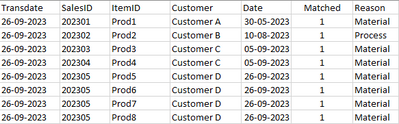
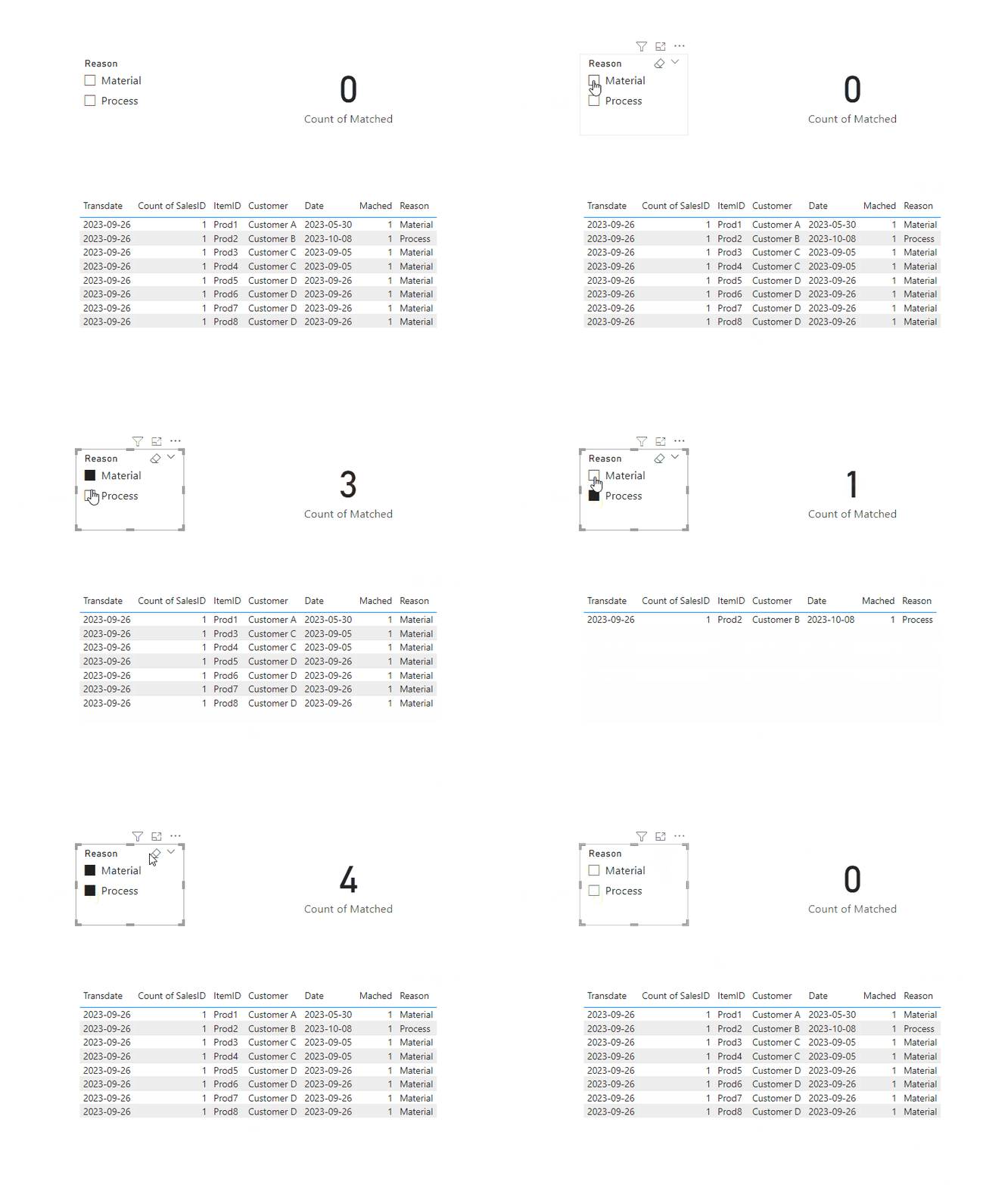
I have added a Card to my PowerBI report that shows how many distinct customers are matched, per Reason code. I have 8 lines for 4 customers. so with no filters the card shows 4, which is correct. If I filter on Reason=Material, the card shows 3, which is also correct. And when Reason=Process, the card shows one, which is also correct. If I exclude Material and Process from the filter, the card should show 0, but shows 1. Why??? And more importantly, how do I fix it?
/*CountOfMatched = DISTINCTCOUNT(Table[Customer])+0*/
CountOfMatched for Reason Material = 3 (correct)
CountOfMatched for Process = 1 (correct)
CountOfMatched for none of them = 0 but the visual shows 1
Solved! Go to Solution.
Hi @Cadenze ,
Please try to create a measure with below dax formula:
Count of Matched =
IF ( ISFILTERED ( 'Table'[Reason] ), DISTINCTCOUNT ( 'Table'[Customer] ), 0 )
Please refer the attached .pbix file
Best regards,
Community Support Team_Binbin Yu
If this post helps, then please consider Accept it as the solution to help the other members find it more quickly.
What a cool way to present a solution - thank you! It works 🙂
Hi, I had the same issue when I was trying to use the data directly from Salesforce. I was wondering if there is a formula for Salesforce Data in this case? And it's filtered by Company name for example from the data source (Salesforce Reports). Thank you!
What a cool way to present a solution - thank you! It works 🙂
Hi @Cadenze ,
Please try to create a measure with below dax formula:
Count of Matched =
IF ( ISFILTERED ( 'Table'[Reason] ), DISTINCTCOUNT ( 'Table'[Customer] ), 0 )
Please refer the attached .pbix file
Best regards,
Community Support Team_Binbin Yu
If this post helps, then please consider Accept it as the solution to help the other members find it more quickly.
Check out the November 2025 Power BI update to learn about new features.
Advance your Data & AI career with 50 days of live learning, contests, hands-on challenges, study groups & certifications and more!
| User | Count |
|---|---|
| 20 | |
| 11 | |
| 9 | |
| 4 | |
| 4 |
| User | Count |
|---|---|
| 31 | |
| 28 | |
| 21 | |
| 13 | |
| 12 |