Join us at FabCon Atlanta from March 16 - 20, 2026, for the ultimate Fabric, Power BI, AI and SQL community-led event. Save $200 with code FABCOMM.
Register now!Vote for your favorite vizzies from the Power BI Dataviz World Championship submissions. Vote now!
Dear Team,
Required help to write DAX for the below requirement.
I have a table with employee attendance data, I need to take count and employee list who met mandatory work hours and who doesn't meet as well.
I wrote the DAX for total count for both and it's working, but I need to list the employees along with data and duration, and I am not sure on how to achieve this.
2)
Could someone help please me on how to list out all employee's who met & who doesn't met our expected working hours ?
Thanks,
P.K.Divakar
Solved! Go to Solution.
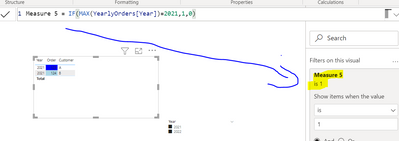
@DivakarKrishna The idea behind using filter measure is to first create table with your name column. Then use the measure as a filter in the visual. In my example earlier you can notice that the filter measure (measure 5) is applied on a visual:
Proud to be a Super User!
@DivakarKrishna can you possibly provide a sample pbix/sample data?
Hello,
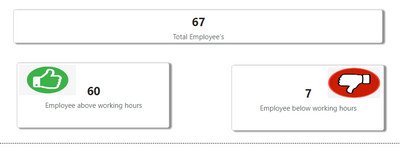
Below is the sample count's that I am getting from my measure which is correct. Now, I want to list out those employees above working hours (60 employees) and employees below working hours (7 employees) in a matrix table in next page.
I have calculated below counts using below measures.
2)
Hi,
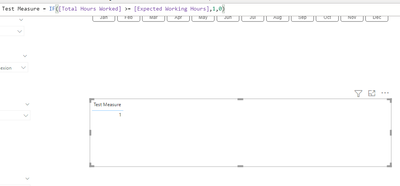
You can create a filter measure and use that in your visual to get the list of names. E.g. IF([Total Hours Worked] >= [Expected Working Hours],1,0).
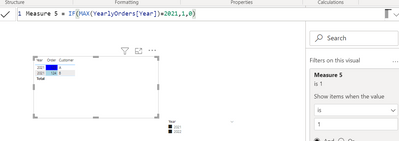
Now use this in your visual (example with similar measure):
Here I get a list of Customers when year =2021.
I hope this post helps to solve your issue and if it does consider accepting it as a solution and giving the post a thumbs up!
Proud to be a Super User!
@DivakarKrishna The idea behind using filter measure is to first create table with your name column. Then use the measure as a filter in the visual. In my example earlier you can notice that the filter measure (measure 5) is applied on a visual:
Proud to be a Super User!
Vote for your favorite vizzies from the Power BI World Championship submissions!
If you love stickers, then you will definitely want to check out our Community Sticker Challenge!
Check out the January 2026 Power BI update to learn about new features.
| User | Count |
|---|---|
| 8 | |
| 6 | |
| 3 | |
| 3 | |
| 3 |
| User | Count |
|---|---|
| 18 | |
| 12 | |
| 11 | |
| 6 | |
| 6 |