Join us at FabCon Atlanta from March 16 - 20, 2026, for the ultimate Fabric, Power BI, AI and SQL community-led event. Save $200 with code FABCOMM.
Register now!The Power BI Data Visualization World Championships is back! Get ahead of the game and start preparing now! Learn more
Hi,
Not sure if the below is possible but any advise would be appreciated -
I have a custom deneb visual which is a categorical scatter plot, and a layer/mark for both median and mean.
One is a tick and one is a square.
Is s there a way in Deneb to show what the tick and square represents in the legend for the end user?
Thanks in advance.
JJ
Solved! Go to Solution.
Hi @DW868990,
Hard to verify for sure without seeing your specification, but legends in Vega-Lite are designed to work in conjunction with encodings, and automate the manual creation of the marks to support them. If you're adding layers and marks to represent additional aspects of your data then these probably can't be automated into a legend.
Your best bet would probably be to plot separate marks for each additional mark that you wish to have a 'legend' for, and specify their positions manually, so that they appear where you would like them to.
The approach I might take to attempt this to do this would be to use an empty dataset in such a layer and manually position them.
I'll do a simple example with the following specification:
{
"data": {"name": "dataset"},
"config": {
"style": {
"mean": {
"stroke": "black",
"strokeWidth": 2
}
}
},
"layer": [
{"mark": {"type": "point"}},
{
"transform": [
{
"aggregate": [
{
"op": "mean",
"field": "$ Sales",
"as": "mean_sales"
}
],
"groupby": ["Product"]
}
],
"mark": {
"type": "tick",
"style": "mean"
},
"encoding": {
"x": {"field": "mean_sales"}
}
}
],
"encoding": {
"x": {
"field": "$ Sales",
"type": "quantitative"
},
"y": {"field": "Product"}
}
}
This produces a simple categorical scatterplot, with a black tick representing the mean, e.g.:
Note that I'm leveraging a style in my config, so that I can reuse the cosmetic aspects of the median mark.
Now, I can add a dedicated layer and marks for the 'legend', e.g.:
{
...
"layer": [
...
{
"description": "Mean 'legend'",
"data": {"values": [{}]},
"layer": [
{
"description": "The tick symbol",
"mark": {
"type": "tick",
"style": "mean"
}
},
{
"description": "The 'legend' text",
"mark": {
"type": "text",
"text": "median",
"align": "left",
"dx": 10
}
}
],
"encoding": {
"x": {
"value": {
"expr": "width - 50"
}
},
"y": {"value": 0}
}
}
],
...
}
Here, I've added a nested layer with two marks: one to represent the median symbol (rule), and the other is a text mark with the text, 'median' in it. The rule mark also re-uses the style for the median indicator, so they have the same appearance.
This layer uses a shared encoding with x and y values (not fields) that manually specify the position of the marks, and will override the higher-level ones. Vega-Lite will accommodate the rest of the chart around this, e.g.:
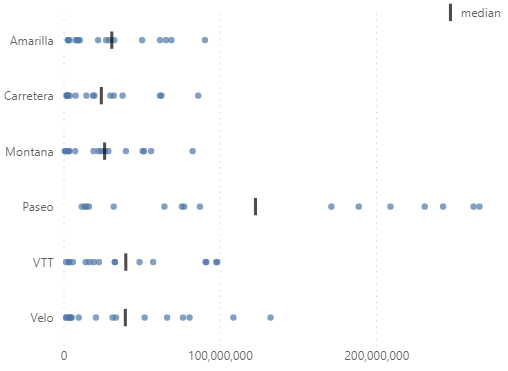
It would be a similar step to add the mean to the chart.
If this still leaves you with questions, then if you're able to share your specification and some sample data (ideally in a workbook), I can take a look to see if I can provide more targeted assistance.
Regards,
Daniel
Proud to be a Super User!
On how to ask a technical question, if you really want an answer (courtesy of SQLBI)
Hi @DW868990,
Hard to verify for sure without seeing your specification, but legends in Vega-Lite are designed to work in conjunction with encodings, and automate the manual creation of the marks to support them. If you're adding layers and marks to represent additional aspects of your data then these probably can't be automated into a legend.
Your best bet would probably be to plot separate marks for each additional mark that you wish to have a 'legend' for, and specify their positions manually, so that they appear where you would like them to.
The approach I might take to attempt this to do this would be to use an empty dataset in such a layer and manually position them.
I'll do a simple example with the following specification:
{
"data": {"name": "dataset"},
"config": {
"style": {
"mean": {
"stroke": "black",
"strokeWidth": 2
}
}
},
"layer": [
{"mark": {"type": "point"}},
{
"transform": [
{
"aggregate": [
{
"op": "mean",
"field": "$ Sales",
"as": "mean_sales"
}
],
"groupby": ["Product"]
}
],
"mark": {
"type": "tick",
"style": "mean"
},
"encoding": {
"x": {"field": "mean_sales"}
}
}
],
"encoding": {
"x": {
"field": "$ Sales",
"type": "quantitative"
},
"y": {"field": "Product"}
}
}
This produces a simple categorical scatterplot, with a black tick representing the mean, e.g.:
Note that I'm leveraging a style in my config, so that I can reuse the cosmetic aspects of the median mark.
Now, I can add a dedicated layer and marks for the 'legend', e.g.:
{
...
"layer": [
...
{
"description": "Mean 'legend'",
"data": {"values": [{}]},
"layer": [
{
"description": "The tick symbol",
"mark": {
"type": "tick",
"style": "mean"
}
},
{
"description": "The 'legend' text",
"mark": {
"type": "text",
"text": "median",
"align": "left",
"dx": 10
}
}
],
"encoding": {
"x": {
"value": {
"expr": "width - 50"
}
},
"y": {"value": 0}
}
}
],
...
}
Here, I've added a nested layer with two marks: one to represent the median symbol (rule), and the other is a text mark with the text, 'median' in it. The rule mark also re-uses the style for the median indicator, so they have the same appearance.
This layer uses a shared encoding with x and y values (not fields) that manually specify the position of the marks, and will override the higher-level ones. Vega-Lite will accommodate the rest of the chart around this, e.g.:
It would be a similar step to add the mean to the chart.
If this still leaves you with questions, then if you're able to share your specification and some sample data (ideally in a workbook), I can take a look to see if I can provide more targeted assistance.
Regards,
Daniel
Proud to be a Super User!
On how to ask a technical question, if you really want an answer (courtesy of SQLBI)
Fantastic, this worked perfectly. The flexibility within Deneb is so good, thank you
The Power BI Data Visualization World Championships is back! Get ahead of the game and start preparing now!
Check out the November 2025 Power BI update to learn about new features.
| User | Count |
|---|---|
| 7 | |
| 5 | |
| 4 | |
| 2 | |
| 2 |