Join us at FabCon Atlanta from March 16 - 20, 2026, for the ultimate Fabric, Power BI, AI and SQL community-led event. Save $200 with code FABCOMM.
Register now!The Power BI Data Visualization World Championships is back! Get ahead of the game and start preparing now! Learn more
Hi there,
I have reached a roadblock and seeking for help in calculating weighted average for the following data.
The Column Risk2 determines which products are in a risk category and is calculated as follows
Risk2 = if(([Consumption]) > [Forecast],0,1)
I suspect that there is a better way to calculate the ratio of "Risk" items for each subcategory (A-C). I tried using ALLSELECTED[GROUP] but some reason it didn't work. Here is the calculated measure I used
% = DIVIDE(sum([Risk2]), calculate(COUNT([Risk2]),ALLSELECTED([ITEMCODE])))
And then the final result that I am trying to achieve is the weighted average
Group A has 50% weght,
Group B - 30%
Group C - 20%
and the remaining groups (D-F) are 0%.
I need to get the sum of % of each group multiplied by weight - 60*0.5 + 93.75*0.3 + 80*0.2 = 74.25
The current measure is a simple IF statement but that doesn't seem to work
Weighted % =
VAR FR =
DIVIDE(sum([Risk2]), calculate(COUNT([Risk2]),ALLSELECTED([ITEMCODE])))
RETURN
IF(MAX([GROUP] )= "A",FR * 0.5,
IF (MAX([GROUP]) = "B", FR * 0.3,
IF( MAX([GROUP]) = "C", FR * 0.2,
IF( MAX([GROUP]) = "D", FR * 0,
IF( MAX([GROUP]) = "E", FR * 0,
IF( MAX([GROUP]) = "F", FR * 0,FR * 0
))))))
Thank you
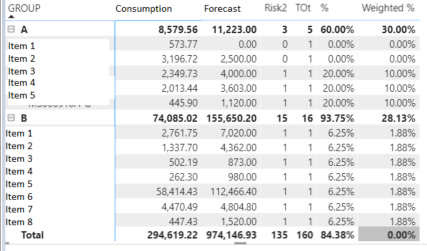
Solved! Go to Solution.
You need to provide a Row Context for this to work when there is more than one Group selected.
Try using:
Weighted % =
VAR FR =
DIVIDE(sum([Risk2]), calculate(COUNT([Risk2]),ALLSELECTED([ITEMCODE])))
RETURN
SUMX(VALUES([GROUP]),
SWITCH([Group]
, "A",FR * 0.5
, "B", FR * 0.3
, "C", FR * 0.2
, "D", FR * 0
, "E", FR * 0
,"F", FR * 0
,FR * 0
)
)
Also, you can probably use the AVERAGE function instead of DIVIDE, SUM and COUNT.
Copying DAX from this post? Click here for a hack to quickly replace it with your own table names
Has this post solved your problem? Please Accept as Solution so that others can find it quickly and to let the community know your problem has been solved.
If you found this post helpful, please give Kudos C
I work as a Microsoft trainer and consultant, specialising in Power BI and Power Query.
www.excelwithallison.com
@Anonymous That looks nice and elegant. Well done, and you're welcome. 🙂
Copying DAX from this post? Click here for a hack to quickly replace it with your own table names
Has this post solved your problem? Please Accept as Solution so that others can find it quickly and to let the community know your problem has been solved.
If you found this post helpful, please give Kudos C
I work as a Microsoft trainer and consultant, specialising in Power BI and Power Query.
www.excelwithallison.com
Update - as per AllisonKennedy's replaced DIVIDE SUM COUNT with AVERAGE and created a separate measure for it.
% = AVG[Risk2]
Then I didn't need to use VAR in my final measure
Weighted % =
SUMX(VALUES([GROUP]),
SWITCH([Group]
, "A",AVG * 0.5
, "B", AVG * 0.3
, "C", AVG * 0.2
,AVG* 0
))
The code makes more sense and works as intended
Big thanks to AllisonKennedy
Hi @AllisonKennedy
Thank you for this
It almost worked - but for some reason the sum equals to non weighted ratio
You need to provide a Row Context for this to work when there is more than one Group selected.
Try using:
Weighted % =
VAR FR =
DIVIDE(sum([Risk2]), calculate(COUNT([Risk2]),ALLSELECTED([ITEMCODE])))
RETURN
SUMX(VALUES([GROUP]),
SWITCH([Group]
, "A",FR * 0.5
, "B", FR * 0.3
, "C", FR * 0.2
, "D", FR * 0
, "E", FR * 0
,"F", FR * 0
,FR * 0
)
)
Also, you can probably use the AVERAGE function instead of DIVIDE, SUM and COUNT.
Copying DAX from this post? Click here for a hack to quickly replace it with your own table names
Has this post solved your problem? Please Accept as Solution so that others can find it quickly and to let the community know your problem has been solved.
If you found this post helpful, please give Kudos C
I work as a Microsoft trainer and consultant, specialising in Power BI and Power Query.
www.excelwithallison.com
Check out the November 2025 Power BI update to learn about new features.
Advance your Data & AI career with 50 days of live learning, contests, hands-on challenges, study groups & certifications and more!