FabCon is coming to Atlanta
Join us at FabCon Atlanta from March 16 - 20, 2026, for the ultimate Fabric, Power BI, AI and SQL community-led event. Save $200 with code FABCOMM.
Register now!- Power BI forums
- Get Help with Power BI
- Desktop
- Service
- Report Server
- Power Query
- Mobile Apps
- Developer
- DAX Commands and Tips
- Custom Visuals Development Discussion
- Health and Life Sciences
- Power BI Spanish forums
- Translated Spanish Desktop
- Training and Consulting
- Instructor Led Training
- Dashboard in a Day for Women, by Women
- Galleries
- Data Stories Gallery
- Themes Gallery
- Contests Gallery
- QuickViz Gallery
- Quick Measures Gallery
- Visual Calculations Gallery
- Notebook Gallery
- Translytical Task Flow Gallery
- TMDL Gallery
- R Script Showcase
- Webinars and Video Gallery
- Ideas
- Custom Visuals Ideas (read-only)
- Issues
- Issues
- Events
- Upcoming Events
The Power BI Data Visualization World Championships is back! Get ahead of the game and start preparing now! Learn more
- Power BI forums
- Forums
- Get Help with Power BI
- Desktop
- Taking a snapshot of a table, keeping it 7 days, t...
- Subscribe to RSS Feed
- Mark Topic as New
- Mark Topic as Read
- Float this Topic for Current User
- Bookmark
- Subscribe
- Printer Friendly Page


- Mark as New
- Bookmark
- Subscribe
- Mute
- Subscribe to RSS Feed
- Permalink
- Report Inappropriate Content
Taking a snapshot of a table, keeping it 7 days, then seeing how many of the entries are still in it
I'd be pulling in this simple table with only 2 columns.
Name, Date
I'd like Power BI to store this table, then when it's 7 days from the date of creation, compare it to the present version of the table, and see how many of of the files are still present.
And then moving forward, everyday it'd compare now vs. the version created 7 days prior.
(If it helps, what I'm actually doing is looking in a folder to see how many of the files it, are still there after 7 days. So the Name is the file name, and the Date is the file's createdate).
Is this possible in an automated sense?
Solved! Go to Solution.

- Mark as New
- Bookmark
- Subscribe
- Mute
- Subscribe to RSS Feed
- Permalink
- Report Inappropriate Content
@mmace1,
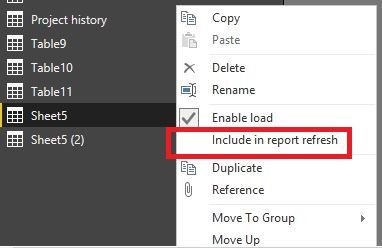
I am afraid that it is not possible to automate above process in Power BI Desktop. In your scenario, import the table twice in Power BI Desktop, for the first imported query, disable “Include in report refresh” option in Query Editor.
Then create relationship between the two imported tables and go to Report view, create the following similar columns in the first table.
Column = RELATED('Sheet5 (2)'[Create date])
Checkday = IF(DATEDIFF(Sheet5[Create date],Sheet5[Column],DAY)=7,1,0)
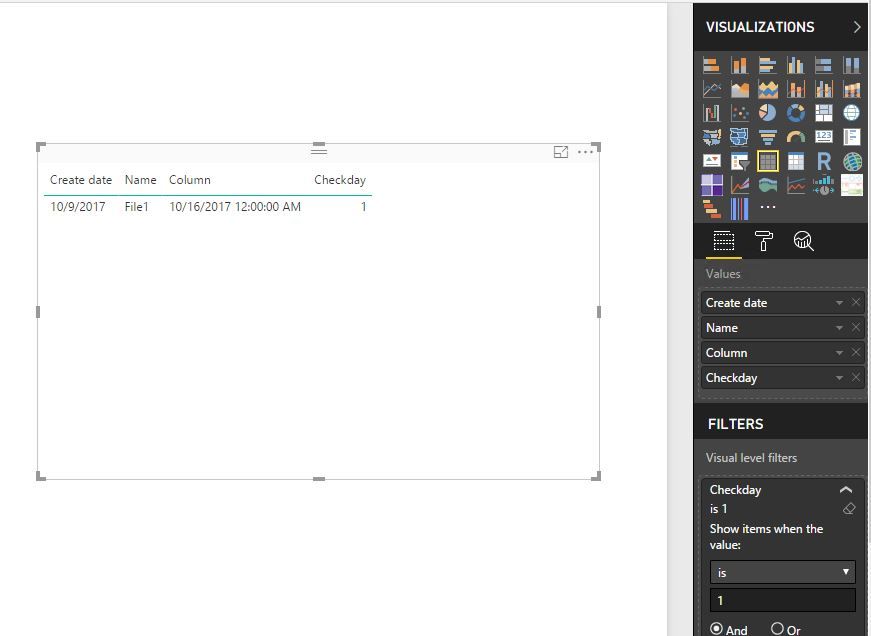
This way, create a table visual using fields of the first table, and set the value of Checkday column to 1 in Visual level filters. After that, click “Refresh” button in Power BI Desktop each time, and you can see that the data is refreshed in the second table and you can view the existing files in the table visual.
Regards,
Lydia
- Mark as New
- Bookmark
- Subscribe
- Mute
- Subscribe to RSS Feed
- Permalink
- Report Inappropriate Content
@mmace1,
I am afraid that it is not possible to automate above process in Power BI Desktop. In your scenario, import the table twice in Power BI Desktop, for the first imported query, disable “Include in report refresh” option in Query Editor.
Then create relationship between the two imported tables and go to Report view, create the following similar columns in the first table.
Column = RELATED('Sheet5 (2)'[Create date])
Checkday = IF(DATEDIFF(Sheet5[Create date],Sheet5[Column],DAY)=7,1,0)
This way, create a table visual using fields of the first table, and set the value of Checkday column to 1 in Visual level filters. After that, click “Refresh” button in Power BI Desktop each time, and you can see that the data is refreshed in the second table and you can view the existing files in the table visual.
Regards,
Lydia


- Mark as New
- Bookmark
- Subscribe
- Mute
- Subscribe to RSS Feed
- Permalink
- Report Inappropriate Content
Thanks Lydia, this is helpful.
- Mark as New
- Bookmark
- Subscribe
- Mute
- Subscribe to RSS Feed
- Permalink
- Report Inappropriate Content
OK, thank you! It's good to have a definitive answer as to what's possible.
Helpful resources

Power BI Dataviz World Championships
The Power BI Data Visualization World Championships is back! Get ahead of the game and start preparing now!

Power BI Monthly Update - December 2025
Check out the December 2025 Power BI Holiday Recap!

FabCon Atlanta 2026
Join us at FabCon Atlanta, March 16-20, for the ultimate Fabric, Power BI, AI and SQL community-led event. Save $200 with code FABCOMM.

| User | Count |
|---|---|
| 41 | |
| 38 | |
| 36 | |
| 30 | |
| 28 |


| User | Count |
|---|---|
| 128 | |
| 88 | |
| 79 | |
| 67 | |
| 62 |


