FabCon is coming to Atlanta
Join us at FabCon Atlanta from March 16 - 20, 2026, for the ultimate Fabric, Power BI, AI and SQL community-led event. Save $200 with code FABCOMM.
Register now!- Power BI forums
- Get Help with Power BI
- Desktop
- Service
- Report Server
- Power Query
- Mobile Apps
- Developer
- DAX Commands and Tips
- Custom Visuals Development Discussion
- Health and Life Sciences
- Power BI Spanish forums
- Translated Spanish Desktop
- Training and Consulting
- Instructor Led Training
- Dashboard in a Day for Women, by Women
- Galleries
- Data Stories Gallery
- Themes Gallery
- Contests Gallery
- QuickViz Gallery
- Quick Measures Gallery
- Visual Calculations Gallery
- Notebook Gallery
- Translytical Task Flow Gallery
- TMDL Gallery
- R Script Showcase
- Webinars and Video Gallery
- Ideas
- Custom Visuals Ideas (read-only)
- Issues
- Issues
- Events
- Upcoming Events
The Power BI Data Visualization World Championships is back! Get ahead of the game and start preparing now! Learn more
- Power BI forums
- Forums
- Get Help with Power BI
- Desktop
- Stacked Column Chart - Show month date hierarchy s...
- Subscribe to RSS Feed
- Mark Topic as New
- Mark Topic as Read
- Float this Topic for Current User
- Bookmark
- Subscribe
- Printer Friendly Page


- Mark as New
- Bookmark
- Subscribe
- Mute
- Subscribe to RSS Feed
- Permalink
- Report Inappropriate Content
Stacked Column Chart - Show month date hierarchy split by years
I have the following table of data loaded into PowerBI:
- Risk - (Text)
- Raised/Closed Date - (Date)
- Risk Type - (Text)
- Risk Impact £ - (Decimal Number)
The tables contains entries from 2017, 2018, and 2019.
I have created a stacked column chart displaying this data, with 'Raised/Closed' date as the Axis, and with date hierarchy set to month.
The issue is, this groups all months together regardless of year.
Is there a way to split up the chart to clearly show year? Or, to change the X-Axis to show 'Jan-18', 'Jan-19', etc?
Solved! Go to Solution.


- Mark as New
- Bookmark
- Subscribe
- Mute
- Subscribe to RSS Feed
- Permalink
- Report Inappropriate Content
Hey,
I guess this pbix file contains what you are looking for:
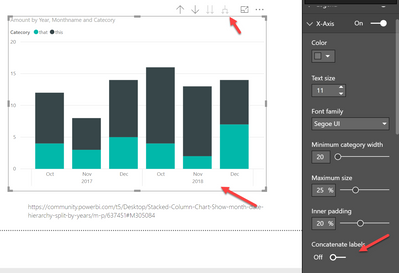
To achieve the above it's necessary switch off the property "Concatenate labels", use the Year and Month column on the x-axis and "Expand all down ..."
Of course it's also possible to use just the column "Year-MM" from the Calendar table.
Hopefully this is what you are looking for.
Regards,
Tom
Did I answer your question? Mark my post as a solution, this will help others!
Proud to be a Super User!
I accept Kudos 😉
Hamburg, Germany
- Mark as New
- Bookmark
- Subscribe
- Mute
- Subscribe to RSS Feed
- Permalink
- Report Inappropriate Content
Hey,
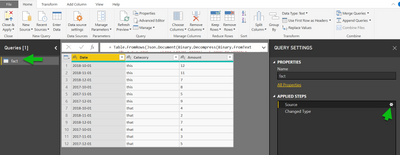
not sure what you are asking for, but it's maybe how I created both of the tables ...
The Calendar table is created by a DAX statement, just mark the table and the DAX formula bar shows the DAX statement.
The table "fact" has been created by using the function "Enter data" that is available from the Report view (top icon on the left side).
Home (menu) --> External Data (ribbon) --> Enter Data. What might confuses you if you are not familiar with the function "Enter data", this works just once ... After the initial input, and most of the time I want to or have to add more data or delete data - editing a table is different. For editing data, it's necessary to enter Power Query, then hit the gear icon of the Source step of the table you want to edit:
Hopefully, this is what you are looking for!
Regards,
Tom
Did I answer your question? Mark my post as a solution, this will help others!
Proud to be a Super User!
I accept Kudos 😉
Hamburg, Germany
- Mark as New
- Bookmark
- Subscribe
- Mute
- Subscribe to RSS Feed
- Permalink
- Report Inappropriate Content
Hey,
I guess this pbix file contains what you are looking for:
To achieve the above it's necessary switch off the property "Concatenate labels", use the Year and Month column on the x-axis and "Expand all down ..."
Of course it's also possible to use just the column "Year-MM" from the Calendar table.
Hopefully this is what you are looking for.
Regards,
Tom
Did I answer your question? Mark my post as a solution, this will help others!
Proud to be a Super User!
I accept Kudos 😉
Hamburg, Germany

- Mark as New
- Bookmark
- Subscribe
- Mute
- Subscribe to RSS Feed
- Permalink
- Report Inappropriate Content
Thanks TomMarteners , your solution is very helpful
- Mark as New
- Bookmark
- Subscribe
- Mute
- Subscribe to RSS Feed
- Permalink
- Report Inappropriate Content
I'm trying to accept it as a solution, but my browser won't let me... apologies
- Mark as New
- Bookmark
- Subscribe
- Mute
- Subscribe to RSS Feed
- Permalink
- Report Inappropriate Content
One of the powers of a Superuser, is accepting answers. I take your last post as a confirmation and will accept my post 😉
Regards,
Tom
Did I answer your question? Mark my post as a solution, this will help others!
Proud to be a Super User!
I accept Kudos 😉
Hamburg, Germany
- Mark as New
- Bookmark
- Subscribe
- Mute
- Subscribe to RSS Feed
- Permalink
- Report Inappropriate Content
I got ahead of myself - how did you create the 'FieldListEntityCalculated' table? I'm unable to create on from fresh
- Mark as New
- Bookmark
- Subscribe
- Mute
- Subscribe to RSS Feed
- Permalink
- Report Inappropriate Content
Hey,
not sure what you are asking for, but it's maybe how I created both of the tables ...
The Calendar table is created by a DAX statement, just mark the table and the DAX formula bar shows the DAX statement.
The table "fact" has been created by using the function "Enter data" that is available from the Report view (top icon on the left side).
Home (menu) --> External Data (ribbon) --> Enter Data. What might confuses you if you are not familiar with the function "Enter data", this works just once ... After the initial input, and most of the time I want to or have to add more data or delete data - editing a table is different. For editing data, it's necessary to enter Power Query, then hit the gear icon of the Source step of the table you want to edit:
Hopefully, this is what you are looking for!
Regards,
Tom
Did I answer your question? Mark my post as a solution, this will help others!
Proud to be a Super User!
I accept Kudos 😉
Hamburg, Germany
- Mark as New
- Bookmark
- Subscribe
- Mute
- Subscribe to RSS Feed
- Permalink
- Report Inappropriate Content

Helpful resources

Power BI Dataviz World Championships
The Power BI Data Visualization World Championships is back! Get ahead of the game and start preparing now!

Power BI Monthly Update - November 2025
Check out the November 2025 Power BI update to learn about new features.

FabCon Atlanta 2026
Join us at FabCon Atlanta, March 16-20, for the ultimate Fabric, Power BI, AI and SQL community-led event. Save $200 with code FABCOMM.

| User | Count |
|---|---|
| 59 | |
| 43 | |
| 42 | |
| 23 | |
| 17 |


| User | Count |
|---|---|
| 190 | |
| 122 | |
| 96 | |
| 66 | |
| 47 |


