cancel
Showing results for 
Search instead for 
Did you mean: 

The Power BI Data Visualization World Championships is back! Get ahead of the game and start preparing now! Learn more

Reply
Anonymous
Not applicable

Sort Column Order

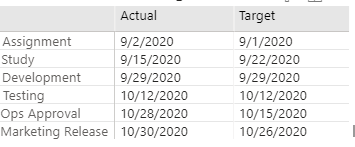
I have created a matrix visual that shows Target and Actual Dates. However, when I display these, it auto sorts them in alphabetical order such that the Actual date is on the right of the Target date. How can I show these in the reverse order (all the tutorials I have found have been for numbers rather than text)


enswitzer_0-1599162037190.png


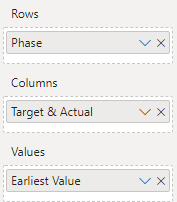
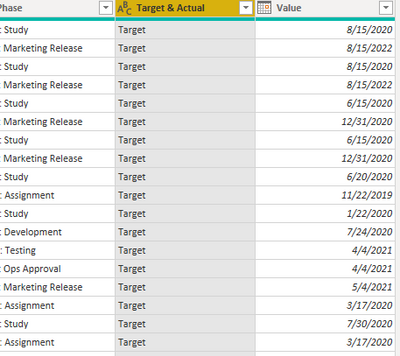
Below are visualization set up and example of how my data is stored:


enswitzer_1-1599162100992.png

enswitzer_3-1599162158926.png


1 ACCEPTED SOLUTION
Anonymous
Not applicable

Hi @Anonymous 


= Table.AddColumn(#"Changed Type", "Sort", each if [#"Target & Actual"] = "Target" then 1 else 2)


Then Sort the Target & Actual column by this sort column.

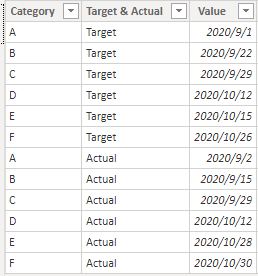
Result is as below.

4.png

You can download the pbix file from this link: Sort Column Order


Best Regards,

Rico Zhou


If this post helps, then please consider Accept it as the solution to help the other members find it more quickly. 


View solution in original post

4 REPLIES 4
Anonymous
Not applicable

Hi @Anonymous 

Could you tell me if your problem has been solved? If it is, kindly Accept it as the solution. More people will benefit from it. Or you are still confused about it, please provide me with more details about your table and your problem or share me with your pbix file from your Onedrive for Business.


Best Regards,

Rico Zhou

Anonymous
Not applicable

Hi @Anonymous 


= Table.AddColumn(#"Changed Type", "Sort", each if [#"Target & Actual"] = "Target" then 1 else 2)


Then Sort the Target & Actual column by this sort column.

Result is as below.

4.png

You can download the pbix file from this link: Sort Column Order


Best Regards,

Rico Zhou


If this post helps, then please consider Accept it as the solution to help the other members find it more quickly. 


amitchandak
Super User
Super User

@Anonymous , in your table, create a new column

Target sort = if([Target & Actual] = "Target", 1, 2)

and mark this a sort column

https://docs.microsoft.com/en-us/power-bi/desktop-sort-by-column

Share with Power BI Enthusiasts: Full Power BI Video (20 Hours) YouTube
Microsoft Fabric Series 60+ Videos YouTube
Microsoft Fabric Hindi End to End YouTube
dedelman_clng
Community Champion
Community Champion

Hi @Anonymous  - 


This is by no means an "elegant" solution, but it works.


Create a new "dimension" table that has two columns: "Target & Actual" and "SortOrder". Something like


Tar-Act = 
SUMMARIZE(Table, 
        Table[Target & Actual], 
        "SortOrder", IF([Target & Actual] = "Target", 1, 2)
)


Create a relationship between this new table and your fact table (1 to many), based on Target & Actual.


Finally, highlight "Target & Actual" in the new table, go to Column Tools, select "Sort By Column" and choose "SortOrder". Put "Target & Actual" from the dimension table into the matrix, and it should sort the way you'd like.


Hope this helps

David

Helpful resources

Announcements
Power BI DataViz World Championships

Power BI Dataviz World Championships

The Power BI Data Visualization World Championships is back! Get ahead of the game and start preparing now!

December 2025 Power BI Update Carousel

Power BI Monthly Update - December 2025

Check out the December 2025 Power BI Holiday Recap!

FabCon Atlanta 2026 carousel

FabCon Atlanta 2026

Join us at FabCon Atlanta, March 16-20, for the ultimate Fabric, Power BI, AI and SQL community-led event. Save $200 with code FABCOMM.