Don't miss your chance to take the Fabric Data Engineer (DP-700) exam on us!
Learn moreThe FabCon + SQLCon recap series starts April 14th at 8am Pacific. If you’re tracking where AI is going inside Fabric, this first session is a can't miss. Register now
I have a table of people from multiple offices and projects:
Table1:
| Project# | employeeID | Office | Gender |
| X008 | 001 | A | M |
| x008 | 002 | A | F |
| x009 | 001 | A | M |
| x010 | 003 | B | F |
| x008 | 004 | C | F |
| x011 | 004 | C | F |
What I am interested in seeing, and was able to achieve with a matrix visualization is:
MatrixTable:
| employeeID | Office | Gender | ProjectCount |
| 001 | A | M | 2 |
| 002 | A | F | 1 |
| 003 | B | F | 1 |
| 004 | C | F | 2 |
However my end goal is to be able to use the count of employeeID as seen in the matrix derived table and the other columns above to create visuals for say the gender distribution in the company or number of people working on 2 projects or which offices people are working out of. I cannot see a way to use the visual to create other visuals, so I assume I must use measures somehow to duplicate the matrix columns.
I have also created a second table using a copy of the employeeID column from the original table with duplicates removed and added an index column to get an accurate employye count. This is related to the original table in a one to many relationship using the employeeID column, however PowerBI doesnt seem to be able to use this relationship using count of Index to create the visuals I am after.
For clarity the second table I created in Power Query is:
Table2:
| employeeID (duplicates removed) | Index |
| 001 | 1 |
| 002 | 2 |
| 003 | 3 |
| 004 | 4 |
Can someone please advise me on the approach I should use to solve this problem?
TIA
Solved! Go to Solution.
Hi @Anonymous
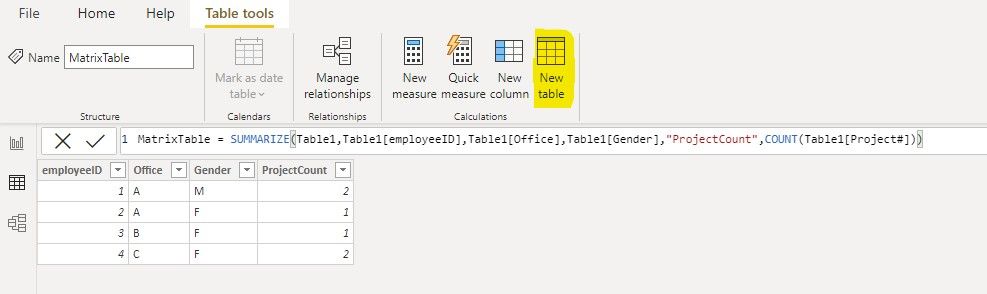
You cannot use the matrix visual to create other visuals. But you can create a calculated table based on Table1 to get the same result as your matrix visual. Then you can use this calculated table to create other visuals.
MatrixTable = SUMMARIZE(Table1,Table1[employeeID],Table1[Office],Table1[Gender],"ProjectCount",COUNT(Table1[Project#]))
Regards,
Community Support Team _ Jing
If this post helps, please Accept it as the solution to help other members find it.
Hi @Anonymous
You cannot use the matrix visual to create other visuals. But you can create a calculated table based on Table1 to get the same result as your matrix visual. Then you can use this calculated table to create other visuals.
MatrixTable = SUMMARIZE(Table1,Table1[employeeID],Table1[Office],Table1[Gender],"ProjectCount",COUNT(Table1[Project#]))
Regards,
Community Support Team _ Jing
If this post helps, please Accept it as the solution to help other members find it.
Thank you! This works perfectly!
@Anonymous , bit confused table 2, should be possible with count(Table[employeeID]) or count(Table[Project #]) as measures or when you add the column to visual choose count as aggregation
Additionally a bar chart of
Axis: table1[gender]
Legend: table1[]gender]
Value: Count of table2[index]
gives me two columns male and female, each with count 4
I just tried again adding the count of table2[employeeID] with table1[gender] and the pie chart is producing a 50/50 distribution of gender - which i assume it is getting due to the fact that there or 2 choices in the gender column.
If you have recently started exploring Fabric, we'd love to hear how it's going. Your feedback can help with product improvements.
A new Power BI DataViz World Championship is coming this June! Don't miss out on submitting your entry.
Share feedback directly with Fabric product managers, participate in targeted research studies and influence the Fabric roadmap.
| User | Count |
|---|---|
| 53 | |
| 40 | |
| 37 | |
| 19 | |
| 18 |
| User | Count |
|---|---|
| 69 | |
| 68 | |
| 34 | |
| 33 | |
| 30 |