cancel
Showing results for 
Search instead for 
Did you mean: 

We've captured the moments from FabCon & SQLCon that everyone is talking about, and we are bringing them to the community, live and on-demand. Starts on April 14th. Register now

Reply
mayurk5
Regular Visitor

Numeric range slicer

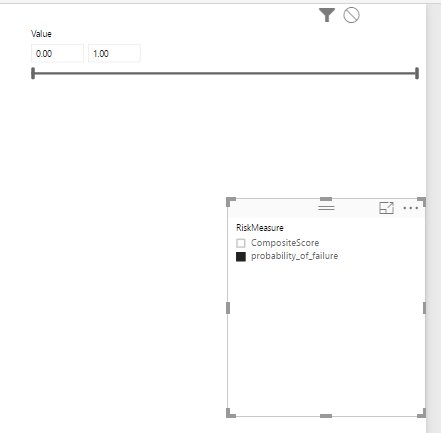
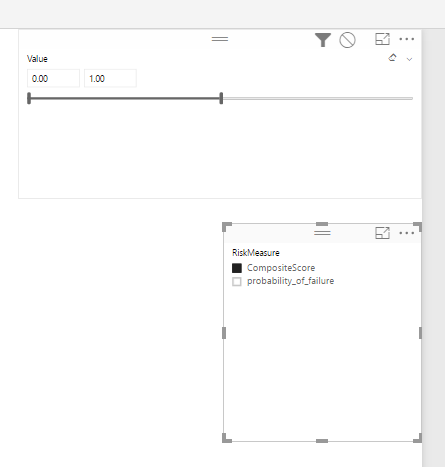
We have 2 slicers in which one is numeric range slicer. When we select some value from the slicer, its end value in numeric range slicer gets changed, Now if we change selection in the slicer from the previously selected value, the manually over written value doesn't get changed as it was earlier. 


e.g. we have two values in one slicer having range 0-1 for FP  and 0-2 for CS

If we change the end value of CS manually and then select FP in slicer, the end value of FP should not show the value of the CS. It should remain intact and hold its own values.


slicer1.pngslicer2.png


1 ACCEPTED SOLUTION
Anonymous
Not applicable

Your slicers are interacting with each other.  You can turn this off by going into the Format tab of the ribbon (when you have the slicer selected) and toggling on the 'Edit Interactions'.  Once this is on, you will see some toggle icons appear in your visuals.  Whichever slicer you have selected, you will see icons in the other items.  This will essentially tell power BI how your current selected visual is going to affect each other visual.  So start with your first slicer, select it and tell it to not affect the other slicer (cirle with a line through it).  Now do the same with the other visual, select it and select the same icon on the original visual.

View solution in original post

1 REPLY 1
Anonymous
Not applicable

Your slicers are interacting with each other.  You can turn this off by going into the Format tab of the ribbon (when you have the slicer selected) and toggling on the 'Edit Interactions'.  Once this is on, you will see some toggle icons appear in your visuals.  Whichever slicer you have selected, you will see icons in the other items.  This will essentially tell power BI how your current selected visual is going to affect each other visual.  So start with your first slicer, select it and tell it to not affect the other slicer (cirle with a line through it).  Now do the same with the other visual, select it and select the same icon on the original visual.

Helpful resources

Announcements
New to Fabric survey Carousel

New to Fabric Survey

If you have recently started exploring Fabric, we'd love to hear how it's going. Your feedback can help with product improvements.

Power BI DataViz World Championships carousel

Power BI DataViz World Championships - June 2026

A new Power BI DataViz World Championship is coming this June! Don't miss out on submitting your entry.

Join our Fabric User Panel

Join our Fabric User Panel

Share feedback directly with Fabric product managers, participate in targeted research studies and influence the Fabric roadmap.

March Power BI Update Carousel

Power BI Community Update - March 2026

Check out the March 2026 Power BI update to learn about new features.