While I am unsure about the visual part of your question. The way I would go about this is by unpivoting your data so that you have one column with all the Lat and one with all the Long with an seperate two columns that diplay the object the information is related to. Then I would use this object column as a legend in the visual.
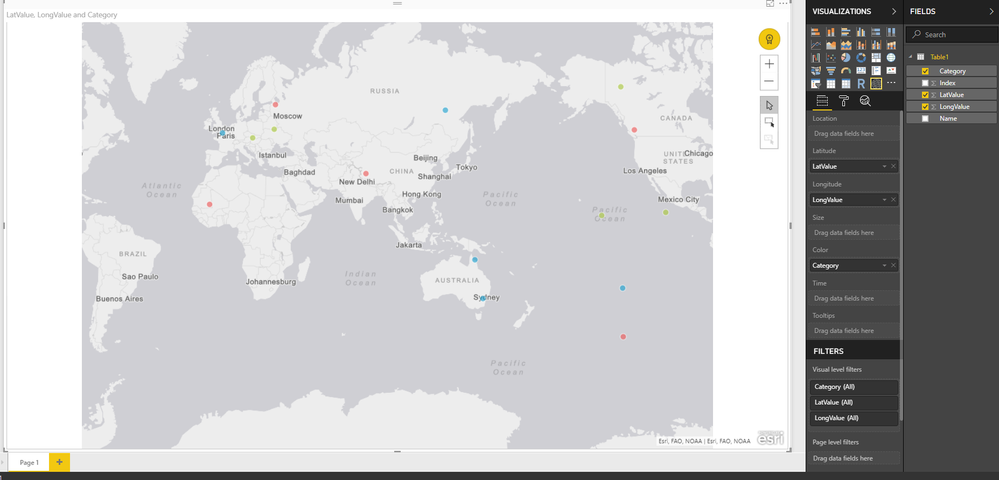
You will need to filter to only show rows where the object column is the same for lat and long. I have included some M code that does what I describe above. It probably isnt the cleanest way to do it but it does work. I have also shown a screenshot of a stock map visual with the category as the different colours.
I hope this helps
let
    Source = Table.FromRows(Json.Document(Binary.Decompress(Binary.FromText("i45WclSK1YlWcgKTzmDSBUy6KsXGAgA=", BinaryEncoding.Base64), Compression.Deflate)), let _t = ((type text) meta [Serialized.Text = true]) in type table [Name = _t]),
    #"Changed Type" = Table.TransformColumnTypes(Source,{{"Name", type text}}),
    #"Added Index" = Table.AddIndexColumn(#"Changed Type", "Index", 0, 1),
    #"Added XLong" = Table.AddColumn(#"Added Index", "XLong", each Number.RandomBetween(-160 + [Index] - [Index],160),Number.Type),
    #"Added XLat" = Table.AddColumn(#"Added XLong", "XLat", each Number.RandomBetween(-70 + [Index] - [Index],70),Number.Type),
    #"Added YLong" = Table.AddColumn(#"Added XLat", "YLong", each Number.RandomBetween(-160 + [Index] - [Index],160),Number.Type),
    #"Added YLat" = Table.AddColumn(#"Added YLong", "YLat", each Number.RandomBetween(-70 + [Index] - [Index],70),Number.Type),
    #"Added ZLong" = Table.AddColumn(#"Added YLat", "ZLong", each Number.RandomBetween(-160 + [Index] - [Index],160),Number.Type),
    #"Added ZLat" = Table.AddColumn(#"Added ZLong", "ZLat", each Number.RandomBetween(-70 + [Index] - [Index],70),Number.Type),
    #"Unpivoted Columns" = Table.UnpivotOtherColumns(#"Added ZLat", {"Name", "Index", "XLong", "YLong", "ZLong"}, "Attribute", "Value"),
    #"Unpivoted Columns1" = Table.UnpivotOtherColumns(#"Unpivoted Columns", {"Name", "Index", "Attribute", "Value"}, "Attribute.1", "Value.1"),
    #"Renamed Columns" = Table.RenameColumns(#"Unpivoted Columns1",{{"Attribute", "Lat"}, {"Value", "LatValue"}, {"Attribute.1", "Long"}, {"Value.1", "LongValue"}}),
    #"Replaced Value" = Table.ReplaceValue(#"Renamed Columns","Long","",Replacer.ReplaceText,{"Long"}),
    #"Replaced Value1" = Table.ReplaceValue(#"Replaced Value","Lat","",Replacer.ReplaceText,{"Lat"}),
    #"Added Custom" = Table.AddColumn(#"Replaced Value1", "LatCustom", each if [Lat] = [Long] then 1 else null),
    #"Added Custom1" = Table.AddColumn(#"Added Custom", "LongCustom", each if [Lat]=[Long] then 1 else null),
    #"Changed Type1" = Table.TransformColumnTypes(#"Added Custom1",{{"LongCustom", type number}, {"LatCustom", type number}}),
    #"Filtered Rows" = Table.SelectRows(#"Changed Type1", each ([LatCustom] <> null and [LongCustom] <> null)),
    #"Removed Columns" = Table.RemoveColumns(#"Filtered Rows",{"LatCustom", "LongCustom", "Long"}),
    #"Renamed Columns1" = Table.RenameColumns(#"Removed Columns",{{"Lat", "Category"}})
in
    #"Renamed Columns1"


