FabCon is coming to Atlanta
Join us at FabCon Atlanta from March 16 - 20, 2026, for the ultimate Fabric, Power BI, AI and SQL community-led event. Save $200 with code FABCOMM.
Register now!- Power BI forums
- Get Help with Power BI
- Desktop
- Service
- Report Server
- Power Query
- Mobile Apps
- Developer
- DAX Commands and Tips
- Custom Visuals Development Discussion
- Health and Life Sciences
- Power BI Spanish forums
- Translated Spanish Desktop
- Training and Consulting
- Instructor Led Training
- Dashboard in a Day for Women, by Women
- Galleries
- Data Stories Gallery
- Themes Gallery
- Contests Gallery
- QuickViz Gallery
- Quick Measures Gallery
- Visual Calculations Gallery
- Notebook Gallery
- Translytical Task Flow Gallery
- TMDL Gallery
- R Script Showcase
- Webinars and Video Gallery
- Ideas
- Custom Visuals Ideas (read-only)
- Issues
- Issues
- Events
- Upcoming Events
The Power BI Data Visualization World Championships is back! Get ahead of the game and start preparing now! Learn more
- Power BI forums
- Forums
- Get Help with Power BI
- Desktop
- How to transform the display table
- Subscribe to RSS Feed
- Mark Topic as New
- Mark Topic as Read
- Float this Topic for Current User
- Bookmark
- Subscribe
- Printer Friendly Page


- Mark as New
- Bookmark
- Subscribe
- Mute
- Subscribe to RSS Feed
- Permalink
- Report Inappropriate Content
How to transform the display table

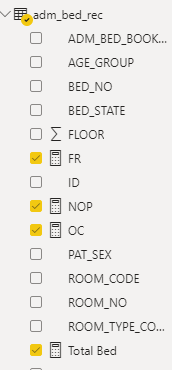
As you may see from the above figures, the question is I would like to transform the table to be the following:
Total Bed 465
OC 89
FR 236
NOP 140
Thanks.
Solved! Go to Solution.


- Mark as New
- Bookmark
- Subscribe
- Mute
- Subscribe to RSS Feed
- Permalink
- Report Inappropriate Content
Hi @harryli ,
You can accomplish this with a disconnected (no relationships to other tables) table that holds the values of the measures you want to display. The order column allows you to set a custom order.

Then use a switch statement to display the correct value.
displaycolumn =
var selection = SELECTEDVALUE('Measures (2)'[Measure])
RETURN
SWITCH(
TRUE(),
Selection = "Total Bed", [Total Bed],
Selection = "OC", [OC],
Selection = "FR", [FR],
Selection = "NOP", [NOP])
Then create a table with the Measure column from the disconnected table and the displaycolumn measure.
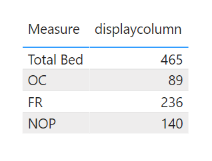
I hope this solves your question - if it does please mark it as a solution!
- Mark as New
- Bookmark
- Subscribe
- Mute
- Subscribe to RSS Feed
- Permalink
- Report Inappropriate Content
Hi @harryli ,
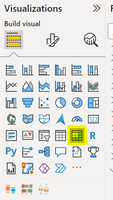
No, to follow the solution that Signore_Ands provided you just need to change your table to a matrix in the visualisation pane. Then the "Options" will be available to you.


- Mark as New
- Bookmark
- Subscribe
- Mute
- Subscribe to RSS Feed
- Permalink
- Report Inappropriate Content
Hi @harryli
Have you tried the solutions provided by other two users? They should work well. For the second solution with Switch values to rows option, it is available in Matrix visual rather than Table visual.
Best Regards,
Community Support Team _ Jing


- Mark as New
- Bookmark
- Subscribe
- Mute
- Subscribe to RSS Feed
- Permalink
- Report Inappropriate Content
Hi @harryli - is it not a case of changing the setting "switch values to rows"?
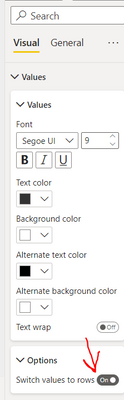
That may do the trick.
- Mark as New
- Bookmark
- Subscribe
- Mute
- Subscribe to RSS Feed
- Permalink
- Report Inappropriate Content
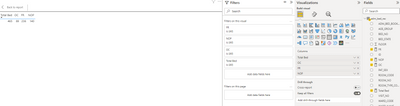

Thanks for your message, but I cannot find the "Options" in the dashboard.
- Mark as New
- Bookmark
- Subscribe
- Mute
- Subscribe to RSS Feed
- Permalink
- Report Inappropriate Content
Hi @harryli ,
That option is only available when using the matrix visual, not the table visual as you currently are using.
- Mark as New
- Bookmark
- Subscribe
- Mute
- Subscribe to RSS Feed
- Permalink
- Report Inappropriate Content
Hi @johncolley ,
That means I need to build the matrix table* to store each of the values I want to display. Or are there any methods to transform the table visual?
*matrix table like the following figure

Thanks a lot.
- Mark as New
- Bookmark
- Subscribe
- Mute
- Subscribe to RSS Feed
- Permalink
- Report Inappropriate Content
Hi @harryli ,
No, to follow the solution that Signore_Ands provided you just need to change your table to a matrix in the visualisation pane. Then the "Options" will be available to you.
- Mark as New
- Bookmark
- Subscribe
- Mute
- Subscribe to RSS Feed
- Permalink
- Report Inappropriate Content
Thanks, and it works.
- Mark as New
- Bookmark
- Subscribe
- Mute
- Subscribe to RSS Feed
- Permalink
- Report Inappropriate Content
Hi @harryli ,
You can accomplish this with a disconnected (no relationships to other tables) table that holds the values of the measures you want to display. The order column allows you to set a custom order.
Then use a switch statement to display the correct value.
displaycolumn =
var selection = SELECTEDVALUE('Measures (2)'[Measure])
RETURN
SWITCH(
TRUE(),
Selection = "Total Bed", [Total Bed],
Selection = "OC", [OC],
Selection = "FR", [FR],
Selection = "NOP", [NOP])
Then create a table with the Measure column from the disconnected table and the displaycolumn measure.
I hope this solves your question - if it does please mark it as a solution!

Helpful resources

Power BI Dataviz World Championships
The Power BI Data Visualization World Championships is back! Get ahead of the game and start preparing now!

Power BI Monthly Update - December 2025
Check out the December 2025 Power BI Holiday Recap!

FabCon Atlanta 2026
Join us at FabCon Atlanta, March 16-20, for the ultimate Fabric, Power BI, AI and SQL community-led event. Save $200 with code FABCOMM.

| User | Count |
|---|---|
| 66 | |
| 44 | |
| 40 | |
| 29 | |
| 19 |


| User | Count |
|---|---|
| 200 | |
| 126 | |
| 103 | |
| 70 | |
| 53 |


