cancel
Showing results for 
Search instead for 
Did you mean: 

The Power BI Data Visualization World Championships is back! Get ahead of the game and start preparing now! Learn more

Reply
Anonymous
Not applicable

How to Create a Simple Cumulative Line Chart

Hi All

I am new to the forum and PowerBI in all honesty

I am wanting to create a simple cumulative line chart for my data

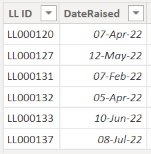
I have a table of 6 records (as below) captured over several months. Some months with more than one record

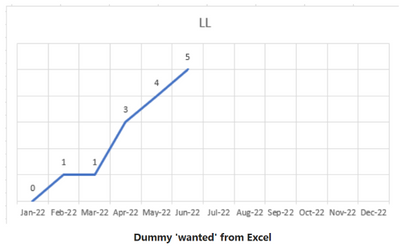
I want to show a chart x-axis months and y-axis count of the records captured and watch it grow.

I have no idea where to start.


digitizerau_0-1657677287957.png

What I am hoping to achieve is something like I created in Excel below to dummy up the look


digitizerau_1-1657677331386.png

Thanks in advance


1 ACCEPTED SOLUTION

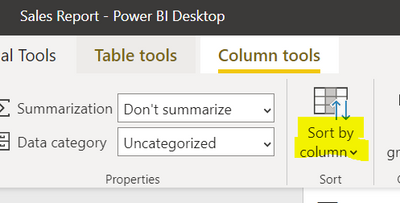
Hi @Anonymous , Apologises a step I didnt mention is you'll need to sort the month year column by monthyearno. When you click on Month Year a Column tools bar should appear at the top:


johncolley_0-1657684889042.png

You can sort the axis of the visual by selecting the more options button in the top right of the visual. 


If this answer solves your problem please mark it as a solution!

View solution in original post

4 REPLIES 4
johncolley
Solution Sage
Solution Sage

Hi @Anonymous ,


Please see the sample pbix here: https://www.dropbox.com/s/i8htrv2v6zij8r2/cumaltive%20total.pbix?dl=0 


Basic approach for this is:

- Create a date table to use as the x-axis

- Create a measure to cumaltive count ID's to use as the y-axis

johncolley_0-1657681590515.png


If this answer solves your problem please mark it as a solution!

Anonymous
Not applicable

Hi @johncolley 

Many thanks for the prompt reply.

It looks like I am nearly there following your example.

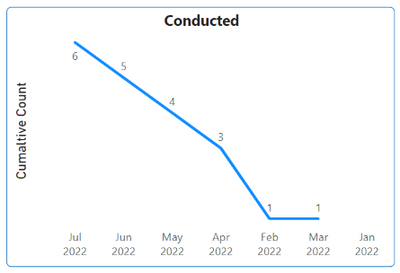
I replicated the columns and measures and as you can see the chart is getting there.

I am not sure why the chart is reversed though and the x-axis out of order.

digitizerau_0-1657684016689.png

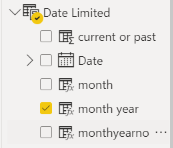
I created the 'Date' table ('Date Limited' in my case)


digitizerau_1-1657684059355.png


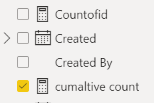
And created the measures in the ID (LL List in my case) table


digitizerau_2-1657684154031.png


Any thoughts on the chart order by chance?

I have compared mine to your example and it all seems in order.

Of note, I am in Australia and the date format is typically dd-mm-yy, or variations of that syntax. Not sure if that is a factor

Cheers again

Hi @Anonymous , Apologises a step I didnt mention is you'll need to sort the month year column by monthyearno. When you click on Month Year a Column tools bar should appear at the top:


johncolley_0-1657684889042.png

You can sort the axis of the visual by selecting the more options button in the top right of the visual. 


If this answer solves your problem please mark it as a solution!

Anonymous
Not applicable

@johncolley 

You are a scholar and a gentleman.

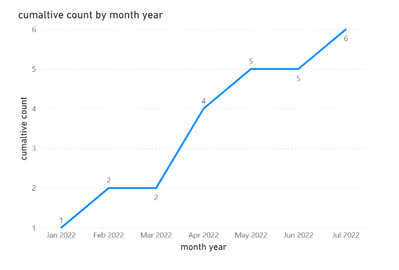
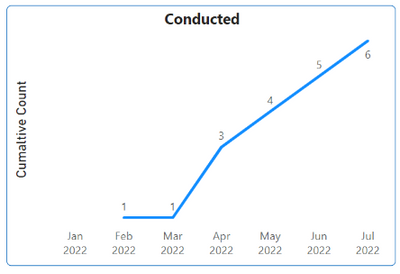
It works!!!!

Thanks so much fo ryou rkind guidance

digitizerau_0-1657685503698.png


Helpful resources

Announcements
Power BI DataViz World Championships

Power BI Dataviz World Championships

The Power BI Data Visualization World Championships is back! Get ahead of the game and start preparing now!

December 2025 Power BI Update Carousel

Power BI Monthly Update - December 2025

Check out the December 2025 Power BI Holiday Recap!

FabCon Atlanta 2026 carousel

FabCon Atlanta 2026

Join us at FabCon Atlanta, March 16-20, for the ultimate Fabric, Power BI, AI and SQL community-led event. Save $200 with code FABCOMM.