Don't miss your chance to take the Fabric Data Engineer (DP-600) exam for FREE! Find out how by watching the DP-600 session on-demand now through April 28th.
Learn moreJoin the FabCon + SQLCon recap series. Up next: Power BI, Real-Time Intelligence, IQ and AI, and Data Factory take center stage. All sessions are available on-demand after the live show. Register now
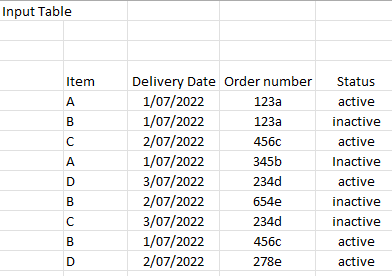
My Input table is as below-
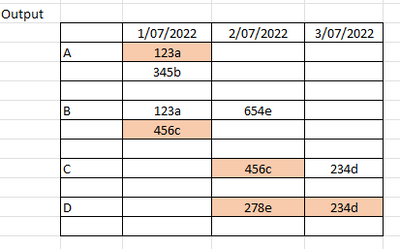
I need to get below output-
I tried with mtrix view but if I put Order Number in Values, it only gives me First Order number value, it does not give me all of them for same item and delivery date.
If I use Concat function, then I cannot do Conditional formatting, where I need to highlight Order Number whose status is Active.
Solved! Go to Solution.
Hi @learner03 ,
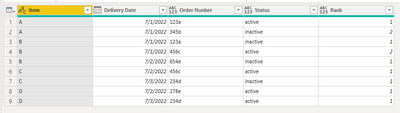
Here I suggest you to add a rank column in Power Query Editor for each item and delivery date.
For refernce: Nested Calculations In Power Query
let
Source = Table.FromRows(Json.Document(Binary.Decompress(Binary.FromText("i45WclTSUTIyMDLSNzDXNzAEcgyNjBOBVGJySWZZqlKsTrSSEw4lmXlIipyRFRkBOSamZsmo5mBYZWximoRujguyImMQx9gkBY97QFaZmZqk4nUPkjkoijB8huloF3TLjMwtUpGUxAIA", BinaryEncoding.Base64), Compression.Deflate)), let _t = ((type nullable text) meta [Serialized.Text = true]) in type table [Item = _t, #"Delivery Date" = _t, #"Order Nunber" = _t, Status = _t]),
#"Changed Type" = Table.TransformColumnTypes(Source,{{"Item", type text}, {"Delivery Date", type date}, {"Order Nunber", type text}, {"Status", type text}}),
#"Sorted Rows" = Table.Sort(#"Changed Type",{{"Item", Order.Ascending}, {"Delivery Date", Order.Ascending}}),
#"Grouped Rows" = Table.Group(#"Sorted Rows", {"Item", "Delivery Date"}, {{"Rows", each _, type table [Item=nullable text, Delivery Date=nullable date, Order Nunber=nullable text, Status=nullable text]}}),
#"Added Custom" = Table.AddColumn(#"Grouped Rows", "Custom", each Table.AddIndexColumn([Rows],"Rank",1,1)),
#"Expanded Custom" = Table.ExpandTableColumn(#"Added Custom", "Custom", {"Order Nunber", "Status", "Rank"}, {"Custom.Order Nunber", "Custom.Status", "Custom.Rank"}),
#"Removed Columns" = Table.RemoveColumns(#"Expanded Custom",{"Rows"}),
#"Renamed Columns" = Table.RenameColumns(#"Removed Columns",{{"Custom.Order Nunber", "Order Nunber"}, {"Custom.Status", "Status"}, {"Custom.Rank", "Rank"}})
in
#"Renamed Columns"
New table:
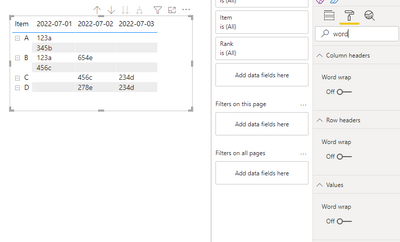
Create a matrix as below. Turn off "Stepped layout" in Row headers.
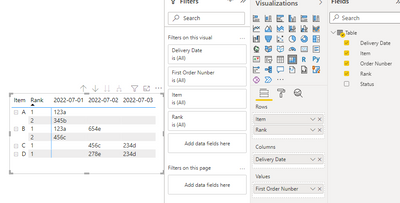
Then turn off word wraps and reduce the width of [Rank] in matrix to 0.
Best Regards,
Rico Zhou
If this post helps, then please consider Accept it as the solution to help the other members find it more quickly.
@learner03 , You have to use Item, Order Number, on Row, Delivery Date on Column and Again Order Number on Values
@amitchandak Thanks it works. But, How can I make the Order Number that is in row to be hidden or no color , so that it does not show on Matrix?
Hi @learner03 ,
Here I suggest you to add a rank column in Power Query Editor for each item and delivery date.
For refernce: Nested Calculations In Power Query
let
Source = Table.FromRows(Json.Document(Binary.Decompress(Binary.FromText("i45WclTSUTIyMDLSNzDXNzAEcgyNjBOBVGJySWZZqlKsTrSSEw4lmXlIipyRFRkBOSamZsmo5mBYZWximoRujguyImMQx9gkBY97QFaZmZqk4nUPkjkoijB8huloF3TLjMwtUpGUxAIA", BinaryEncoding.Base64), Compression.Deflate)), let _t = ((type nullable text) meta [Serialized.Text = true]) in type table [Item = _t, #"Delivery Date" = _t, #"Order Nunber" = _t, Status = _t]),
#"Changed Type" = Table.TransformColumnTypes(Source,{{"Item", type text}, {"Delivery Date", type date}, {"Order Nunber", type text}, {"Status", type text}}),
#"Sorted Rows" = Table.Sort(#"Changed Type",{{"Item", Order.Ascending}, {"Delivery Date", Order.Ascending}}),
#"Grouped Rows" = Table.Group(#"Sorted Rows", {"Item", "Delivery Date"}, {{"Rows", each _, type table [Item=nullable text, Delivery Date=nullable date, Order Nunber=nullable text, Status=nullable text]}}),
#"Added Custom" = Table.AddColumn(#"Grouped Rows", "Custom", each Table.AddIndexColumn([Rows],"Rank",1,1)),
#"Expanded Custom" = Table.ExpandTableColumn(#"Added Custom", "Custom", {"Order Nunber", "Status", "Rank"}, {"Custom.Order Nunber", "Custom.Status", "Custom.Rank"}),
#"Removed Columns" = Table.RemoveColumns(#"Expanded Custom",{"Rows"}),
#"Renamed Columns" = Table.RenameColumns(#"Removed Columns",{{"Custom.Order Nunber", "Order Nunber"}, {"Custom.Status", "Status"}, {"Custom.Rank", "Rank"}})
in
#"Renamed Columns"
New table:
Create a matrix as below. Turn off "Stepped layout" in Row headers.
Then turn off word wraps and reduce the width of [Rank] in matrix to 0.
Best Regards,
Rico Zhou
If this post helps, then please consider Accept it as the solution to help the other members find it more quickly.
Check out the April 2026 Power BI update to learn about new features.
If you have recently started exploring Fabric, we'd love to hear how it's going. Your feedback can help with product improvements.
A new Power BI DataViz World Championship is coming this June! Don't miss out on submitting your entry.
| User | Count |
|---|---|
| 42 | |
| 37 | |
| 35 | |
| 22 | |
| 15 |
| User | Count |
|---|---|
| 67 | |
| 58 | |
| 29 | |
| 27 | |
| 25 |