
cancel
Showing results for 
Search instead for 
Did you mean: 

The Power BI Data Visualization World Championships is back! Get ahead of the game and start preparing now! Learn more

Reply
Anonymous
Not applicable

Filter Values To Create Stacked Column Chart

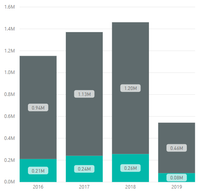
I have created a stacked column chart with 4 columns representing 4 different years and 2 stacked values in each column. This is what it looks like:

Capture4.PNG

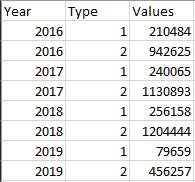
However, to do this, I had to change my directquery to extact a table that previously looked like this:

Capture5.PNG

to this:

Capture6.PNG

Is there any way for me to create a stacked column chart using a filter on the "type" column so it sorts as two separate values? The reason I ask is because I am going to be creating a dynamic matrix/table that I would like to work alongside with this visualization. If I need to use the second table to create the visualization, the two elements won't be connected (and, at least to my knowledge, you won't be able to see which elements/entries are connected when clicking on a cell in the matrix).

1 ACCEPTED SOLUTION
jdbuchanan71
Super User
Super User

Hello @Anonymous 

You should leave your data in the format of the first table.  You can get to your goal with just a couple measures.  Lets assume your table is called Table1

Amount = SUM ( Table1[Values] )
Type1 = CALCULATE ( [Amount], KEEPFILTERS ( Table1[Type] = 1 ) )
Type2 = CALCULATE ( [Amount], KEEPFILTERS ( Table1[Type] = 2 ) )

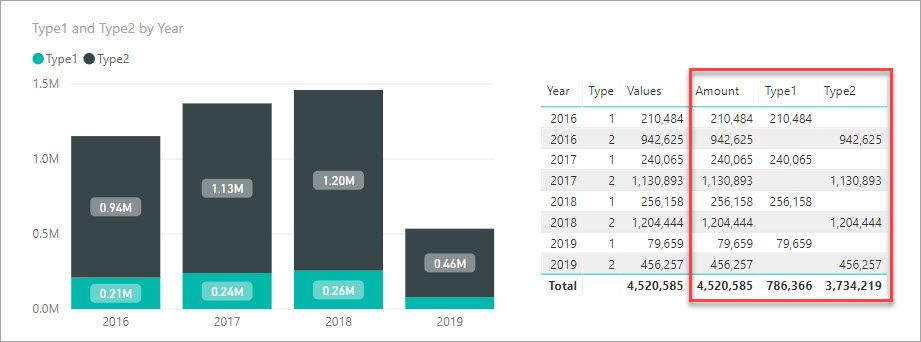
Here is an image of the chart and the data with the three measures above (outlined in red).

TypeMeasures.jpg

By using CALCULATE in our Type measures over our base measure [Amount] we are able to change what each of them calculates.  The KEEPFILTERS just lets other things like slicers further filter the measures if they are used.

You will just need to change the name of the table in the measure to whatever it really is in your model.  In the spots in blue below.

TypeMeasuresTable.jpg

View solution in original post

2 REPLIES 2
jdbuchanan71
Super User
Super User

Hello @Anonymous 

You should leave your data in the format of the first table.  You can get to your goal with just a couple measures.  Lets assume your table is called Table1

Amount = SUM ( Table1[Values] )
Type1 = CALCULATE ( [Amount], KEEPFILTERS ( Table1[Type] = 1 ) )
Type2 = CALCULATE ( [Amount], KEEPFILTERS ( Table1[Type] = 2 ) )

Here is an image of the chart and the data with the three measures above (outlined in red).

TypeMeasures.jpg

By using CALCULATE in our Type measures over our base measure [Amount] we are able to change what each of them calculates.  The KEEPFILTERS just lets other things like slicers further filter the measures if they are used.

You will just need to change the name of the table in the measure to whatever it really is in your model.  In the spots in blue below.

TypeMeasuresTable.jpg

Anonymous
Not applicable

Hello!

In this same example, is there a way to add a filter or select what type I want to be displayed. It is true that if I select a specific type in the legend, that type is shown in color and the others in gray. But I would like the graph to only show that particular type, as if I had removed the other one.


My data is displayed as | Year | Values1 | Values 2 |

Helpful resources

Announcements
Power BI DataViz World Championships

Power BI Dataviz World Championships

The Power BI Data Visualization World Championships is back! Get ahead of the game and start preparing now!

December 2025 Power BI Update Carousel

Power BI Monthly Update - December 2025

Check out the December 2025 Power BI Holiday Recap!

FabCon Atlanta 2026 carousel

FabCon Atlanta 2026

Join us at FabCon Atlanta, March 16-20, for the ultimate Fabric, Power BI, AI and SQL community-led event. Save $200 with code FABCOMM.