FabCon is coming to Atlanta
Join us at FabCon Atlanta from March 16 - 20, 2026, for the ultimate Fabric, Power BI, AI and SQL community-led event. Save $200 with code FABCOMM.
Register now!- Power BI forums
- Get Help with Power BI
- Desktop
- Service
- Report Server
- Power Query
- Mobile Apps
- Developer
- DAX Commands and Tips
- Custom Visuals Development Discussion
- Health and Life Sciences
- Power BI Spanish forums
- Translated Spanish Desktop
- Training and Consulting
- Instructor Led Training
- Dashboard in a Day for Women, by Women
- Galleries
- Data Stories Gallery
- Themes Gallery
- Contests Gallery
- QuickViz Gallery
- Quick Measures Gallery
- Visual Calculations Gallery
- Notebook Gallery
- Translytical Task Flow Gallery
- TMDL Gallery
- R Script Showcase
- Webinars and Video Gallery
- Ideas
- Custom Visuals Ideas (read-only)
- Issues
- Issues
- Events
- Upcoming Events
The Power BI Data Visualization World Championships is back! Get ahead of the game and start preparing now! Learn more
- Power BI forums
- Forums
- Get Help with Power BI
- Desktop
- Date Hierarchy in Drillthrough
- Subscribe to RSS Feed
- Mark Topic as New
- Mark Topic as Read
- Float this Topic for Current User
- Bookmark
- Subscribe
- Printer Friendly Page

- Mark as New
- Bookmark
- Subscribe
- Mute
- Subscribe to RSS Feed
- Permalink
- Report Inappropriate Content
Date Hierarchy in Drillthrough
I am having a "Date" column in my table, which is the format of "2018-05-30 00:00:00.000".
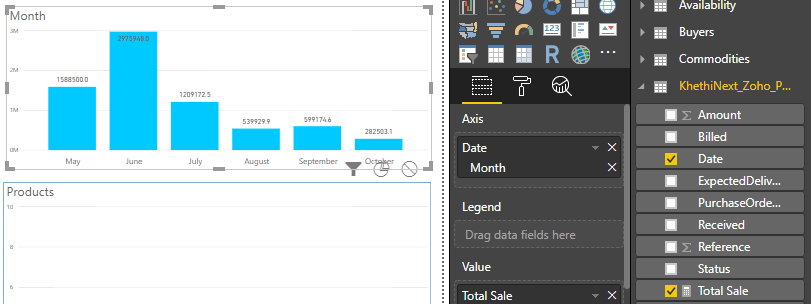
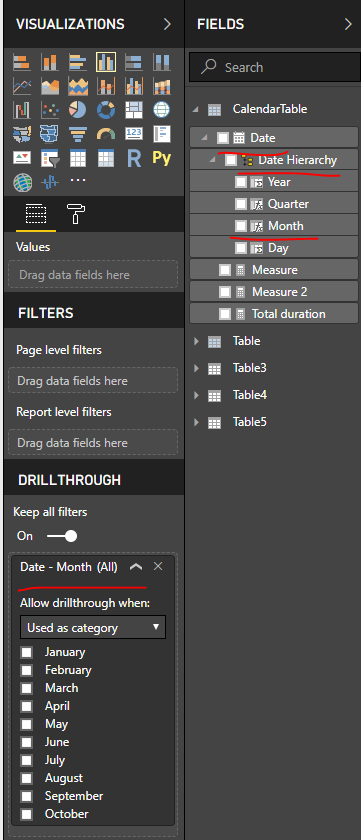
But, When I drag that Date Column into Axis Field of stacked column chart, I got Default Date Hierarchy as Year, Quarter, Month and Day from which I selected Month, as in the above figure.
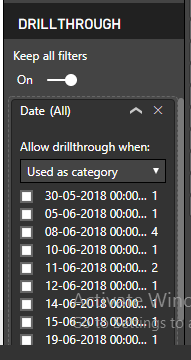
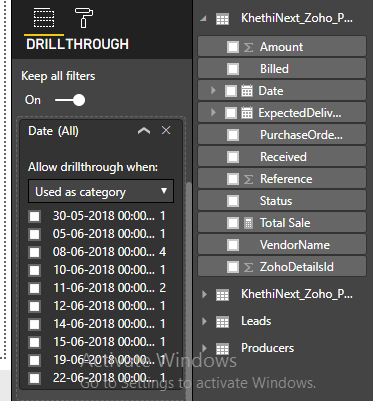
Now, I want that same Date Column in Drillthrough Field based on Month. But I am not getting default Date Hierarchy as Year, Quarter, Month and Day in Drill through field when I dragged Date column in it. Instead I am getting the format in my Database, as in secong figure. Anyone help me how to get Date hierarchy in Drillthrough.
Solved! Go to Solution.


- Mark as New
- Bookmark
- Subscribe
- Mute
- Subscribe to RSS Feed
- Permalink
- Report Inappropriate Content
Hi @Anonymous,
You created the date hierarchy by yourself? What I mean is to enable the highlighted preview feature.
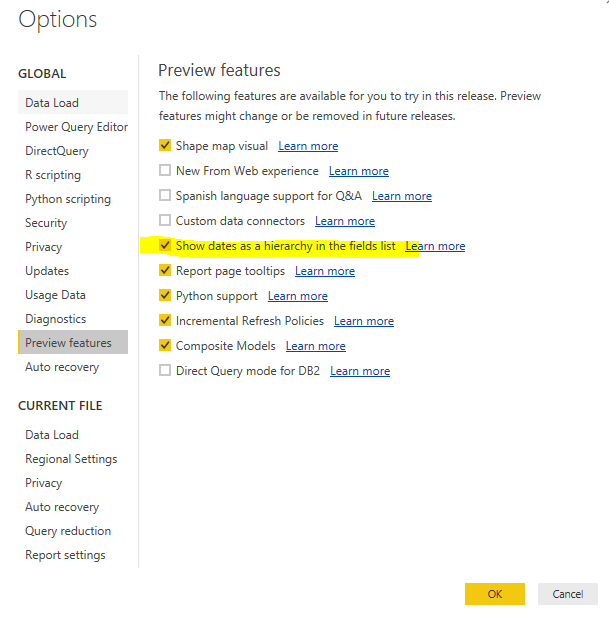
Then, expand the [Date] field, then, expand the "Hierarchy" under [Date].
Best regards,
Yuliana Gu
If this post helps, then please consider Accept it as the solution to help the other members find it more quickly.

- Mark as New
- Bookmark
- Subscribe
- Mute
- Subscribe to RSS Feed
- Permalink
- Report Inappropriate Content
December, 2024: I had questions about this topic. My search results led me to this post. I am not an expert but believe the option has changed over the years. I could not find the option under "Preview features". What I did find, from using an additional result, is that there is a "Auto date/time for new files" under the GLOBAL > Data Load options. As well as the same setting available under the CURRENT FILE > Data Load options. The different settings are self explanatory. This helped solve my issue of needing a date attribute to have hierarchy applied. Hope it helps.
Best Regards,
- Mark as New
- Bookmark
- Subscribe
- Mute
- Subscribe to RSS Feed
- Permalink
- Report Inappropriate Content
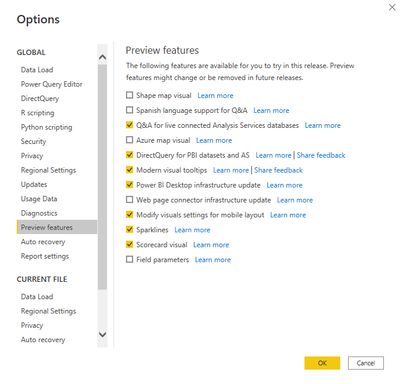
Can I know where this option is Available in the new Version?


- Mark as New
- Bookmark
- Subscribe
- Mute
- Subscribe to RSS Feed
- Permalink
- Report Inappropriate Content
If I understood you correctly, you just want to get the Drillthough working properly so that the Date Heirarchy gets passed to the target page. There are 2 ways you can do this:
Option 1: Just drag in [Total Sale] measure to your target screen as Drill Through filter. Now, you will get a drill though option for all Visuals using Total Sales in the Source screen You don't need to worry about the Date heirarchy. All the filters from the source screen gets automatically carry forward to target when you do the DrillThrough.
Option 2: If you just want the Date heirarchy to be carry forward, then, you have to enable "Show Dates as Heirarchy Feature". For this go to File > Options and Settings > Options > Preview features and enable Show dates as a heirarchy in the field list option. Restart the PBI Desktop. Afterwards, you will start seeing the Year, Month, Quarter, etc in the field list itself, which you can drag into the Drill Though pane.
- Mark as New
- Bookmark
- Subscribe
- Mute
- Subscribe to RSS Feed
- Permalink
- Report Inappropriate Content
I can't use option 1 for my requirement as drillthrough is getting enabled for all visuals in the source sreen, if I drag [Total Sale] in target screen Drillthrough field. It is Possible if only Date Visual in Source Screen is enabled for drill through, when I drag [Total Sale] in target screen.
But I tried Option 2, still I am not getting Date Hierarchy in Drillthrough Field, as it is showing in the below figure.
It would be helpful if you give me solution for either option1 or option2.
- Mark as New
- Bookmark
- Subscribe
- Mute
- Subscribe to RSS Feed
- Permalink
- Report Inappropriate Content
Hi @Anonymous,
Please expand the "Date Hierarchy" field, and drag "Month" into drillthrough.
Best regards,
Yuliana Gu
If this post helps, then please consider Accept it as the solution to help the other members find it more quickly.
- Mark as New
- Bookmark
- Subscribe
- Mute
- Subscribe to RSS Feed
- Permalink
- Report Inappropriate Content
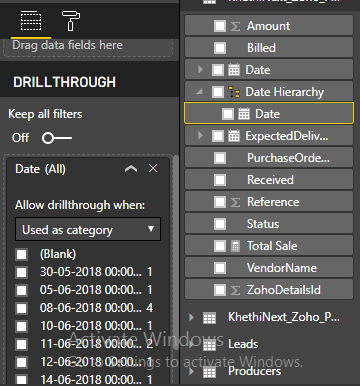
Is there any other alternate to change DataType of [Date] Column in Power BI. So, that I may get Date Hierarchy.
- Mark as New
- Bookmark
- Subscribe
- Mute
- Subscribe to RSS Feed
- Permalink
- Report Inappropriate Content
Hi @Anonymous,
You created the date hierarchy by yourself? What I mean is to enable the highlighted preview feature.
Then, expand the [Date] field, then, expand the "Hierarchy" under [Date].
Best regards,
Yuliana Gu
If this post helps, then please consider Accept it as the solution to help the other members find it more quickly.
- Mark as New
- Bookmark
- Subscribe
- Mute
- Subscribe to RSS Feed
- Permalink
- Report Inappropriate Content
Hi @Anonymous,
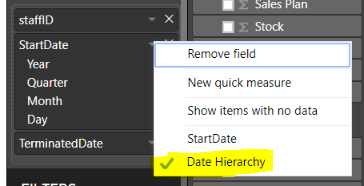
Have you made sure that "Date Hierarchy" is chosen for the column?
Hope this helps!
Best regards
Helpful resources

Power BI Dataviz World Championships
The Power BI Data Visualization World Championships is back! Get ahead of the game and start preparing now!

Power BI Monthly Update - December 2025
Check out the December 2025 Power BI Holiday Recap!

FabCon Atlanta 2026
Join us at FabCon Atlanta, March 16-20, for the ultimate Fabric, Power BI, AI and SQL community-led event. Save $200 with code FABCOMM.

| User | Count |
|---|---|
| 39 | |
| 38 | |
| 38 | |
| 28 | |
| 27 |


| User | Count |
|---|---|
| 124 | |
| 88 | |
| 73 | |
| 66 | |
| 65 |


