Don't miss your chance to take the Fabric Data Engineer (DP-700) exam on us!
Learn moreWe've captured the moments from FabCon & SQLCon that everyone is talking about, and we are bringing them to the community, live and on-demand. Starts on April 14th. Register now
Hello,
I'm currently working with a dataset that is coming in from one of our project offices excel files. The data has 27 columns, I need to take the last 14 columns and create new rows for those entries and keep the data in the first 15 columns. In excel I would look to use a VBA to alter the data, but I'd prefer to do this on my end in Power BI as to not transform their data and the way they're using it.
Solved! Go to Solution.
The unpivot-solution in the query editor would look like so:
let
Source = Table.FromRows(Json.Document(Binary.Decompress(Binary.FromText("i45WCijKz0pNLvErzU1KLVLSUQrISCxOVTAEspxLi4pS80qALLfSvJTUFLikETbJWJ1oJUcnZ0OQJEi3oYEBkDQFESAhIzALJAhS6OziamJqBlVpZGAAV28E1mMAFY2NBQA=", BinaryEncoding.Base64), Compression.Deflate)), let _t = ((type text) meta [Serialized.Text = true]) in type table [ProjectNumber = _t, #"Phase 1" = _t, Current = _t, Funded = _t, Phase2 = _t, asdf = _t, Column2 = _t]),
#"Promoted Headers" = Table.PromoteHeaders(Source, [PromoteAllScalars=true]),
#"Changed Type1" = Table.TransformColumnTypes(#"Promoted Headers",{{"ProjectNumber", type text}, {"Phase 1", Int64.Type}, {"Current", Int64.Type}, {"Funded", Int64.Type}, {"Phase 2", Int64.Type}, {"Current_1", Int64.Type}, {"Funded_2", Int64.Type}}),
#"Unpivoted Other Columns" = Table.UnpivotOtherColumns(#"Changed Type1", {"ProjectNumber"}, "Attribute", "Value"),
#"Split Column by Delimiter" = Table.SplitColumn(#"Unpivoted Other Columns", "Attribute", Splitter.SplitTextByDelimiter(" ", QuoteStyle.Csv), {"Attribute.1", "Attribute.2"}),
#"Extracted Text Before Delimiter" = Table.TransformColumns(#"Split Column by Delimiter", {{"Attribute.1", each Text.BeforeDelimiter(_, "_"), type text}}),
#"Renamed Columns" = Table.RenameColumns(#"Extracted Text Before Delimiter",{{"Attribute.2", "Phase"}}),
#"Filled Down" = Table.FillDown(#"Renamed Columns",{"Phase"}),
#"Filtered Rows" = Table.SelectRows(#"Filled Down", each ([Attribute.1] <> "Phase")),
#"Pivoted Column" = Table.Pivot(#"Filtered Rows", List.Distinct(#"Filtered Rows"[Attribute.1]), "Attribute.1", "Value")
in
#"Pivoted Column"
This is following the method I've described here: https://www.thebiccountant.com/2015/08/12/how-to-pivot-multiple-measurescolumns-in-power-query/
Imke Feldmann (The BIccountant)
If you liked my solution, please give it a thumbs up. And if I did answer your question, please mark this post as a solution. Thanks!
How to integrate M-code into your solution -- How to get your questions answered quickly -- How to provide sample data -- Check out more PBI- learning resources here -- Performance Tipps for M-queries
Hi @jritchey
Check out the unpivot-feature in the query editor.
If that's not working, please paste sample of your data: before and after.
Imke Feldmann (The BIccountant)
If you liked my solution, please give it a thumbs up. And if I did answer your question, please mark this post as a solution. Thanks!
How to integrate M-code into your solution -- How to get your questions answered quickly -- How to provide sample data -- Check out more PBI- learning resources here -- Performance Tipps for M-queries
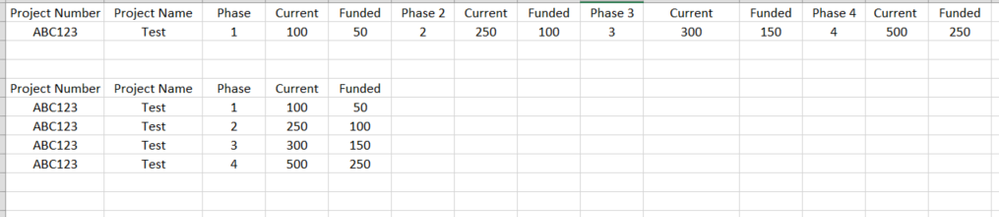
Using the unpivot isn't working. What I'm trying to do with the query is this:
The unpivot-solution in the query editor would look like so:
let
Source = Table.FromRows(Json.Document(Binary.Decompress(Binary.FromText("i45WCijKz0pNLvErzU1KLVLSUQrISCxOVTAEspxLi4pS80qALLfSvJTUFLikETbJWJ1oJUcnZ0OQJEi3oYEBkDQFESAhIzALJAhS6OziamJqBlVpZGAAV28E1mMAFY2NBQA=", BinaryEncoding.Base64), Compression.Deflate)), let _t = ((type text) meta [Serialized.Text = true]) in type table [ProjectNumber = _t, #"Phase 1" = _t, Current = _t, Funded = _t, Phase2 = _t, asdf = _t, Column2 = _t]),
#"Promoted Headers" = Table.PromoteHeaders(Source, [PromoteAllScalars=true]),
#"Changed Type1" = Table.TransformColumnTypes(#"Promoted Headers",{{"ProjectNumber", type text}, {"Phase 1", Int64.Type}, {"Current", Int64.Type}, {"Funded", Int64.Type}, {"Phase 2", Int64.Type}, {"Current_1", Int64.Type}, {"Funded_2", Int64.Type}}),
#"Unpivoted Other Columns" = Table.UnpivotOtherColumns(#"Changed Type1", {"ProjectNumber"}, "Attribute", "Value"),
#"Split Column by Delimiter" = Table.SplitColumn(#"Unpivoted Other Columns", "Attribute", Splitter.SplitTextByDelimiter(" ", QuoteStyle.Csv), {"Attribute.1", "Attribute.2"}),
#"Extracted Text Before Delimiter" = Table.TransformColumns(#"Split Column by Delimiter", {{"Attribute.1", each Text.BeforeDelimiter(_, "_"), type text}}),
#"Renamed Columns" = Table.RenameColumns(#"Extracted Text Before Delimiter",{{"Attribute.2", "Phase"}}),
#"Filled Down" = Table.FillDown(#"Renamed Columns",{"Phase"}),
#"Filtered Rows" = Table.SelectRows(#"Filled Down", each ([Attribute.1] <> "Phase")),
#"Pivoted Column" = Table.Pivot(#"Filtered Rows", List.Distinct(#"Filtered Rows"[Attribute.1]), "Attribute.1", "Value")
in
#"Pivoted Column"
This is following the method I've described here: https://www.thebiccountant.com/2015/08/12/how-to-pivot-multiple-measurescolumns-in-power-query/
Imke Feldmann (The BIccountant)
If you liked my solution, please give it a thumbs up. And if I did answer your question, please mark this post as a solution. Thanks!
How to integrate M-code into your solution -- How to get your questions answered quickly -- How to provide sample data -- Check out more PBI- learning resources here -- Performance Tipps for M-queries
This might not the best efficient way. But try
union(
summarize(table, table[project Number] , table[project Name], table[phase], table[Current], table[funded]),
summarize(table, table[project Number] , table[project Name], table[phase2], table[Current2], table[funded2]),
summarize(table, table[project Number] , table[project Name], table[phase3], table[Current3], table[funded3]),
summarize(table, table[project Number] , table[project Name], table[phase4], table[Current4], table[funded4])
)
Appreciate your Kudos. In case, this is the solution you are looking for, mark it as the Solution. In case it does not help, please provide additional information and mark me with @
Thanks. My Recent Blog -
Winner-Topper-on-Map-How-to-Color-States-on-a-Map-with-Winners , HR-Analytics-Active-Employee-Hire-and-Termination-trend
Power-BI-Working-with-Non-Standard-Time-Periods And Comparing-Data-Across-Date-Ranges
Connect on Linkedin
If you have recently started exploring Fabric, we'd love to hear how it's going. Your feedback can help with product improvements.
A new Power BI DataViz World Championship is coming this June! Don't miss out on submitting your entry.
Share feedback directly with Fabric product managers, participate in targeted research studies and influence the Fabric roadmap.
| User | Count |
|---|---|
| 53 | |
| 39 | |
| 35 | |
| 19 | |
| 18 |
| User | Count |
|---|---|
| 73 | |
| 73 | |
| 38 | |
| 35 | |
| 26 |