FabCon is coming to Atlanta
Join us at FabCon Atlanta from March 16 - 20, 2026, for the ultimate Fabric, Power BI, AI and SQL community-led event. Save $200 with code FABCOMM.
Register now!- Power BI forums
- Get Help with Power BI
- Desktop
- Service
- Report Server
- Power Query
- Mobile Apps
- Developer
- DAX Commands and Tips
- Custom Visuals Development Discussion
- Health and Life Sciences
- Power BI Spanish forums
- Translated Spanish Desktop
- Training and Consulting
- Instructor Led Training
- Dashboard in a Day for Women, by Women
- Galleries
- Data Stories Gallery
- Themes Gallery
- Contests Gallery
- QuickViz Gallery
- Quick Measures Gallery
- Visual Calculations Gallery
- Notebook Gallery
- Translytical Task Flow Gallery
- TMDL Gallery
- R Script Showcase
- Webinars and Video Gallery
- Ideas
- Custom Visuals Ideas (read-only)
- Issues
- Issues
- Events
- Upcoming Events
The Power BI Data Visualization World Championships is back! Get ahead of the game and start preparing now! Learn more
- Power BI forums
- Forums
- Get Help with Power BI
- Desktop
- Create a slicer with Column Headers
- Subscribe to RSS Feed
- Mark Topic as New
- Mark Topic as Read
- Float this Topic for Current User
- Bookmark
- Subscribe
- Printer Friendly Page

- Mark as New
- Bookmark
- Subscribe
- Mute
- Subscribe to RSS Feed
- Permalink
- Report Inappropriate Content
Create a slicer with Column Headers
Is it possible to create a slicer with column headers?
I would Like to create a drop down slicer that only shows header names and not values ( Line Rate, Accessorial Rate, Hourly Rate, Non- Hourly Rate, Total Rate)
Line Rate Accessorial Rate Hourly Rate Non Hourly Rate Total Rate
1.23 2.34 1.22 9.90 3.22
1.45 4.55 3.44 18.23 4.55
3.67 3.12 1.89 3.44 6.78
Solved! Go to Solution.


- Mark as New
- Bookmark
- Subscribe
- Mute
- Subscribe to RSS Feed
- Permalink
- Report Inappropriate Content
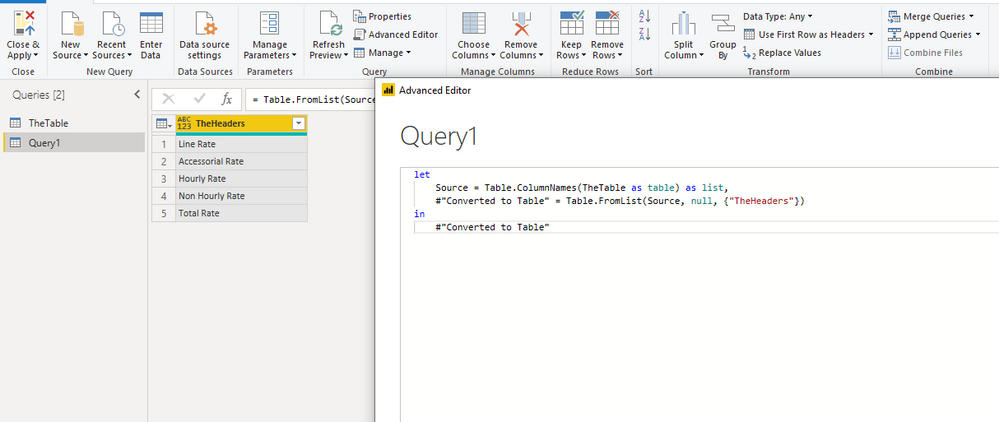
@Anonymous You can use power query to create this - please replace TheTable below to the name of your table.
On the Advanced editor, create a blank query and use this code:
let
    Source = Table.ColumnNames(TheTable as table) as list,
    #"Converted to Table" = Table.FromList(Source, null, {"TheHeaders"})
in
    #"Converted to Table"


- Mark as New
- Bookmark
- Subscribe
- Mute
- Subscribe to RSS Feed
- Permalink
- Report Inappropriate Content
Hi @Anonymous ,
I will show you another way:
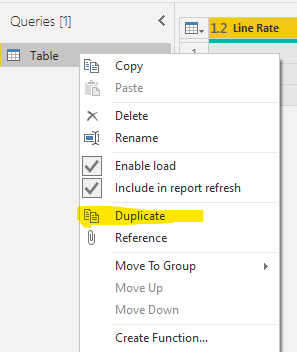
Go to query editor>right click on table name in the "Queries">"Duplicate":
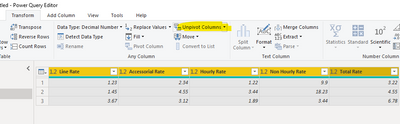
Select all the columns >unpivot the columns:
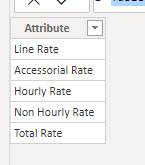
Then "Apply and close" and back to data view,create a new table using below dax expression:
Slicer table = DISTINCT('Table (2)'[Attribute])
And you will see:
For the related .pbix file,pls click here.
Best Regards,
Kelly
Did I answer your question? Mark my post as a solution!


- Mark as New
- Bookmark
- Subscribe
- Mute
- Subscribe to RSS Feed
- Permalink
- Report Inappropriate Content
I love power query. Always about 5 ways to get many things done. Mine took the "only use the UI approach" but with come M coding, can be done in fewer setps.
Did I answer your question? Mark my post as a solution!
Did my answers help arrive at a solution? Give it a kudos by clicking the Thumbs Up!
DAX is for Analysis. Power Query is for Data Modeling
Proud to be a Super User!
MCSA: BI Reporting- Mark as New
- Bookmark
- Subscribe
- Mute
- Subscribe to RSS Feed
- Permalink
- Report Inappropriate Content
@Anonymous You can use power query to create this - please replace TheTable below to the name of your table.
On the Advanced editor, create a blank query and use this code:
let
    Source = Table.ColumnNames(TheTable as table) as list,
    #"Converted to Table" = Table.FromList(Source, null, {"TheHeaders"})
in
    #"Converted to Table"
- Mark as New
- Bookmark
- Subscribe
- Mute
- Subscribe to RSS Feed
- Permalink
- Report Inappropriate Content
Didn't think of dropping to a list @sanimesa for this one. Much shorter. 😁
Did I answer your question? Mark my post as a solution!
Did my answers help arrive at a solution? Give it a kudos by clicking the Thumbs Up!
DAX is for Analysis. Power Query is for Data Modeling
Proud to be a Super User!
MCSA: BI Reporting- Mark as New
- Bookmark
- Subscribe
- Mute
- Subscribe to RSS Feed
- Permalink
- Report Inappropriate Content
- Mark as New
- Bookmark
- Subscribe
- Mute
- Subscribe to RSS Feed
- Permalink
- Report Inappropriate Content
Yes. See the code below. It turns this:
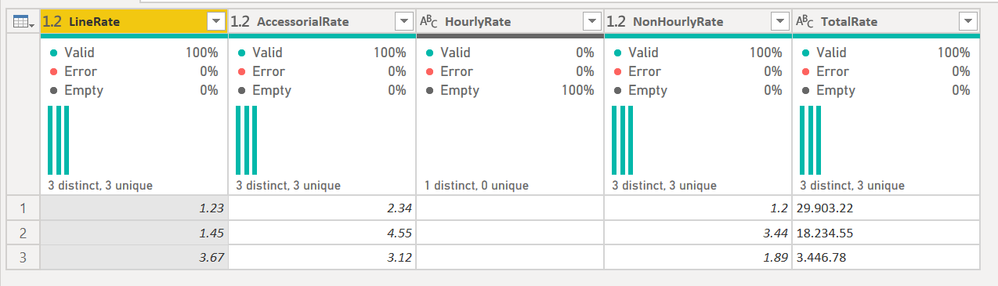
into this:

You can then create a slicer with that data. You should create a reference to the original table in Power Query to start this process, then load this table as a Fields table.
1) In Power Query, select New Source, then Blank Query
2) On the Home ribbon, select "Advanced Editor" button
3) Remove everything you see, then paste the M code I've given you in that box.
4) Press Done
let
    Source = Table.FromRows(Json.Document(Binary.Decompress(Binary.FromText("NYzbDQAhCAR74dtsTh4qtRj6b0Pw7hKSDcMse1MHCzViiGbkJKjd4Y+AmaKVpJZQYfZKAi29r2xfWpZgzHvr/L9a/skDc1HEAQ==", BinaryEncoding.Base64), Compression.Deflate)), let _t = ((type text) meta [Serialized.Text = true]) in type table [LineRate = _t, AccessorialRate = _t, HourlyRate = _t, NonHourlyRate = _t, TotalRate = _t]),
    #"Changed Type" = Table.TransformColumnTypes(Source,{{"LineRate", type number}, {"AccessorialRate", type number}, {"HourlyRate", type text}, {"NonHourlyRate", type number}, {"TotalRate", type text}}),
    #"Demoted Headers" = Table.DemoteHeaders(#"Changed Type"),
    #"Changed Type1" = Table.TransformColumnTypes(#"Demoted Headers",{{"Column1", type any}, {"Column2", type any}, {"Column3", type text}, {"Column4", type any}, {"Column5", type text}}),
    #"Transposed Table" = Table.Transpose(#"Changed Type1"),
    #"Renamed Columns" = Table.RenameColumns(#"Transposed Table",{{"Column1", "Fields"}}),
    #"Removed Other Columns" = Table.SelectColumns(#"Renamed Columns",{"Fields"}),
    #"Changed Type2" = Table.TransformColumnTypes(#"Removed Other Columns",{{"Fields", type text}})
in
    #"Changed Type2"
Did I answer your question? Mark my post as a solution!
Did my answers help arrive at a solution? Give it a kudos by clicking the Thumbs Up!
DAX is for Analysis. Power Query is for Data Modeling
Proud to be a Super User!
MCSA: BI Reporting
Helpful resources

Power BI Dataviz World Championships
The Power BI Data Visualization World Championships is back! Get ahead of the game and start preparing now!

Power BI Monthly Update - December 2025
Check out the December 2025 Power BI Holiday Recap!

FabCon Atlanta 2026
Join us at FabCon Atlanta, March 16-20, for the ultimate Fabric, Power BI, AI and SQL community-led event. Save $200 with code FABCOMM.

| User | Count |
|---|---|
| 40 | |
| 38 | |
| 36 | |
| 29 | |
| 28 |


| User | Count |
|---|---|
| 127 | |
| 88 | |
| 78 | |
| 66 | |
| 64 |


