Join us at FabCon Atlanta from March 16 - 20, 2026, for the ultimate Fabric, Power BI, AI and SQL community-led event. Save $200 with code FABCOMM.
Register now!Vote for your favorite vizzies from the Power BI Dataviz World Championship submissions. Vote now!
Hi,
I cant import decimal numbers from a csv file. The problematic fields in the csv file look like this: … ,0.702,… with a varying number of decimals. Column is by default detected as “Fixed decimal number”, but the decimal is ignored and the result is a whole number (702 for the above example).
I have tried pressing “Edit” before I load the csv file, and changing the data type to “Decimal number”. It doesn’t help, the result is the same.
If I press “detect data type” on the Transform tab, the result is “whole number” and only if use “Text” as data type can I see the decimal point. The problem is then of course that I am not importing numbers, which I need to do.
Does anyone have any idea on how to solve this seemingly trivial problem?
Many thanks in advance 🙂
Solved! Go to Solution.
Many thanks Marcel! Feeling a little embarassed now, but I just found an even simpler solution. There is a setting; "Archive - Options and settings - Options - Regional Settings - Locale" which I changed to English (United States). That did the trick. The data was now correctly interpreted and loaded.
I am located in Sweden and that apparently changed the way "." was interpreted in my CSV-file!
Thanks again for your help Marcel, have a great day!
When importing a csv file, you automatically get a step "Changed Type".
In this step,you need to add a culture that uses a decimal point instead of a decimal comma, e.g. (in the formula bar):
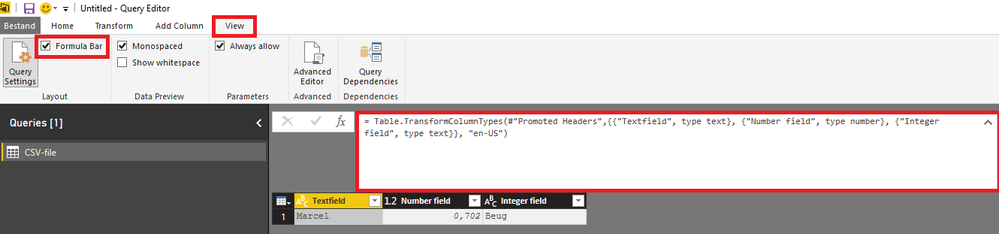
= Table.TransformColumnTypes(#"Promoted Headers",{{"Textfield", type text}, {"Number field", type number}, {"Integer field", type text}}, "en-US")
Hi Marcel,
Thanks for your reply! I am completely new to Power BI and dont understand where to put the code. I found a list of applied steps including the "Changed type" step, but I cant find any formula bar. Any chance you could elaborate a little for a beginner?
In the "View" menu, you can check "Formula Bar" which will display the formula bar with your formulas.
Display Formula bar in Power Query
Many thanks Marcel! Feeling a little embarassed now, but I just found an even simpler solution. There is a setting; "Archive - Options and settings - Options - Regional Settings - Locale" which I changed to English (United States). That did the trick. The data was now correctly interpreted and loaded.
I am located in Sweden and that apparently changed the way "." was interpreted in my CSV-file!
Thanks again for your help Marcel, have a great day!
Another solution:
* use the Data->From Text/CSV option
* press the "Edit" button
* Look at the "Applied Steps" window (lower right); if there is a "Changed Type" step, then remove it (i.e. press on the "X" before this step)
* Close and load the Edit sheet
* thereafter you can replace "." with "," with a replace-all
This worked for me (Netherlands)
Groet, Robert Koffrie
Vote for your favorite vizzies from the Power BI World Championship submissions!
If you love stickers, then you will definitely want to check out our Community Sticker Challenge!
Check out the January 2026 Power BI update to learn about new features.
| User | Count |
|---|---|
| 63 | |
| 53 | |
| 42 | |
| 20 | |
| 17 |
| User | Count |
|---|---|
| 124 | |
| 105 | |
| 44 | |
| 32 | |
| 24 |