cancel
Showing results for 
Search instead for 
Did you mean: 

The Power BI Data Visualization World Championships is back! Get ahead of the game and start preparing now! Learn more

Reply
joc
Helper I
Helper I

Add new table with calculated lines

Hello everybody,


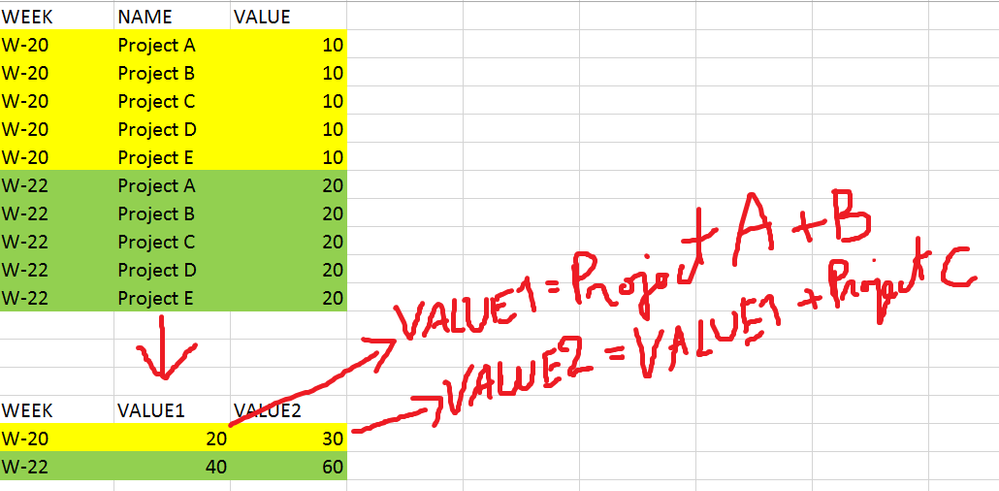
I need your help to create a new table with conditions. I know how to create a new table, but don't what is the formula to calculated what I want :


img.png


I have the first table, and I want the new one. 


Thanks a lot for your help,

Joc

1 ACCEPTED SOLUTION
v-yulgu-msft
Microsoft Employee
Microsoft Employee

Hi @joc,


If you only need to calculate the sum of [Value1] and [Value2] in new table, you can refer to below formula to create a calculated table.

Test1_1 =
SUMMARIZE (
    Test1,
    Test1[WEEK],
    "Value1", CALCULATE (
        SUM ( Test1[VALUE] ),
        FILTER ( Test1, Test1[NAME] = "ProjectA" || Test1[NAME] = "ProjectB" )
    ),
    "Value2", CALCULATE (
        SUM ( Test1[VALUE] ),
        FILTER (
            Test1,
            Test1[NAME] = "ProjectA"
                || Test1[NAME] = "ProjectB"
                || Test1[NAME] = "ProjectC"
        )
    )
)

But, based on my assumption, you may want a running total like:

Value1=ProjectA+ProjectB

Value2=Value1+ProjectC

Value3=Value2+ProjectD

Value4=Value3+ProjectE


You may have many rows in source table, so, there should be many columns in new table, right?


If so, please refer to below steps.


First, you should add a nested index column using in Query Editor mode. For more description, please see: Nested Calculations In Power Query

let
    Source = Excel.Workbook(File.Contents("C:\Users\v-yulgu\Desktop\Sample Data.xlsx"), null, true),
    Test1_Sheet = Source{[Item="Test1",Kind="Sheet"]}[Data],
    #"Promoted Headers" = Table.PromoteHeaders(Test1_Sheet, [PromoteAllScalars=true]),
    #"Changed Type" = Table.TransformColumnTypes(#"Promoted Headers",{{"WEEK", type text}, {"NAME", type text}, {"VALUE", Int64.Type}}),
    #"Grouped Rows" = Table.Group(#"Changed Type", {"WEEK"}, {{"AllRows", each _, type table}}),
    NestedIndexFunction = (tabletorank as table) as table =>
     let
        AddIndex = Table.AddIndexColumn(tabletorank, "Index", 0, 1)
     in
      AddIndex,
   #"AddedRank" = Table.TransformColumns(#"Grouped Rows", {"AllRows", each NestedIndexFunction(_)}),
    #"Expanded AllRows" = Table.ExpandTableColumn(AddedRank, "AllRows", {"NAME", "VALUE", "Index"}, {"AllRows.NAME", "AllRows.VALUE", "AllRows.Index"})
in
    #"Expanded AllRows"
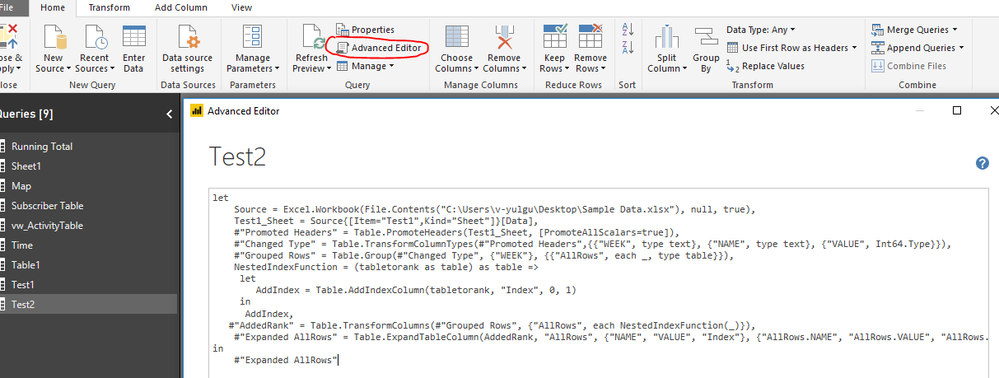
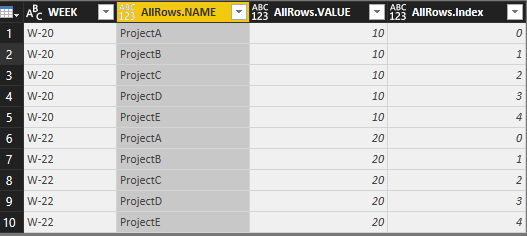
3.PNG

4.PNG


Save above changes. Return back to design mode, you should create two calculated columns as below:

Running Total =
IF (
    Test2[AllRows.Index] = 0,
    0,
    CALCULATE (
        SUM ( Test2[AllRows.VALUE] ),
        ALLEXCEPT ( Test2, Test2[WEEK] ),
        Test2[AllRows.Index] <= EARLIER ( Test2[AllRows.Index] )
    )
)

New Column =
IF ( Test2[AllRows.Index] = 0, "Value1", "Value" & Test2[AllRows.Index] )
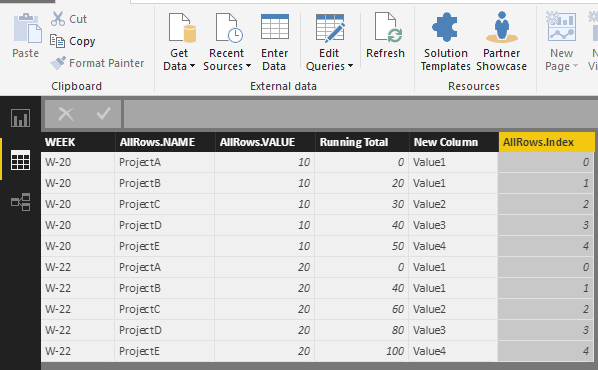
5.PNG


Then, use a Matrix visual to display data.

6.PNG

Best regards,
Yuliana Gu


Community Support Team _ Yuliana Gu
If this post helps, then please consider Accept it as the solution to help the other members find it more quickly.

View solution in original post

2 REPLIES 2
v-yulgu-msft
Microsoft Employee
Microsoft Employee

Hi @joc,


If you only need to calculate the sum of [Value1] and [Value2] in new table, you can refer to below formula to create a calculated table.

Test1_1 =
SUMMARIZE (
    Test1,
    Test1[WEEK],
    "Value1", CALCULATE (
        SUM ( Test1[VALUE] ),
        FILTER ( Test1, Test1[NAME] = "ProjectA" || Test1[NAME] = "ProjectB" )
    ),
    "Value2", CALCULATE (
        SUM ( Test1[VALUE] ),
        FILTER (
            Test1,
            Test1[NAME] = "ProjectA"
                || Test1[NAME] = "ProjectB"
                || Test1[NAME] = "ProjectC"
        )
    )
)

But, based on my assumption, you may want a running total like:

Value1=ProjectA+ProjectB

Value2=Value1+ProjectC

Value3=Value2+ProjectD

Value4=Value3+ProjectE


You may have many rows in source table, so, there should be many columns in new table, right?


If so, please refer to below steps.


First, you should add a nested index column using in Query Editor mode. For more description, please see: Nested Calculations In Power Query

let
    Source = Excel.Workbook(File.Contents("C:\Users\v-yulgu\Desktop\Sample Data.xlsx"), null, true),
    Test1_Sheet = Source{[Item="Test1",Kind="Sheet"]}[Data],
    #"Promoted Headers" = Table.PromoteHeaders(Test1_Sheet, [PromoteAllScalars=true]),
    #"Changed Type" = Table.TransformColumnTypes(#"Promoted Headers",{{"WEEK", type text}, {"NAME", type text}, {"VALUE", Int64.Type}}),
    #"Grouped Rows" = Table.Group(#"Changed Type", {"WEEK"}, {{"AllRows", each _, type table}}),
    NestedIndexFunction = (tabletorank as table) as table =>
     let
        AddIndex = Table.AddIndexColumn(tabletorank, "Index", 0, 1)
     in
      AddIndex,
   #"AddedRank" = Table.TransformColumns(#"Grouped Rows", {"AllRows", each NestedIndexFunction(_)}),
    #"Expanded AllRows" = Table.ExpandTableColumn(AddedRank, "AllRows", {"NAME", "VALUE", "Index"}, {"AllRows.NAME", "AllRows.VALUE", "AllRows.Index"})
in
    #"Expanded AllRows"

3.PNG

4.PNG


Save above changes. Return back to design mode, you should create two calculated columns as below:

Running Total =
IF (
    Test2[AllRows.Index] = 0,
    0,
    CALCULATE (
        SUM ( Test2[AllRows.VALUE] ),
        ALLEXCEPT ( Test2, Test2[WEEK] ),
        Test2[AllRows.Index] <= EARLIER ( Test2[AllRows.Index] )
    )
)

New Column =
IF ( Test2[AllRows.Index] = 0, "Value1", "Value" & Test2[AllRows.Index] )

5.PNG


Then, use a Matrix visual to display data.

6.PNG

Best regards,
Yuliana Gu


Community Support Team _ Yuliana Gu
If this post helps, then please consider Accept it as the solution to help the other members find it more quickly.
vanessafvg
Super User
Super User

@joc

you can either pivot in power query or do a summarize table

ie. 

newtable = summarize (week, "value 1", calculate(sum(value), name =in {"project a", "project b"}, "project c", calculate(sum( value), name = "project c")


etc you get the idea

please not this code has not been tested

also i am not sure you can reference a measure in the same summarized statement, so create a measure on the summarized table

value 1 + project c


If I took the time to answer your question and I came up with a solution, please mark my post as a solution and /or give kudos freely for the effort 🙂 Thank you!

Proud to be a Super User!


Helpful resources

Announcements
Power BI DataViz World Championships

Power BI Dataviz World Championships

The Power BI Data Visualization World Championships is back! Get ahead of the game and start preparing now!

December 2025 Power BI Update Carousel

Power BI Monthly Update - December 2025

Check out the December 2025 Power BI Holiday Recap!

FabCon Atlanta 2026 carousel

FabCon Atlanta 2026

Join us at FabCon Atlanta, March 16-20, for the ultimate Fabric, Power BI, AI and SQL community-led event. Save $200 with code FABCOMM.