cancel
Showing results for 
Search instead for 
Did you mean: 

The Power BI Data Visualization World Championships is back! Get ahead of the game and start preparing now! Learn more

Reply
Anonymous
Not applicable

Re: Sum of values based on distinct rows

Hi,


Good day!


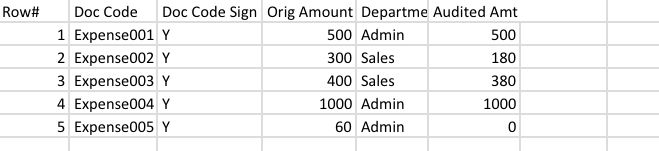
I would like to seek for your help on this. what function should I use for the table below. I cant explain it thru words but here's what I need to do for my report and the data table as basis:


Generated data table with 10 Rows

7E4D983E-8459-4465-B1B0-3308DD7B00FF.jpeg


Expected outcome:


10437601-AAAA-4B70-B0D6-B7486F2FB822.jpeg


i dont know if this gonna be possible in Power BI but I hope you'll help me on this.


PS: Disregard why the issue has been gone.


thanks and godbless

1 ACCEPTED SOLUTION
technolog
Super User
Super User

For this, you can use DAX to create a new table in Power BI.

First, you'll need to create a summarized table that groups by "Doc Code" and sums up the "Audited Amt" for each "Doc Code".

SummarizedTable =
SUMMARIZE(
YourTableName,
[Doc Code],
"Total Audited Amount", SUM(YourTableName[Audited Amt])
)
Next, you'll need to merge this summarized table with your original table to get the "Orig Amount" where "Doc Code Sign" is 'Y'.

MergedTable =
MERGE(
FILTER(YourTableName, YourTableName[Doc Code Sign] = "Y"),
SummarizedTable,
[Doc Code], [Doc Code],
"Merged"
)
Finally, you'll create a calculated column in this merged table to get the final audited amount for each "Doc Code". This will be the "Orig Amount" minus the "Total Audited Amount".

MergedTable[Final Audited Amount] = MergedTable[Orig Amount] - MergedTable[Total Audited Amount]
This will give you the desired table with the "Doc Code", "Doc Code Sign", "Orig Amount", "Departme", and the "Final Audited Amount".

View solution in original post

1 REPLY 1
technolog
Super User
Super User

For this, you can use DAX to create a new table in Power BI.

First, you'll need to create a summarized table that groups by "Doc Code" and sums up the "Audited Amt" for each "Doc Code".

SummarizedTable =
SUMMARIZE(
YourTableName,
[Doc Code],
"Total Audited Amount", SUM(YourTableName[Audited Amt])
)
Next, you'll need to merge this summarized table with your original table to get the "Orig Amount" where "Doc Code Sign" is 'Y'.

MergedTable =
MERGE(
FILTER(YourTableName, YourTableName[Doc Code Sign] = "Y"),
SummarizedTable,
[Doc Code], [Doc Code],
"Merged"
)
Finally, you'll create a calculated column in this merged table to get the final audited amount for each "Doc Code". This will be the "Orig Amount" minus the "Total Audited Amount".

MergedTable[Final Audited Amount] = MergedTable[Orig Amount] - MergedTable[Total Audited Amount]
This will give you the desired table with the "Doc Code", "Doc Code Sign", "Orig Amount", "Departme", and the "Final Audited Amount".
Helpful resources

Announcements
Power BI DataViz World Championships

Power BI Dataviz World Championships

The Power BI Data Visualization World Championships is back! Get ahead of the game and start preparing now!

December 2025 Power BI Update Carousel

Power BI Monthly Update - December 2025

Check out the December 2025 Power BI Holiday Recap!

FabCon Atlanta 2026 carousel

FabCon Atlanta 2026

Join us at FabCon Atlanta, March 16-20, for the ultimate Fabric, Power BI, AI and SQL community-led event. Save $200 with code FABCOMM.