Forum Discussion

Get data from web not showing table
Using the following URL:
https://beta.fec.gov/data/elections/president/2016/
There are two tables on this page, but neither shows as a data source (but Document does):

I confirmed in the HTML that they are in fact <table> elements.
There are some indications that the site may be using JavaScript to dynamicly create and load the tables, which would probably explain this behavior. Most likely, only the initial HTML response is parsed, but can we get confirmation of this? If so, that would be unfortunate (and not terribly useful) as more and more sites are architected this way.
Yeah it was the Edit button sorry, wrong translation from me.
It seems that you have to find your table into the html code.
The steps are saved on the right ribbon, if the navigation step don't increment when you navigate, you can add a random step after each click (rename columns for example). Then you can back to the previous step easily. Otherwise, you can reveal the formula bar and edit them.
6 Replies
 MihirSanghviRegular Visitor
https://beta.fec.gov/data/elections/president/2016/
From the above URL, I have copied contents of the first table (changed table display settings to 100 results per page and copied all rows including header).
Solution
paste it in Power BI (click on Home Menu -> Enter Data). After pasting it click on Load button. After Loading table, edit query and then add following R script (click on Transform Menu -> Run R Script).
# 'dataset' holds the input data for this script output <- dataset[1 : (nrow(dataset)/3),] j=1 for (i in seq (from=1, to= nrow(dataset), by=3)){ output$Candidate[j]<- as.character(dataset$Candidate[i]) output$Party[j]<- as.character(dataset$Party[i]) output$TotalReceipts[j]<- as.character(dataset$TotalReceipts[i]) output$TotalDisbursements[j]<- as.character(dataset$TotalDisbursements[i]) output$CashOnHand[j]<- as.character(dataset$Candidate[i+1]) j <- j+1 } output[output=="--"] <- "$0.00" funlproFrequent Visitor
Hello MihirSanghvi,
I tried to follow the same steps to scrape data from https://activecaptain.com/quickLists/marinaIndexUSState.php?st=WI&city=Algoma but it didn't work. would you please advise what the solution is?
Thank you
- ivicaSDFrequent Visitor
I have had the same problem, and I have found the solution:
https://datachant.com/2017/03/30/web-scraping-power-bi-excel-power-query/
 RémiResolver III
Hi,
Can you select your document, then do Modify on the bottom.
Once the editor resquest is loaded, do a left click on "Table" into the third column.
Does it work?
 joelcochranMicrosoft Employee
Do you mean the "Edit" button? (I only ask because I do not see a Modify option).
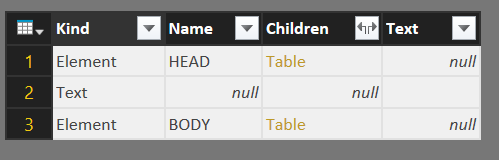
When I enter Edit mode, I see the following:
When I click on "Table", I get a little more:
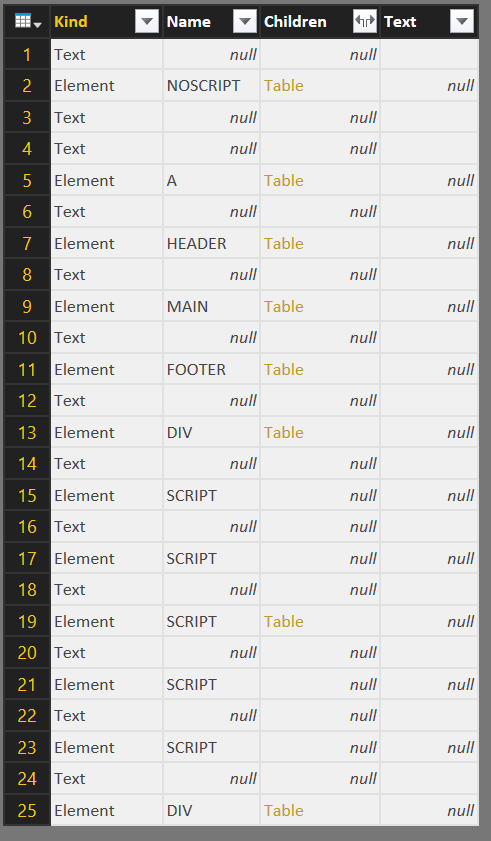
When I click on the "Table" link for the BODY, I get more of the same:
As you can see, there are more "Table" links, so I can keep going down this rabbit hole. I assume that I will eventually find my data, but it only works if I know the full HTML structure. The "Applied Steps" panel only lists "Source" and "Navigation" no matter how deep you click, and there is no back button, so if I choose the wrong link I basically have to start all over again.
Obviously, this effort is defeating the purpose of using the Web option. I eventually got to the data by highlighting the table in the web browser and pasting it into Excel, but I'd like to know for sure why this page isn't working as desired.
- RémiResolver III
Yeah it was the Edit button sorry, wrong translation from me.
It seems that you have to find your table into the html code.
The steps are saved on the right ribbon, if the navigation step don't increment when you navigate, you can add a random step after each click (rename columns for example). Then you can back to the previous step easily. Otherwise, you can reveal the formula bar and edit them.