Party with Power BI’s own Guy in a Cube
Power BI is turning 10! Tune in for a special live episode on July 24 with behind-the-scenes stories, product evolution highlights, and a sneak peek at what’s in store for the future.
Save the date- Power BI forums
- Get Help with Power BI
- Desktop
- Service
- Report Server
- Power Query
- Mobile Apps
- Developer
- DAX Commands and Tips
- Custom Visuals Development Discussion
- Health and Life Sciences
- Power BI Spanish forums
- Translated Spanish Desktop
- Training and Consulting
- Instructor Led Training
- Dashboard in a Day for Women, by Women
- Galleries
- Data Stories Gallery
- Themes Gallery
- Contests Gallery
- Quick Measures Gallery
- Notebook Gallery
- Translytical Task Flow Gallery
- TMDL Gallery
- R Script Showcase
- Webinars and Video Gallery
- Ideas
- Custom Visuals Ideas (read-only)
- Issues
- Issues
- Events
- Upcoming Events
Enhance your career with this limited time 50% discount on Fabric and Power BI exams. Ends August 31st. Request your voucher.
- Power BI forums
- Forums
- Get Help with Power BI
- Desktop
- Re: Remove duplicates without changing values in c...
- Subscribe to RSS Feed
- Mark Topic as New
- Mark Topic as Read
- Float this Topic for Current User
- Bookmark
- Subscribe
- Printer Friendly Page


- Mark as New
- Bookmark
- Subscribe
- Mute
- Subscribe to RSS Feed
- Permalink
- Report Inappropriate Content
Remove duplicates without changing values in calculated column
I have a bit of a tricky situation and I am not able to figure out how to solve it. So I have a huge data set (million rows) and many duplicate IDs. The duplicate IDs are within the table because it shows results over different years. Without the duplicates I should have around 100 000 rows. However, I've added some calculated columns to the table that sums values of an ID over all the years combined.
Is there a way to remove the duplicate IDs without changing the result of the calculated columns?
Solved! Go to Solution.
- Mark as New
- Bookmark
- Subscribe
- Mute
- Subscribe to RSS Feed
- Permalink
- Report Inappropriate Content
I managed to solve this by uploading again the same data set under a different name. I've removed the duplicates in the second data set and used FIRSTNONBLANK function to add the calculated Tot column of the first data set to the second data set. A bit of an unconventional approach I would say, but it does the trick!
This idea was inspired by @az38. Thank you!


- Mark as New
- Bookmark
- Subscribe
- Mute
- Subscribe to RSS Feed
- Permalink
- Report Inappropriate Content
- Mark as New
- Bookmark
- Subscribe
- Mute
- Subscribe to RSS Feed
- Permalink
- Report Inappropriate Content
I don't get your answer. Perhaps my problem was not very clear. Allow me to elaborate.
Consider the following example with just one ID:
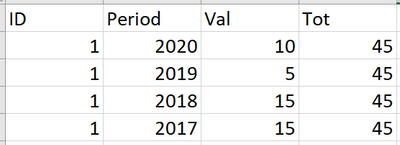
where Tot is calculated as follows: Tot = calculate(sum(val), allexcept(ID)).
I want to remove the duplicate IDs and just keep one ID without the Tot column to change. Now, if I remove the duplicate ID rows with edit query, I get that Tot=10, but I want the final result to look like this:

- Mark as New
- Bookmark
- Subscribe
- Mute
- Subscribe to RSS Feed
- Permalink
- Report Inappropriate Content
- Mark as New
- Bookmark
- Subscribe
- Mute
- Subscribe to RSS Feed
- Permalink
- Report Inappropriate Content
@az38 Because I want to keep the latest period an ID was active and after removing the duplicates I don't care much about the column containing Val.


- Mark as New
- Bookmark
- Subscribe
- Mute
- Subscribe to RSS Feed
- Permalink
- Report Inappropriate Content
Hi @bamba98 ,
In Power Query Editor, you remove the duplicate ID rows, so they are not existed. You cannot get the Tot=45, because the real data is gone.
You need to get the Tot in Power Query Editor, and you can refer the following steps.
1. Group by ID.

2. Add a custom column to get the max period.
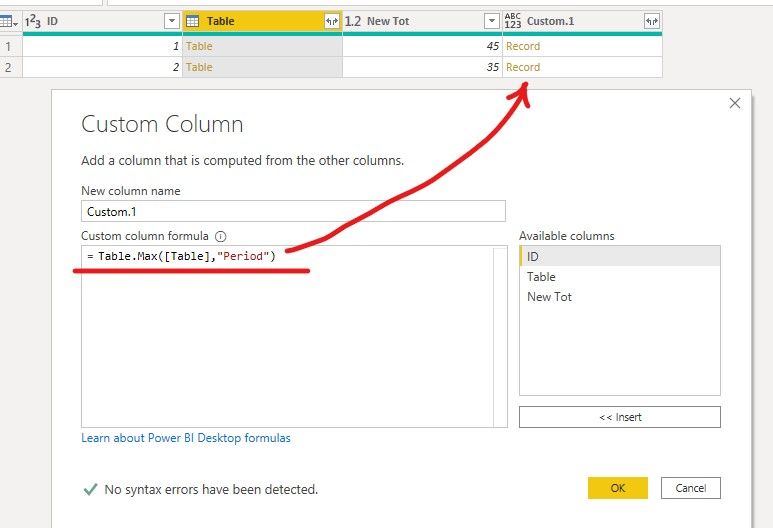
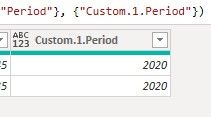
3. Expand the custom column.
4. At last delete the Table column.
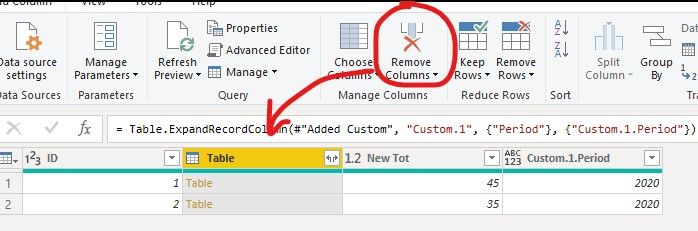
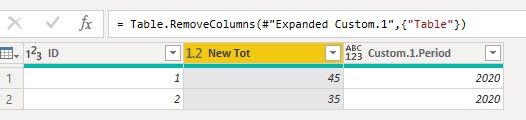
The complete M Query is as follows:
let
    Source = Table.FromRows(Json.Document(Binary.Decompress(Binary.FromText("i45WMlTSUTIyMDIAUoYGSrE6MBFDSyBliixgAVKCImKOEDFCGIMsgGSKEZIpBsgiMFNiAQ==", BinaryEncoding.Base64), Compression.Deflate)), let _t = ((type nullable text) meta [Serialized.Text = true]) in type table [ID = _t, Period = _t, Val = _t]),
    #"Changed Type" = Table.TransformColumnTypes(Source,{{"ID", Int64.Type}, {"Period", Int64.Type}, {"Val", Int64.Type}}),
    #"Grouped Rows" = Table.Group(#"Changed Type", {"ID"}, {{"Table", each _, type table [ID=nullable number, Period=nullable number, Val=nullable number]}, {"New Tot", each List.Sum([Val]), type nullable number}}),
    #"Added Custom" = Table.AddColumn(#"Grouped Rows", "Custom.1", each Table.Max([Table],"Period")),
    #"Expanded Custom.1" = Table.ExpandRecordColumn(#"Added Custom", "Custom.1", {"Period"}, {"Custom.1.Period"}),
    #"Removed Columns" = Table.RemoveColumns(#"Expanded Custom.1",{"Table"})
in
    #"Removed Columns"
BTW, pbix as attached.
Best regards,
Community Support Team _ zhenbw
If this post helps, then please consider Accept it as the solution to help the other members find it more quickly.
- Mark as New
- Bookmark
- Subscribe
- Mute
- Subscribe to RSS Feed
- Permalink
- Report Inappropriate Content
I managed to solve this by uploading again the same data set under a different name. I've removed the duplicates in the second data set and used FIRSTNONBLANK function to add the calculated Tot column of the first data set to the second data set. A bit of an unconventional approach I would say, but it does the trick!
This idea was inspired by @az38. Thank you!
- Mark as New
- Bookmark
- Subscribe
- Mute
- Subscribe to RSS Feed
- Permalink
- Report Inappropriate Content
try to create new calculated table like
Table 2 =
ADDCOLUMNS(
SUMMARIZE('Table', 'Table'[ID], "Period", MAX('Table'[Period])),
"Val", CALCULATE(SUM('Table'[Val]), FILTER('Table', 'Table'[ID] = EARLIER([ID]) && 'Table'[Period] = EARLIER([Period]))),
"Tot", CALCULATE(SUM('Table'[Tot]), FILTER('Table', 'Table'[ID] = EARLIER([ID]) && 'Table'[Period] = EARLIER([Period])))

)
Helpful resources

Fabric Community Update - July 2025
Find out what's new and trending in the Fabric community.

Power BI Monthly Update - July 2025
Check out the July 2025 Power BI update to learn about new features.

| User | Count |
|---|---|
| 77 | |
| 74 | |
| 42 | |
| 32 | |
| 28 |


| User | Count |
|---|---|
| 100 | |
| 93 | |
| 51 | |
| 50 | |
| 48 |


