FabCon is coming to Atlanta
Join us at FabCon Atlanta from March 16 - 20, 2026, for the ultimate Fabric, Power BI, AI and SQL community-led event. Save $200 with code FABCOMM.
Register now!- Power BI forums
- Get Help with Power BI
- Desktop
- Service
- Report Server
- Power Query
- Mobile Apps
- Developer
- DAX Commands and Tips
- Custom Visuals Development Discussion
- Health and Life Sciences
- Power BI Spanish forums
- Translated Spanish Desktop
- Training and Consulting
- Instructor Led Training
- Dashboard in a Day for Women, by Women
- Galleries
- Data Stories Gallery
- Themes Gallery
- Contests Gallery
- QuickViz Gallery
- Quick Measures Gallery
- Visual Calculations Gallery
- Notebook Gallery
- Translytical Task Flow Gallery
- TMDL Gallery
- R Script Showcase
- Webinars and Video Gallery
- Ideas
- Custom Visuals Ideas (read-only)
- Issues
- Issues
- Events
- Upcoming Events
Get Fabric Certified for FREE during Fabric Data Days. Don't miss your chance! Request now
- Power BI forums
- Forums
- Get Help with Power BI
- Desktop
- Re: How to split into rows by semicolons
- Subscribe to RSS Feed
- Mark Topic as New
- Mark Topic as Read
- Float this Topic for Current User
- Bookmark
- Subscribe
- Printer Friendly Page


- Mark as New
- Bookmark
- Subscribe
- Mute
- Subscribe to RSS Feed
- Permalink
- Report Inappropriate Content
How to split into rows by semicolons
Hi all
I have in cells values separated by semicolons ";"
How can I split the rows using Power Query when it detects semicolons in the cells?
In other words, go from
Country | Product | Plant | % Produced |
USA | 1 | Plant A;Plant B | 50%;50% |
USA | 2 | Plant B;Plant C | 70%;30% |
USA | 3 | Plant A;Plant B | 40%;60% |
To:
Country | Product | Plant | % Produced |
USA | 1 | Plant A | 50% |
USA | 1 | Plant B | 50% |
USA | 2 | Plant B | 70% |
USA | 2 | Plant C | 30% |
USA | 3 | Plant A | 40% |
USA | 3 | Plant B | 60% |
Solved! Go to Solution.


- Mark as New
- Bookmark
- Subscribe
- Mute
- Subscribe to RSS Feed
- Permalink
- Report Inappropriate Content
@o59393 here is another way to do this it is fully dynamic, unfortunately you cannot do this kind of transformation using UI.
let
    Source = Table.FromRows(Json.Document(Binary.Decompress(Binary.FromText("i45Wcs4vzSspqlTSUQooyk8pTS4BsXIS80C0qgJELDVFKVYnWik02BEoaAhToOBoDaGdgCKmBqrWQIykzgiuzgmqzhkoYg5UZ4yizhireSZAdWYgdbEA", BinaryEncoding.Base64), Compression.Deflate)), let _t = ((type nullable text) meta [Serialized.Text = true]) in type table [#"(blank)" = _t, #"(blank).1" = _t, #"(blank).2" = _t, #"(blank).3" = _t]),
    #"Changed Type" = Table.TransformColumnTypes(Source,{{"(blank)", type text}, {"(blank).1", type text}, {"(blank).2", type text}, {"(blank).3", type text}}),
    #"Promoted Headers" = Table.PromoteHeaders(#"Changed Type", [PromoteAllScalars=true]),
    #"Changed Type1" = Table.TransformColumnTypes(#"Promoted Headers",{{"Country", type text}, {"Product", Int64.Type}, {"Plant", type text}, {"% Produced", type text}}),
    #"Added Custom1" = Table.AddColumn(#"Changed Type1", "Custom", each List.Zip({

Text.SplitAny([Plant],";"), Text.SplitAny([#"% Produced"],";")})),
    #"Removed Columns" = Table.RemoveColumns(#"Added Custom1",{"Plant", "% Produced"}),
    #"Expanded Custom" = Table.ExpandListColumn(#"Removed Columns", "Custom"),
    #"Extracted Values" = Table.TransformColumns(#"Expanded Custom", {"Custom", each Text.Combine(List.Transform(_, Text.From), "="), type text}),
    #"Split Column by Delimiter2" = Table.SplitColumn(#"Extracted Values", "Custom", Splitter.SplitTextByDelimiter("=", QuoteStyle.Csv), {"Plant", "Produced"}),
    #"Changed Type2" = Table.TransformColumnTypes(#"Split Column by Delimiter2",{{"Plant", type text}, {"Produced", Percentage.Type}})
in
    #"Changed Type2"
I would ❤ Kudos if my solution helped. 👉 If you can spend time posting the question, you can also make efforts to give Kudos whoever helped to solve your problem. It is a token of appreciation!
⚡Visit us at https://perytus.com, your one-stop shop for Power BI related projects/training/consultancy.⚡
Subscribe to the @PowerBIHowTo YT channel for an upcoming video on List and Record functions in Power Query!!
Learn Power BI and Fabric - subscribe to our YT channel - Click here: @PowerBIHowTo
If my solution proved useful, I'd be delighted to receive Kudos. When you put effort into asking a question, it's equally thoughtful to acknowledge and give Kudos to the individual who helped you solve the problem. It's a small gesture that shows appreciation and encouragement! ❤
Did I answer your question? Mark my post as a solution. Proud to be a Super User! Appreciate your Kudos 🙂
Feel free to email me with any of your BI needs.


- Mark as New
- Bookmark
- Subscribe
- Mute
- Subscribe to RSS Feed
- Permalink
- Report Inappropriate Content
Hi, another way to do in M:
#"Added Custom" = Table.AddColumn(#"Changed Type", "CustomPlant", each Table.AddIndexColumn( Table.FromList( Text.Split([Plant],";")),"Index",0,1)),
#"Added Custom1" = Table.AddColumn(#"Added Custom", "Custom%", each Table.AddIndexColumn( Table.FromList( Text.Split([#" % Produced"],";")),"Index",0,1)),
#"Expanded CustomPlant" = Table.ExpandTableColumn(#"Added Custom1", "CustomPlant", {"Column1", "Index"}, {"CustomPlant.Column1", "CustomPlant.Index"}),
#"Expanded Custom%" = Table.ExpandTableColumn(#"Expanded CustomPlant", "Custom%", {"Column1", "Index"}, {"Custom%.Column1", "Custom%.Index"}),
#"Added Custom2" = Table.AddColumn(#"Expanded Custom%", "Custom", each [CustomPlant.Index]=[#"Custom%.Index"]),
#"Filtered Rows" = Table.SelectRows(#"Added Custom2", each ([Custom] = true)),
#"Removed Columns" = Table.RemoveColumns(#"Filtered Rows",{"CustomPlant.Index", "Custom%.Index", "Custom"})
in
#"Removed Columns"
- Mark as New
- Bookmark
- Subscribe
- Mute
- Subscribe to RSS Feed
- Permalink
- Report Inappropriate Content
Hi @Vera_33
This solution you provided is amazing too. It worked great for other project I am doing.
Thank you.
- Mark as New
- Bookmark
- Subscribe
- Mute
- Subscribe to RSS Feed
- Permalink
- Report Inappropriate Content
@o59393 here is another way to do this it is fully dynamic, unfortunately you cannot do this kind of transformation using UI.
let
    Source = Table.FromRows(Json.Document(Binary.Decompress(Binary.FromText("i45Wcs4vzSspqlTSUQooyk8pTS4BsXIS80C0qgJELDVFKVYnWik02BEoaAhToOBoDaGdgCKmBqrWQIykzgiuzgmqzhkoYg5UZ4yizhireSZAdWYgdbEA", BinaryEncoding.Base64), Compression.Deflate)), let _t = ((type nullable text) meta [Serialized.Text = true]) in type table [#"(blank)" = _t, #"(blank).1" = _t, #"(blank).2" = _t, #"(blank).3" = _t]),
    #"Changed Type" = Table.TransformColumnTypes(Source,{{"(blank)", type text}, {"(blank).1", type text}, {"(blank).2", type text}, {"(blank).3", type text}}),
    #"Promoted Headers" = Table.PromoteHeaders(#"Changed Type", [PromoteAllScalars=true]),
    #"Changed Type1" = Table.TransformColumnTypes(#"Promoted Headers",{{"Country", type text}, {"Product", Int64.Type}, {"Plant", type text}, {"% Produced", type text}}),
    #"Added Custom1" = Table.AddColumn(#"Changed Type1", "Custom", each List.Zip({

Text.SplitAny([Plant],";"), Text.SplitAny([#"% Produced"],";")})),
    #"Removed Columns" = Table.RemoveColumns(#"Added Custom1",{"Plant", "% Produced"}),
    #"Expanded Custom" = Table.ExpandListColumn(#"Removed Columns", "Custom"),
    #"Extracted Values" = Table.TransformColumns(#"Expanded Custom", {"Custom", each Text.Combine(List.Transform(_, Text.From), "="), type text}),
    #"Split Column by Delimiter2" = Table.SplitColumn(#"Extracted Values", "Custom", Splitter.SplitTextByDelimiter("=", QuoteStyle.Csv), {"Plant", "Produced"}),
    #"Changed Type2" = Table.TransformColumnTypes(#"Split Column by Delimiter2",{{"Plant", type text}, {"Produced", Percentage.Type}})
in
    #"Changed Type2"
I would ❤ Kudos if my solution helped. 👉 If you can spend time posting the question, you can also make efforts to give Kudos whoever helped to solve your problem. It is a token of appreciation!
⚡Visit us at https://perytus.com, your one-stop shop for Power BI related projects/training/consultancy.⚡
Subscribe to the @PowerBIHowTo YT channel for an upcoming video on List and Record functions in Power Query!!
Learn Power BI and Fabric - subscribe to our YT channel - Click here: @PowerBIHowTo
If my solution proved useful, I'd be delighted to receive Kudos. When you put effort into asking a question, it's equally thoughtful to acknowledge and give Kudos to the individual who helped you solve the problem. It's a small gesture that shows appreciation and encouragement! ❤
Did I answer your question? Mark my post as a solution. Proud to be a Super User! Appreciate your Kudos 🙂
Feel free to email me with any of your BI needs.
- Mark as New
- Bookmark
- Subscribe
- Mute
- Subscribe to RSS Feed
- Permalink
- Report Inappropriate Content
- Mark as New
- Bookmark
- Subscribe
- Mute
- Subscribe to RSS Feed
- Permalink
- Report Inappropriate Content
@o59393 start new blank query, click advanced editor, and copy this M code. In fact there are many ways to do but here is one way to do it
let
    Source = Table.FromRows(Json.Document(Binary.Decompress(Binary.FromText("i45Wcs4vzSspqlTSUQooyk8pTS4BsXIS80C0qgJELDVFKVYnWik02BEoaAhToOBoDaGdgCKmBqrWQIykzgiuzgmqzhkoYg5UZ4yizhireSZAdWYgdbEA", BinaryEncoding.Base64), Compression.Deflate)), let _t = ((type nullable text) meta [Serialized.Text = true]) in type table [#"(blank)" = _t, #"(blank).1" = _t, #"(blank).2" = _t, #"(blank).3" = _t]),
    #"Changed Type" = Table.TransformColumnTypes(Source,{{"(blank)", type text}, {"(blank).1", type text}, {"(blank).2", type text}, {"(blank).3", type text}}),
    #"Promoted Headers" = Table.PromoteHeaders(#"Changed Type", [PromoteAllScalars=true]),
    #"Changed Type1" = Table.TransformColumnTypes(#"Promoted Headers",{{"Country", type text}, {"Product", Int64.Type}, {"Plant", type text}, {"% Produced", type text}}),
    #"Split Column by Delimiter" = Table.SplitColumn(#"Changed Type1", "Plant", Splitter.SplitTextByDelimiter(";", QuoteStyle.Csv), {"Plant.1", "Plant.2"}),
    #"Changed Type2" = Table.TransformColumnTypes(#"Split Column by Delimiter",{{"Plant.1", type text}, {"Plant.2", type text}}),
    #"Split Column by Delimiter1" = Table.SplitColumn(#"Changed Type2", "% Produced", Splitter.SplitTextByDelimiter(";", QuoteStyle.Csv), {"% Produced.1", "% Produced.2"}),
    #"Removed Columns" = Table.RemoveColumns(#"Split Column by Delimiter1",{"Plant.2", "% Produced.2"}),
    #"Renamed Columns" = Table.RenameColumns(#"Removed Columns",{{"Plant.1", "Plant"}, {"% Produced.1", "Produced"}}),
    #"Removed Columns1" = Table.RemoveColumns(#"Split Column by Delimiter1",{"Plant.1", "% Produced.1"}),
    #"Renamed Columns1" = Table.RenameColumns(#"Removed Columns1",{{"Plant.2", "Plant"}, {"% Produced.2", "Produced"}}),
    #"Final Table" = Table.Combine({#"Renamed Columns", #"Renamed Columns1"}),
    #"Changed Type3" = Table.TransformColumnTypes(#"Final Table",{{"Produced", Percentage.Type}})
in
    #"Changed Type3"
I would ❤ Kudos if my solution helped. 👉 If you can spend time posting the question, you can also make efforts to give Kudos whoever helped to solve your problem. It is a token of appreciation!
⚡Visit us at https://perytus.com, your one-stop shop for Power BI related projects/training/consultancy.⚡
Subscribe to the @PowerBIHowTo YT channel for an upcoming video on List and Record functions in Power Query!!
Learn Power BI and Fabric - subscribe to our YT channel - Click here: @PowerBIHowTo
If my solution proved useful, I'd be delighted to receive Kudos. When you put effort into asking a question, it's equally thoughtful to acknowledge and give Kudos to the individual who helped you solve the problem. It's a small gesture that shows appreciation and encouragement! ❤
Did I answer your question? Mark my post as a solution. Proud to be a Super User! Appreciate your Kudos 🙂
Feel free to email me with any of your BI needs.
- Mark as New
- Bookmark
- Subscribe
- Mute
- Subscribe to RSS Feed
- Permalink
- Report Inappropriate Content
Hi @parry2k
Thanks a lot! Is there another way to do it rather than M code?
For example adding steps to the query?
Let me know if it's possible to have it without having to do so much code 🙂
Thanks!
- Mark as New
- Bookmark
- Subscribe
- Mute
- Subscribe to RSS Feed
- Permalink
- Report Inappropriate Content
@o59393 this is steps to the query, not sure if you mean something else? Did you try it?
I would ❤ Kudos if my solution helped. 👉 If you can spend time posting the question, you can also make efforts to give Kudos whoever helped to solve your problem. It is a token of appreciation!
⚡Visit us at https://perytus.com, your one-stop shop for Power BI related projects/training/consultancy.⚡
Subscribe to the @PowerBIHowTo YT channel for an upcoming video on List and Record functions in Power Query!!
Learn Power BI and Fabric - subscribe to our YT channel - Click here: @PowerBIHowTo
If my solution proved useful, I'd be delighted to receive Kudos. When you put effort into asking a question, it's equally thoughtful to acknowledge and give Kudos to the individual who helped you solve the problem. It's a small gesture that shows appreciation and encouragement! ❤
Did I answer your question? Mark my post as a solution. Proud to be a Super User! Appreciate your Kudos 🙂
Feel free to email me with any of your BI needs.
- Mark as New
- Bookmark
- Subscribe
- Mute
- Subscribe to RSS Feed
- Permalink
- Report Inappropriate Content
Yeah, looks good
Just that I dont understand some steps, so I have 2 questions:
First you removed the columns:
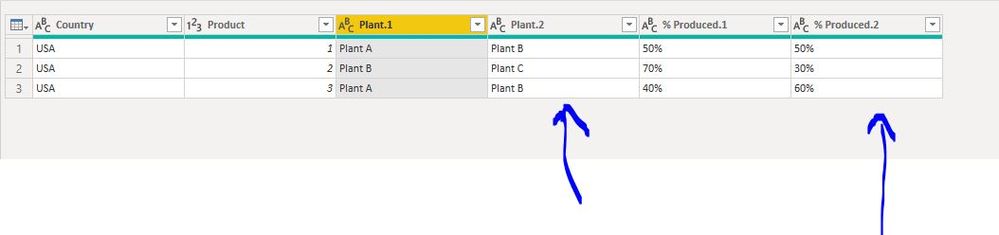
How the removed columns (from previous step) appeared again for the step "remove columns 1" and the other columns were removed (plant.1 and % produced.1) ?

The other questions is the final table step. Is it a button available from here?

I understand it merges all the values, but is it possible to click on any of the button above for me too see how it works?
Thanks!

- Mark as New
- Bookmark
- Subscribe
- Mute
- Subscribe to RSS Feed
- Permalink
- Report Inappropriate Content
@o59393 , Initial post was split column in rows, the last one you seem to have two columns. I am hopeful @parry2k solution has worked.
You can also refer : https://www.tutorialgateway.org/how-to-split-columns-in-power-bi/
- Mark as New
- Bookmark
- Subscribe
- Mute
- Subscribe to RSS Feed
- Permalink
- Report Inappropriate Content
@o59393 it is pretty straight forward, and I think you are already got the gist but here it is again and all this code was manually typed
- split column step #"Split Column by Delimiter1" is our table which we want to work on
- first, we removed produced 2% and Plant 2 %
- we left with produced 1% and plant 1% and then renamed to products and plant
- in removed step 1, we again referred back to split column step and this time we remove produced 1 and plant 1
- renamed it to plan and produced
- so we have two tables in rename steps
- and these were combined (appended ) in the final step
and that's it
I would ❤ Kudos if my solution helped. 👉 If you can spend time posting the question, you can also make efforts to give Kudos whoever helped to solve your problem. It is a token of appreciation!
⚡Visit us at https://perytus.com, your one-stop shop for Power BI related projects/training/consultancy.⚡
Subscribe to the @PowerBIHowTo YT channel for an upcoming video on List and Record functions in Power Query!!
Learn Power BI and Fabric - subscribe to our YT channel - Click here: @PowerBIHowTo
If my solution proved useful, I'd be delighted to receive Kudos. When you put effort into asking a question, it's equally thoughtful to acknowledge and give Kudos to the individual who helped you solve the problem. It's a small gesture that shows appreciation and encouragement! ❤
Did I answer your question? Mark my post as a solution. Proud to be a Super User! Appreciate your Kudos 🙂
Feel free to email me with any of your BI needs.
- Mark as New
- Bookmark
- Subscribe
- Mute
- Subscribe to RSS Feed
- Permalink
- Report Inappropriate Content
Thanks @parry2k
Looking at the code the "remove columns 1" has within parenthesis "split columns by delimter"
#"Removed Columns" = Table.RemoveColumns(#"Split Column by Delimiter1",{"Plant.2", "% Produced.2"}),
If I did a remove column step from the icon
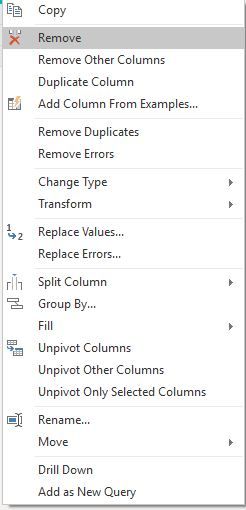
It would look like this the code:
#"Removed Columns" = Table.RemoveColumns(#"Renamed Columns",{"Plant.2", "% Produced.2"}),
How can I do the
#"Removed Columns" = Table.RemoveColumns(#"Split Column by Delimiter1",{"Plant.2", "% Produced.2"}),
Using the options in the home/transfrom/add panel?
Im still lost how you were able to refer back the deleted values/columns and have 2 tables. I only see one for the append step:
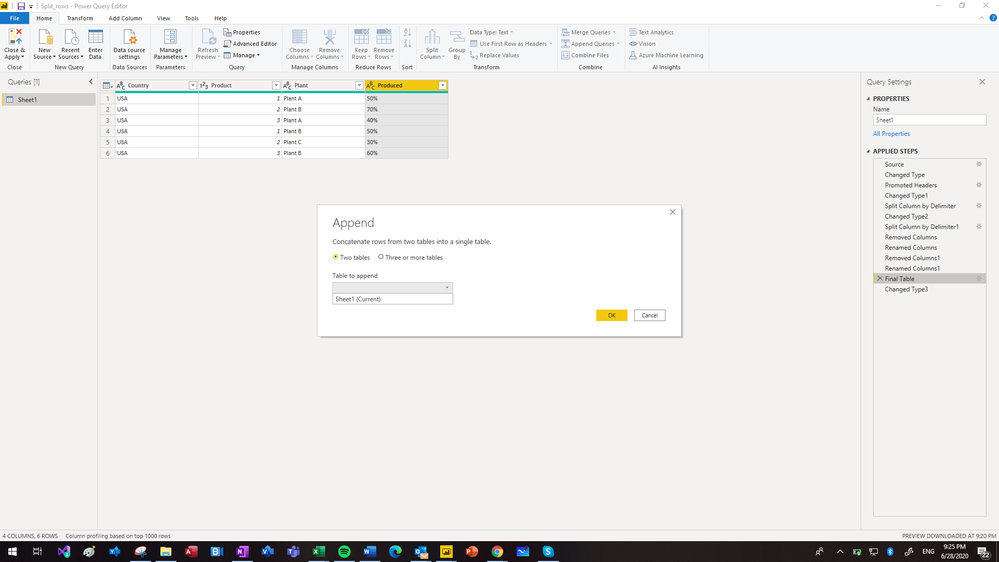
Thanks and apologyze for not getting it that quick.
- Mark as New
- Bookmark
- Subscribe
- Mute
- Subscribe to RSS Feed
- Permalink
- Report Inappropriate Content
@o59393 not sure what you are trying to do, but you will not see these options thru UI
Subscribe to the @PowerBIHowTo YT channel for an upcoming video on List and Record functions in Power Query!!
Learn Power BI and Fabric - subscribe to our YT channel - Click here: @PowerBIHowTo
If my solution proved useful, I'd be delighted to receive Kudos. When you put effort into asking a question, it's equally thoughtful to acknowledge and give Kudos to the individual who helped you solve the problem. It's a small gesture that shows appreciation and encouragement! ❤
Did I answer your question? Mark my post as a solution. Proud to be a Super User! Appreciate your Kudos 🙂
Feel free to email me with any of your BI needs.
- Mark as New
- Bookmark
- Subscribe
- Mute
- Subscribe to RSS Feed
- Permalink
- Report Inappropriate Content
I am trying to understand how to build the step by step in power query instead of writing the M code.
In other words is not possible to create the step using the menu bar of power query, only via code?
#"Removed Columns" = Table.RemoveColumns(#"Split Column by Delimiter1",{"Plant.2", "% Produced.2"}),
One problem I have is that if I add a 3rd value for the columns plant and % produced
| Country | Product | Plant | % Produced |
| USA | 1 | Plant A;Plant B:Plant F | 30%;30%;40% |
| USA | 2 | Plant B;Plant C | 70%;30% |
| USA | 3 | Plant A;Plant B | 40%;60% |
The m code wont work. I'd like to have it as flexible as possible, so if a user adds more than 2 or 3 plants the power query should be able to append all the values.
WIll it have to be a static value in the m code?
THanks @parry2k
- Mark as New
- Bookmark
- Subscribe
- Mute
- Subscribe to RSS Feed
- Permalink
- Report Inappropriate Content
@o59393 well original solution was based on two columns and you never mentioned that it can be more than two, it would be totally different solution to make it more dynamic. You should be more clear in your requirement/problem otherwise it just waste lot of everyone's time.
Subscribe to the @PowerBIHowTo YT channel for an upcoming video on List and Record functions in Power Query!!
Learn Power BI and Fabric - subscribe to our YT channel - Click here: @PowerBIHowTo
If my solution proved useful, I'd be delighted to receive Kudos. When you put effort into asking a question, it's equally thoughtful to acknowledge and give Kudos to the individual who helped you solve the problem. It's a small gesture that shows appreciation and encouragement! ❤
Did I answer your question? Mark my post as a solution. Proud to be a Super User! Appreciate your Kudos 🙂
Feel free to email me with any of your BI needs.
- Mark as New
- Bookmark
- Subscribe
- Mute
- Subscribe to RSS Feed
- Permalink
- Report Inappropriate Content
Hi @parry2k
Yes apologyze for not stating that from the beginning.
I thought it would have been possible to have it created with the step by step on power query and not with M code.
Thanks.

Helpful resources

Power BI Monthly Update - November 2025
Check out the November 2025 Power BI update to learn about new features.

Fabric Data Days
Advance your Data & AI career with 50 days of live learning, contests, hands-on challenges, study groups & certifications and more!

FabCon Atlanta 2026
Join us at FabCon Atlanta, March 16-20, for the ultimate Fabric, Power BI, AI and SQL community-led event. Save $200 with code FABCOMM.


