Forum Discussion

How do display duration properly?

First convert the data into seconds. Then divide the data by 86400 (60 min x 60 secs x 24 hours) to get output that can be converted to time. Then use below to get time equivalent
FORMAT([seconds]/86400,"Long Time"). This gives time equivalent with AM / PM at end. You can use Left to trim it.
Left(FORMAT([seconds]/86400,"Long Time"),7)
This solves the averaging problem and other time duration related problems.
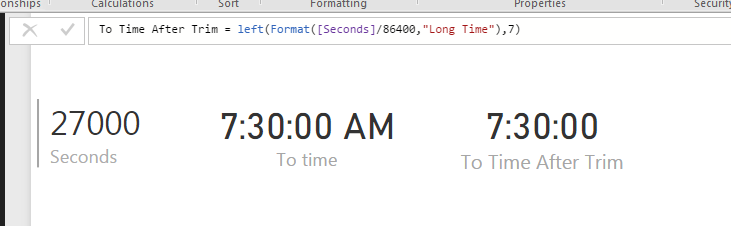
Additional Date/Time formats in DAX can be find below
https://technet.microsoft.com/en-us/library/ee634813(v=sql.105).aspx
Hope this helps.

This doesn't work for durations lower than 3600 seconds, however, as you end up with 12:mm:ss rather than 0:mm:ss
 luigidlt9 years agoRegular Visitor
Is there any way to make it work for durations lower than 3600. Otherwise I get 12hr in all durations.
Thanks
 thehy8 years agoNew Member
Hi,
There is a much easier way to do this without DAX or code; with the latest version of PowerBI Desktop at least.
1. Convert the column(s) to 'Duration'
2. This should give you the duration in the format dd.hh:mm:ss.ms
3. Use the edit query 'Extract' -> 'Between delimiters'
4. Enter '.' as the start delimiter and ':' as the end delimiter
5. For the start, scan 'From the end of the input' and skip 2 delimiters
6. For the end, scan 'From the start delimiter, toward the end of the input' and skip 1 delimiter
And that should do it. It works for less that 3600 secs as I have durations less than an hour and more than a day.
 Psimon6 years agoRegular Visitor
now the column is transformed as text and not as a value!?