FabCon is coming to Atlanta
Join us at FabCon Atlanta from March 16 - 20, 2026, for the ultimate Fabric, Power BI, AI and SQL community-led event. Save $200 with code FABCOMM.
Register now!- Power BI forums
- Get Help with Power BI
- Desktop
- Service
- Report Server
- Power Query
- Mobile Apps
- Developer
- DAX Commands and Tips
- Custom Visuals Development Discussion
- Health and Life Sciences
- Power BI Spanish forums
- Translated Spanish Desktop
- Training and Consulting
- Instructor Led Training
- Dashboard in a Day for Women, by Women
- Galleries
- Data Stories Gallery
- Themes Gallery
- Contests Gallery
- Quick Measures Gallery
- Notebook Gallery
- Translytical Task Flow Gallery
- TMDL Gallery
- R Script Showcase
- Webinars and Video Gallery
- Ideas
- Custom Visuals Ideas (read-only)
- Issues
- Issues
- Events
- Upcoming Events
Calling all Data Engineers! Fabric Data Engineer (Exam DP-700) live sessions are back! Starting October 16th. Sign up.
- Power BI forums
- Forums
- Get Help with Power BI
- Desktop
- Re: Formatting Data in Power Query Editor when it ...
- Subscribe to RSS Feed
- Mark Topic as New
- Mark Topic as Read
- Float this Topic for Current User
- Bookmark
- Subscribe
- Printer Friendly Page


- Mark as New
- Bookmark
- Subscribe
- Mute
- Subscribe to RSS Feed
- Permalink
- Report Inappropriate Content
Formatting Data in Power Query Editor when it is wrapped in formatting
I have an excel report that gets generated that has 4 departments that need to get combined and it wraps the data as well. How do I unwrap the data. Here is what I have and what I am looking for as an end result:
| 1/7/2023 | 1/8/2023 | 1/9/2023 | 1/10/2023 | 1/11/2023 | 1/12/2023 | 1/13/2023 | |||
| Unit 1 | Volume | 100 | 110 | 100 | 100 | 101 | 100 | 100 | |
| Hours | 10 | 11 | 10 | 9 | 10 | 10 | 10 | ||
| 1/7/2023 | 1/8/2023 | 1/9/2023 | 1/10/2023 | 1/11/2023 | 1/12/2023 | 1/13/2023 | |||
| Unit 2 | Volume | 75 | 75 | 75 | 76 | 76 | 76 | 76 | |
| Hours | 8 | 8 | 8 | 12 | 12 | 12 | 10 | ||
| 1/14/2023 | 1/15/2023 | 1/16/2023 | 1/17/2023 | 1/18/2023 | 1/19/2023 | 1/20/2023 | |||
| Unit 1 | Volume | 100 | 100 | 100 | 100 | 100 | 100 | 100 | |
| Hours | 10 | 10 | 10 | 10 | 10 | 10 | 10 | ||
| 1/14/2023 | 1/15/2023 | 1/16/2023 | 1/17/2023 | 1/18/2023 | 1/19/2023 | 1/20/2023 | |||
| Unit 2 | Volume | 75 | 75 | 75 | 76 | 76 | 76 | 76 | |
| Hours | 10 | 10 | 10 | 10 | 10 | 10 | 10 | ||
| 1/21/2023 | null | null | null | null | null | null | |||
| Unit 1 | Volume | 100 | null | null | null | null | null | null | |
| Hours | 10 | null | null | null | null | null | null | ||
| Unit 2 | Volume | 75 | null | null | null | null | null | null | |
| Hours | 10 | null | null | null | null | null | null | ||
End Result I would like Would Be:
| Date | Volume(Unit1 and Unit 2 added together) | Hours(Unit 1 and Unit 2 added together) |
| 1/7/2023 | 175 | 18 |
| 1/8/2023 | 185 | 19 |
| 1/9/2023 | 175 | 18 |
| 1/10/2023 | 176 | 21 |
| 1/11/2023 | 177 | 22 |
| 1/12/2023 | 176 | 22 |
| 1/13/2023 | 176 | 20 |
| 1/14/2023 | 175 | 20 |
| 1/15/2023 | 175 | 20 |
| 1/16/2023 | 175 | 20 |
| 1/17/2023 | 176 | 20 |
| 1/18/2023 | 176 | 20 |
| 1/19/2023 | 176 | 20 |
| 1/20/2023 | 176 | 20 |
| 1/21/2023 | 175 | 20 |
There is a few other columns in my data but I know how to handle those. My main issue is getting the data unwrapped from the columns so I can sort the data out into a usefull state. I will get a new one of these files everyday that would include the next day (so the 22nd in my example) and it would drop the first day(the 7th in my example). Basicly the report would be a rolling 30 days.
Any help on unwrapping this mess so it is usalbe would be awesome!
Thanks, Peter
Solved! Go to Solution.


- Mark as New
- Bookmark
- Subscribe
- Mute
- Subscribe to RSS Feed
- Permalink
- Report Inappropriate Content
Hi , @petermb72
According to your description, you want to use Power Query to format your data .
For your need , We need to make sure your file is in the same format every time. And the format like this in my understanding:
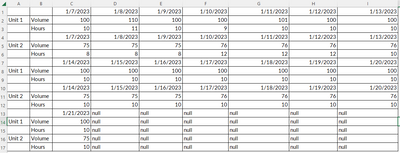
If this , we can connect the excel and we can create a blank query and put this M code in Power Query Editor:
let
    Source = Excel.Workbook(File.Contents("C:\Users\v-yueyzhang\Downloads\case\20230714.xlsx"), null, true),
    Tabelle1_Sheet = Source{[Item="Tabelle1",Kind="Sheet"]}[Data],
    #"Added Index" = Table.AddIndexColumn(Tabelle1_Sheet, "Index", 1, 1, Int64.Type),
    #"Added Custom" = Table.AddColumn(#"Added Index", "Custom", (x)=>if x[Column1]=null then try if Table.SelectRows(#"Added Index",(y)=> y[Index]=x[Index]-1 ){0}[Column1]=null then "Date" else Table.SelectRows(#"Added Index",(y)=> y[Index]=x[Index]-1 ){0}[Column1] otherwise "Date"  else x[Column1]            ),
    #"Reordered Columns" = Table.ReorderColumns(#"Added Custom",{"Custom", "Column1", "Column2", "Index", "Column3", "Column4", "Column5", "Column6", "Column7", "Column8", "Column9"}),
    #"Removed Columns" = Table.RemoveColumns(#"Reordered Columns",{"Column1"}),
    #"Added Conditional Column" = Table.AddColumn(#"Removed Columns", "Custom.1", each if [Index] >= 13 then 5 else if [Index] >= 10 then 4 else if [Index] >= 7 then 3 else if [Index] >= 4 then 2 else 1,  Int64.Type),
    #"Reordered Columns1" = Table.ReorderColumns(#"Added Conditional Column",{"Custom", "Column2", "Custom.1", "Index", "Column3", "Column4", "Column5", "Column6", "Column7", "Column8", "Column9"}),
    #"Changed Type" = Table.TransformColumnTypes(#"Reordered Columns1",{{"Column3", type text}, {"Column4", type text}, {"Column5", type text}, {"Column6", type text}, {"Column7", type text}, {"Column8", type text}, {"Column9", type text}}),
    Custom2 = Table.Group(#"Changed Type",{"Custom","Custom.1"},{"test",(x)=>Table.RemoveColumns(x,{ "Custom", "Custom.1", "Index"})}),
    #"Added Index1" = Table.AddIndexColumn(Custom2, "Index", 1, 1, Int64.Type),
    #"Added Custom1" = Table.AddColumn(#"Added Index1", "Custom.2", (x)=>
if x[Custom]="Date" then null else Table.PromoteHeaders(Table.Sort(Table.SelectRows(#"Added Index1",(y)=>y[Index]<x[Index] and y[Custom]="Date" ),{"Index",1}){0}[test], [PromoteAllScalars=true])
  ),
    #"Added Custom2" = Table.AddColumn(#"Added Custom1", "Custom.3", each List.Zip( { Table.ColumnNames([test]), Table.ColumnNames([Custom.2]) } )        ),
    #"Added Custom3" = Table.AddColumn(#"Added Custom2", "Custom.4", each
Table.SelectRows(Table.UnpivotOtherColumns(Table.RenameColumns([test],[Custom.3]), {"Column1"}, "Attribute", "Value")
, each ([Value] <> "null"))
),
    #"Removed Errors" = Table.RemoveRowsWithErrors(#"Added Custom3", {"Custom.4"}),
    #"Removed Columns1" = Table.RemoveColumns(#"Removed Errors",{"Custom.1", "test", "Index", "Custom.2", "Custom.3"}),
    #"Expanded Custom.4" = Table.ExpandTableColumn(#"Removed Columns1", "Custom.4", {"Column1", "Attribute", "Value"}, {"Column1", "Attribute", "Value"}),
    #"Changed Type1" = Table.TransformColumnTypes(#"Expanded Custom.4",{{"Attribute", type date}}),
    #"Renamed Columns" = Table.RenameColumns(#"Changed Type1",{{"Attribute", "Date"}, {"Custom", "Unit"}, {"Column1", "Type"}}),
    #"Changed Type2" = Table.TransformColumnTypes(#"Renamed Columns",{{"Value", Int64.Type}})
in
    #"Changed Type2"
You can update the file location in your side .
Then we can get this table:
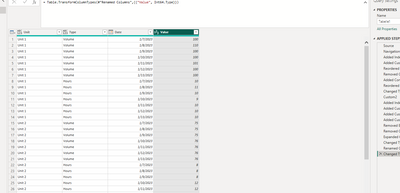
And we can put the fields on the visual and we can get this:
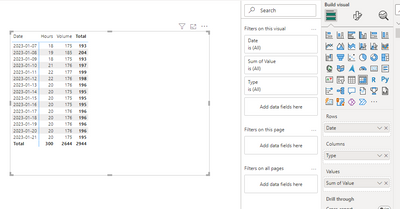
Thank you for your time and sharing, and thank you for your support and understanding of PowerBI!
Best Regards,
Aniya Zhang
If this post helps, then please consider Accept it as the solution to help the other members find it more quickly
- Mark as New
- Bookmark
- Subscribe
- Mute
- Subscribe to RSS Feed
- Permalink
- Report Inappropriate Content
- Mark as New
- Bookmark
- Subscribe
- Mute
- Subscribe to RSS Feed
- Permalink
- Report Inappropriate Content
Hi , @petermb72
According to your description, you want to use Power Query to format your data .
For your need , We need to make sure your file is in the same format every time. And the format like this in my understanding:
If this , we can connect the excel and we can create a blank query and put this M code in Power Query Editor:
let
    Source = Excel.Workbook(File.Contents("C:\Users\v-yueyzhang\Downloads\case\20230714.xlsx"), null, true),
    Tabelle1_Sheet = Source{[Item="Tabelle1",Kind="Sheet"]}[Data],
    #"Added Index" = Table.AddIndexColumn(Tabelle1_Sheet, "Index", 1, 1, Int64.Type),
    #"Added Custom" = Table.AddColumn(#"Added Index", "Custom", (x)=>if x[Column1]=null then try if Table.SelectRows(#"Added Index",(y)=> y[Index]=x[Index]-1 ){0}[Column1]=null then "Date" else Table.SelectRows(#"Added Index",(y)=> y[Index]=x[Index]-1 ){0}[Column1] otherwise "Date"  else x[Column1]            ),
    #"Reordered Columns" = Table.ReorderColumns(#"Added Custom",{"Custom", "Column1", "Column2", "Index", "Column3", "Column4", "Column5", "Column6", "Column7", "Column8", "Column9"}),
    #"Removed Columns" = Table.RemoveColumns(#"Reordered Columns",{"Column1"}),
    #"Added Conditional Column" = Table.AddColumn(#"Removed Columns", "Custom.1", each if [Index] >= 13 then 5 else if [Index] >= 10 then 4 else if [Index] >= 7 then 3 else if [Index] >= 4 then 2 else 1,  Int64.Type),
    #"Reordered Columns1" = Table.ReorderColumns(#"Added Conditional Column",{"Custom", "Column2", "Custom.1", "Index", "Column3", "Column4", "Column5", "Column6", "Column7", "Column8", "Column9"}),
    #"Changed Type" = Table.TransformColumnTypes(#"Reordered Columns1",{{"Column3", type text}, {"Column4", type text}, {"Column5", type text}, {"Column6", type text}, {"Column7", type text}, {"Column8", type text}, {"Column9", type text}}),
    Custom2 = Table.Group(#"Changed Type",{"Custom","Custom.1"},{"test",(x)=>Table.RemoveColumns(x,{ "Custom", "Custom.1", "Index"})}),
    #"Added Index1" = Table.AddIndexColumn(Custom2, "Index", 1, 1, Int64.Type),
    #"Added Custom1" = Table.AddColumn(#"Added Index1", "Custom.2", (x)=>
if x[Custom]="Date" then null else Table.PromoteHeaders(Table.Sort(Table.SelectRows(#"Added Index1",(y)=>y[Index]<x[Index] and y[Custom]="Date" ),{"Index",1}){0}[test], [PromoteAllScalars=true])
  ),
    #"Added Custom2" = Table.AddColumn(#"Added Custom1", "Custom.3", each List.Zip( { Table.ColumnNames([test]), Table.ColumnNames([Custom.2]) } )        ),
    #"Added Custom3" = Table.AddColumn(#"Added Custom2", "Custom.4", each
Table.SelectRows(Table.UnpivotOtherColumns(Table.RenameColumns([test],[Custom.3]), {"Column1"}, "Attribute", "Value")
, each ([Value] <> "null"))
),
    #"Removed Errors" = Table.RemoveRowsWithErrors(#"Added Custom3", {"Custom.4"}),
    #"Removed Columns1" = Table.RemoveColumns(#"Removed Errors",{"Custom.1", "test", "Index", "Custom.2", "Custom.3"}),
    #"Expanded Custom.4" = Table.ExpandTableColumn(#"Removed Columns1", "Custom.4", {"Column1", "Attribute", "Value"}, {"Column1", "Attribute", "Value"}),
    #"Changed Type1" = Table.TransformColumnTypes(#"Expanded Custom.4",{{"Attribute", type date}}),
    #"Renamed Columns" = Table.RenameColumns(#"Changed Type1",{{"Attribute", "Date"}, {"Custom", "Unit"}, {"Column1", "Type"}}),
    #"Changed Type2" = Table.TransformColumnTypes(#"Renamed Columns",{{"Value", Int64.Type}})
in
    #"Changed Type2"
You can update the file location in your side .
Then we can get this table:
And we can put the fields on the visual and we can get this:
Thank you for your time and sharing, and thank you for your support and understanding of PowerBI!
Best Regards,
Aniya Zhang
If this post helps, then please consider Accept it as the solution to help the other members find it more quickly
- Mark as New
- Bookmark
- Subscribe
- Mute
- Subscribe to RSS Feed
- Permalink
- Report Inappropriate Content
Thank You so much for your help!
- Mark as New
- Bookmark
- Subscribe
- Mute
- Subscribe to RSS Feed
- Permalink
- Report Inappropriate Content
Thank you so much!

Helpful resources

FabCon Global Hackathon
Join the Fabric FabCon Global Hackathon—running virtually through Nov 3. Open to all skill levels. $10,000 in prizes!

FabCon Atlanta 2026
Join us at FabCon Atlanta, March 16-20, for the ultimate Fabric, Power BI, AI and SQL community-led event. Save $200 with code FABCOMM.


