FabCon is coming to Atlanta
Join us at FabCon Atlanta from March 16 - 20, 2026, for the ultimate Fabric, Power BI, AI and SQL community-led event. Save $200 with code FABCOMM.
Register now!- Power BI forums
- Get Help with Power BI
- Desktop
- Service
- Report Server
- Power Query
- Mobile Apps
- Developer
- DAX Commands and Tips
- Custom Visuals Development Discussion
- Health and Life Sciences
- Power BI Spanish forums
- Translated Spanish Desktop
- Training and Consulting
- Instructor Led Training
- Dashboard in a Day for Women, by Women
- Galleries
- Data Stories Gallery
- Themes Gallery
- Contests Gallery
- QuickViz Gallery
- Quick Measures Gallery
- Visual Calculations Gallery
- Notebook Gallery
- Translytical Task Flow Gallery
- TMDL Gallery
- R Script Showcase
- Webinars and Video Gallery
- Ideas
- Custom Visuals Ideas (read-only)
- Issues
- Issues
- Events
- Upcoming Events
Get Fabric Certified for FREE during Fabric Data Days. Don't miss your chance! Request now
- Power BI forums
- Forums
- Get Help with Power BI
- Desktop
- Average response time and callout duration
- Subscribe to RSS Feed
- Mark Topic as New
- Mark Topic as Read
- Float this Topic for Current User
- Bookmark
- Subscribe
- Printer Friendly Page

- Mark as New
- Bookmark
- Subscribe
- Mute
- Subscribe to RSS Feed
- Permalink
- Report Inappropriate Content
Average response time and callout duration
Hi,
I am new to Power BI and currently working on my 1st project. I have got stuck on the last hurdle and can't seem to figure out how to resolve my issue. I have imported a single excel spreadsheet into Power BI and want to make a simple table that takes data from 3 columns (response type has 3 options PRE, No Gas, Meter Fault) and give me the average reponse time and callout duration for each of the 3 response types - PRE, No gas and meter fault jobs.

As you can see it is listing every time per row rather than give me an average for each response type. I tried AVERAGEX but it would only give me the option of a count total.
I would be really grateful if someone could point me in the right direction with this.
Thanks,
David


- Mark as New
- Bookmark
- Subscribe
- Mute
- Subscribe to RSS Feed
- Permalink
- Report Inappropriate Content
Hi @Anonymous ,
Sorry, Power BI does support duration formats now.
Create your measure like so:
Response Time in Second Measure 2 =
VAR Hours =
    TRUNC ( [DateDiffSeconds Measure]/3600 )
VAR Minutes =
    TRUNC ( ( [DateDiffSeconds Measure] - Hours * 3600 ) / 60 )
VAR Seconds = [DateDiffSeconds Measure]- Minutes * 60 - Hours * 3600
RETURN
Hours * 10000 + Minutes * 100 + Seconds
And then change the data format manually.

And then create visuals:
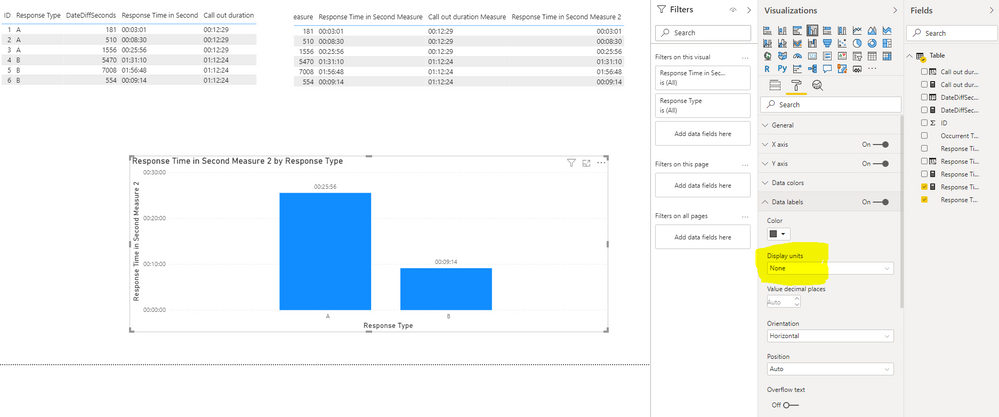
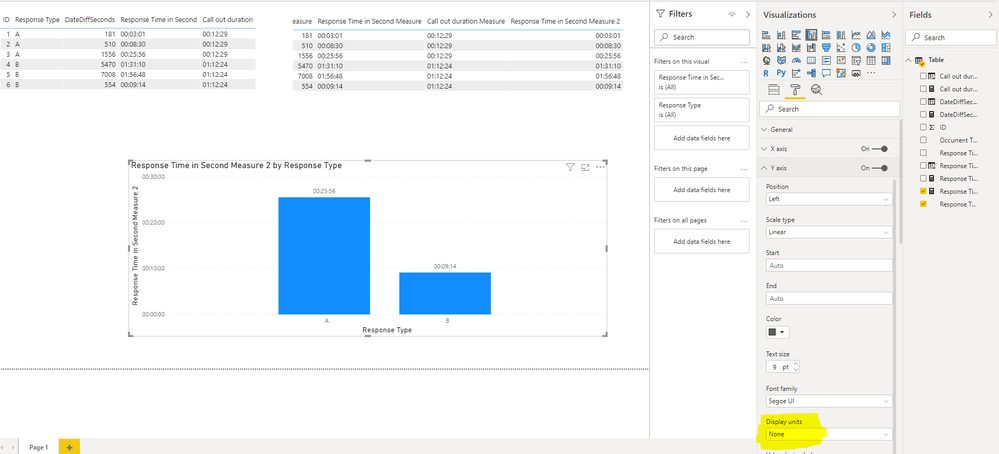
BTW, .pbix file attached.
Best Regards,
Icey
If this post helps, then please consider Accept it as the solution to help the other members find it more quickly.
- Mark as New
- Bookmark
- Subscribe
- Mute
- Subscribe to RSS Feed
- Permalink
- Report Inappropriate Content
Hi @Anonymous ,
How about this?
If you want to create columns, try this:
DateDiffSeconds = DATEDIFF ( [Occurrent Time], [Response Time], SECOND )Response Time in Second =
VAR Hours =
TRUNC ( [DateDiffSeconds] / 3600 )
VAR Minutes =
TRUNC ( ( [DateDiffSeconds] - Hours * 3600 ) / 60 )
VAR Seconds = [DateDiffSeconds] - Minutes * 60 - Hours * 3600
VAR Result =
Hours & ":"
& FORMAT ( Minutes, "00" ) & ":"
& FORMAT ( Seconds, "00" )
RETURN
CONVERT ( Result, DATETIME )
Call out duration =
VAR Avg_Seconds =
    CALCULATE (
        AVERAGEX ( 'Table', [DateDiffSeconds] ),
        ALLEXCEPT ( 'Table', 'Table'[Response Type] )
    )
VAR Hours =
    TRUNC ( Avg_Seconds / 3600 )
VAR Minutes =
    TRUNC ( ( Avg_Seconds - Hours * 3600 ) / 60 )
VAR Seconds = Avg_Seconds - Minutes * 60 - Hours * 3600
VAR Result =
    Hours & ":"
        & FORMAT ( Minutes, "00" ) & ":"
        & FORMAT ( Seconds, "00" )
RETURN
    CONVERT ( Result, DATETIME )
If you want to create measures, try this:
DateDiffSeconds Measure = DATEDIFF(MAX('Table'[Occurrent Time]),MAX('Table'[Response Time]),SECOND)Response Time in Second Measure =
VAR Hours =
TRUNC ( [DateDiffSeconds Measure]/3600 )
VAR Minutes =
TRUNC ( ( [DateDiffSeconds Measure] - Hours * 3600 ) / 60 )
VAR Seconds = [DateDiffSeconds Measure]- Minutes * 60 - Hours * 3600
VAR Result =
Hours & ":"
& FORMAT ( Minutes, "00" ) & ":"
& FORMAT ( Seconds, "00" )
RETURN
CONVERT ( Result, DATETIME )Call out duration Measure =
VAR Avg_Seconds =
CALCULATE (
AVERAGEX ( 'Table', [DateDiffSeconds Measure] ),
ALLEXCEPT ( 'Table', 'Table'[Response Type] )
)
VAR Hours =
TRUNC ( Avg_Seconds / 3600 )
VAR Minutes =
TRUNC ( ( Avg_Seconds - Hours * 3600 ) / 60 )
VAR Seconds = Avg_Seconds - Minutes * 60 - Hours * 3600
VAR Result =
Hours & ":"
& FORMAT ( Minutes, "00" ) & ":"
& FORMAT ( Seconds, "00" )
RETURN
CONVERT ( Result, DATETIME )
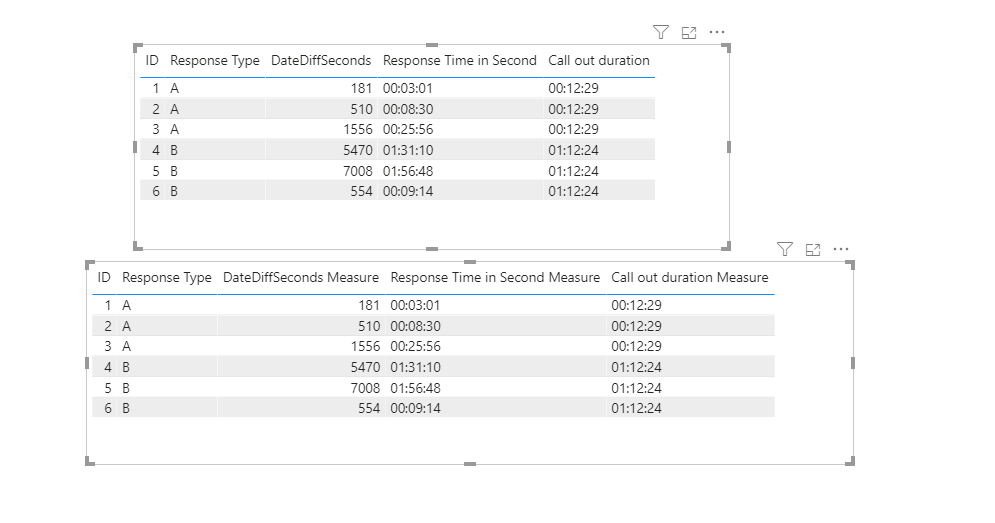
BTW, .pbix file attached.
Best Regards,
Icey
If this post helps, then please consider Accept it as the solution to help the other members find it more quickly.
- Mark as New
- Bookmark
- Subscribe
- Mute
- Subscribe to RSS Feed
- Permalink
- Report Inappropriate Content
Hi,
My end result would probably look something like this which I can then make some charts with the data.

Thanks,
David
- Mark as New
- Bookmark
- Subscribe
- Mute
- Subscribe to RSS Feed
- Permalink
- Report Inappropriate Content
Hi @Anonymous ,
Although the type of the measure is "DateTime", you could choose the display format as "Time". This has no effect on the results.
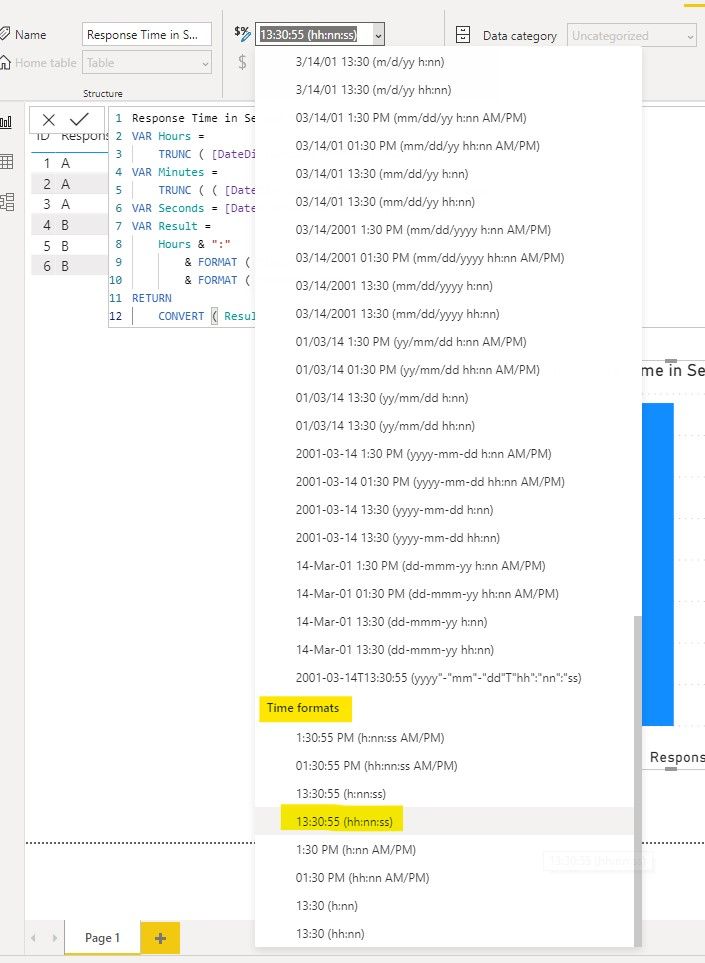
And for "make some charts with the data", data of "Time" type can't work the same as decimal number in a chart. For example, in a bar chart:
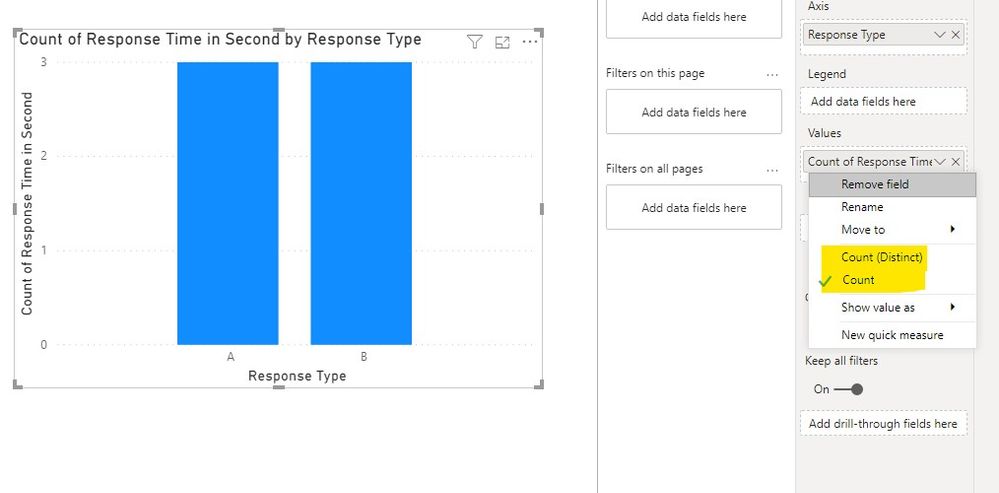
You could choose to put [DateDiffSeconds Measure] in Values field and [Response Time in Seconds Measure] in Tooltips field.

Best Regards,
Icey
If this post helps, then please consider Accept it as the solution to help the other members find it more quickly.
- Mark as New
- Bookmark
- Subscribe
- Mute
- Subscribe to RSS Feed
- Permalink
- Report Inappropriate Content
Hi,
Thanks very much for getting back to me. Sorry about my late reply, I am only getting back to this now. This is looking great although the reponse times and durations are showing as a date in the report rather than the times. Thoughts?
Many Thanks,
David


- Mark as New
- Bookmark
- Subscribe
- Mute
- Subscribe to RSS Feed
- Permalink
- Report Inappropriate Content
Hi @Anonymous ,
take a look at this blog article:
http://community.powerbi.com/t5/Community-Blog/Aggregating-Duration-Time/ba-p/22486
Please mark my post as solution, this will also help others.
Please give Kudos for support.
Marcus Wegener works as Full Stack Power BI Engineer at BI or DIE.
His mission is clear: "Get the most out of data, with Power BI."
twitter - LinkedIn - YouTube - website - podcast - Power BI Tutorials
Helpful resources

Power BI Monthly Update - November 2025
Check out the November 2025 Power BI update to learn about new features.

Fabric Data Days
Advance your Data & AI career with 50 days of live learning, contests, hands-on challenges, study groups & certifications and more!

FabCon Atlanta 2026
Join us at FabCon Atlanta, March 16-20, for the ultimate Fabric, Power BI, AI and SQL community-led event. Save $200 with code FABCOMM.


