Join us at FabCon Atlanta from March 16 - 20, 2026, for the ultimate Fabric, Power BI, AI and SQL community-led event. Save $200 with code FABCOMM.
Register now!Get Fabric Certified for FREE during Fabric Data Days. Don't miss your chance! Request now
Hello,
Table = Resume
| Label | Value | Color | PlayerID |
| Stress | 5 | Yellow | 1 |
| Emotion | 4 | Yellow | 1 |
| TOPS | 10 | Green | 1 |
| Stress | 4 | Yellow | 2 |
| Emotion | 8 | Green | 2 |
| TOPS | 2 | Yellow | 2 |
| Stress | 3 | Red | 3 |
| Emotion | 6 | Yellow | 3 |
| TOPS | 1 | Red | 3 |
I want to display label(s) that has the max Yellow by concatening them
| Label | Color | CountColor |
| Stress | Yellow | 2 |
| Emotion | Yellow | 2 |
| Emotion | Green | 1 |
| TOPS | Yellow | 1 |
| TOPS | Red | 1 |
| TOPS | Green | 1 |
Stress, Emotion
YellowLabel =
VAR YellowLabels =
FILTER(
Resume,
Resume[Color] = "Yellow"
)
VAR MaxYellowCount =
CALCULATE (MAXX (
SUMMARIZE (
Resume,
Resume[label],
"Count", CALCULATE(COUNTROWS (Resume))
),
[Count]
)
,ALLEXCEPT(Resume, Resume[Color]))
VAR MaxYellowLabels =
CONCATENATEX(
FILTER(
SUMMARIZE(
YellowLabels,
Resume[Label],
"YellowCount", CALCULATE(COUNTROWS(YellowLabels))
),
[YellowCount] = MaxYellowCount
),
Resume[Label],
", "
)
RETURN
MaxYellowLabels
it shows blank when I use a card visualization.
maybe there is a simpler way to do it.
thank you for your help
Solved! Go to Solution.
Hi @LizK75 ,
Using variables to store is not convenient for observation.
To achieve your needs, my approach is:
First, create a Table using New Table:
Yellowtable = FILTER('Resume','Resume'[Color] = "Yellow")
Create a calculated column to calculate the number of each Label. It is not convenient to use measure for row-by-row comparison.
Label Count = CALCULATE(COUNTROWS('Yellowtable'), ALLEXCEPT('Yellowtable', 'Yellowtable'[Label]))
Finally, create a measure to display the Label name with the largest number of Labels when Color = Yellow.
MaxLabelDisplay =
VAR MaxCount = CALCULATE(MAX('Yellowtable'[Label Count]), ALLEXCEPT('Yellowtable', 'Yellowtable'[Label]))
RETURN
CALCULATE(
CONCATENATEX(
VALUES('Yellowtable'[Label]),
'Yellowtable'[Label],
", "
),
'Yellowtable'[Label Count] = MaxCount,
REMOVEFILTERS('Yellowtable')
)
In this case, when Color = Yellow, the maximum number of Labels is 2, and the Label name is "Emotion, Stress".
The final page effect is as follows:
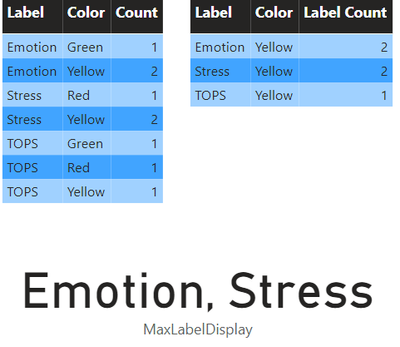
pbix file is attached.
If you have any further questions please feel free to contact me.
Best Regards,
Yang
Community Support Team
If there is any post helps, then please consider Accept it as the solution to help the other members find it more quickly.
If I misunderstand your needs or you still have problems on it, please feel free to let us know. Thanks a lot!
Hi @LizK75 ,
Using variables to store is not convenient for observation.
To achieve your needs, my approach is:
First, create a Table using New Table:
Yellowtable = FILTER('Resume','Resume'[Color] = "Yellow")
Create a calculated column to calculate the number of each Label. It is not convenient to use measure for row-by-row comparison.
Label Count = CALCULATE(COUNTROWS('Yellowtable'), ALLEXCEPT('Yellowtable', 'Yellowtable'[Label]))
Finally, create a measure to display the Label name with the largest number of Labels when Color = Yellow.
MaxLabelDisplay =
VAR MaxCount = CALCULATE(MAX('Yellowtable'[Label Count]), ALLEXCEPT('Yellowtable', 'Yellowtable'[Label]))
RETURN
CALCULATE(
CONCATENATEX(
VALUES('Yellowtable'[Label]),
'Yellowtable'[Label],
", "
),
'Yellowtable'[Label Count] = MaxCount,
REMOVEFILTERS('Yellowtable')
)
In this case, when Color = Yellow, the maximum number of Labels is 2, and the Label name is "Emotion, Stress".
The final page effect is as follows:
pbix file is attached.
If you have any further questions please feel free to contact me.
Best Regards,
Yang
Community Support Team
If there is any post helps, then please consider Accept it as the solution to help the other members find it more quickly.
If I misunderstand your needs or you still have problems on it, please feel free to let us know. Thanks a lot!
Check out the November 2025 Power BI update to learn about new features.
Advance your Data & AI career with 50 days of live learning, contests, hands-on challenges, study groups & certifications and more!
| User | Count |
|---|---|
| 10 | |
| 10 | |
| 8 | |
| 6 | |
| 6 |
| User | Count |
|---|---|
| 24 | |
| 19 | |
| 19 | |
| 15 | |
| 9 |